I want to backup Pleasanter's DB data regularly (SQL Server)
Answer
Set up regular "Backup" in SQL Server Integration Service Manager (SSIS).
If you are using SQL Server Express, please refer to Back Up The Database (SQL Server) in Pleasanter.
Overview
If you are using SQL Server for the database, you can set up regular backups of the database in SQL Server Integration Service Manager (SSIS).
If you are using SQL Server Express, you cannot use SSIS, so please refer to Back Up The Database (SQL Server) in Pleasanter.
Operation Procedure
1. Install SQL Server Integration Service Manager (SSIS)
*If it is already installed, skip this step.
- Start the installer from the SQL Server 2017 media and select "Install" - "Perform a new standalone installation of SQL Server or add features to an existing installation".
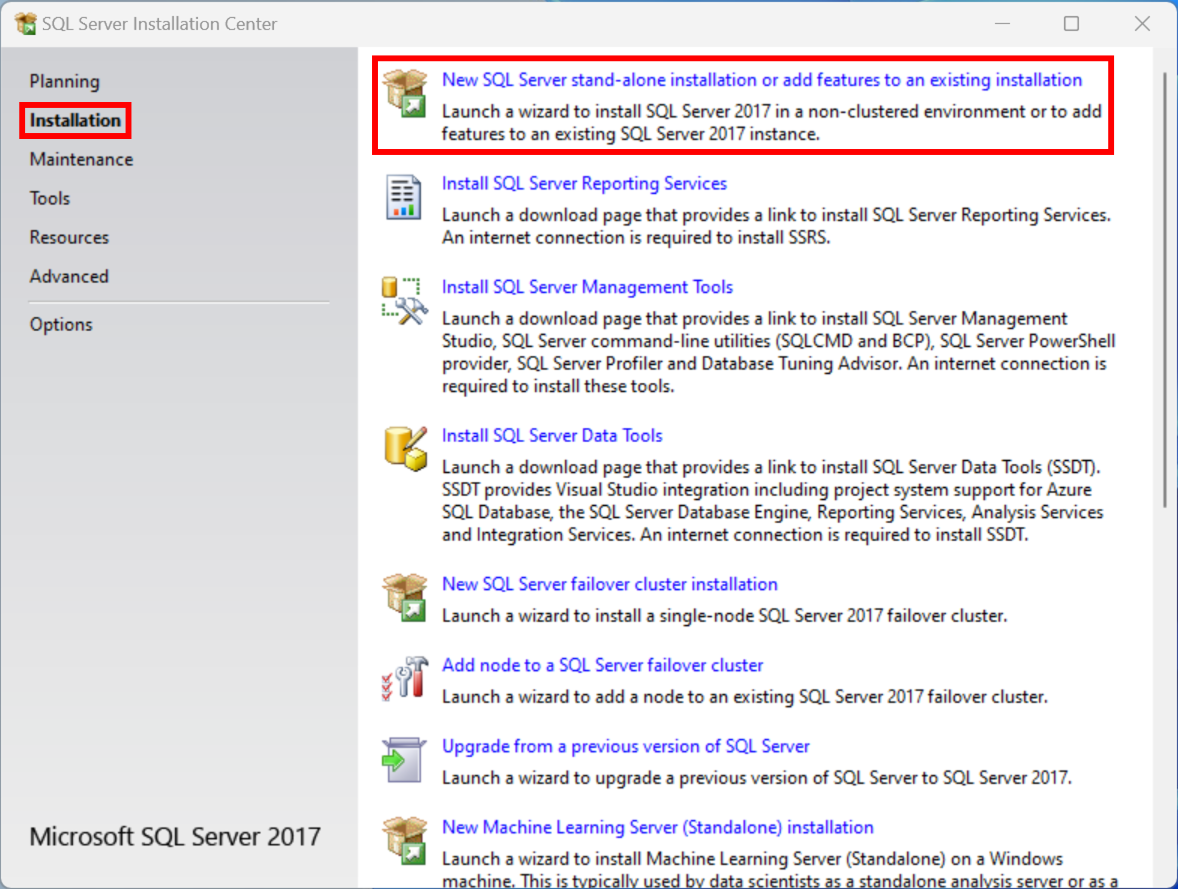
- Follow the SQL Server setup wizard to proceed with the installation.
- In [Installation type], select "Add features to an existing SQL Server 2017 instance (A)", select the target instance, and then select "Next (N)".
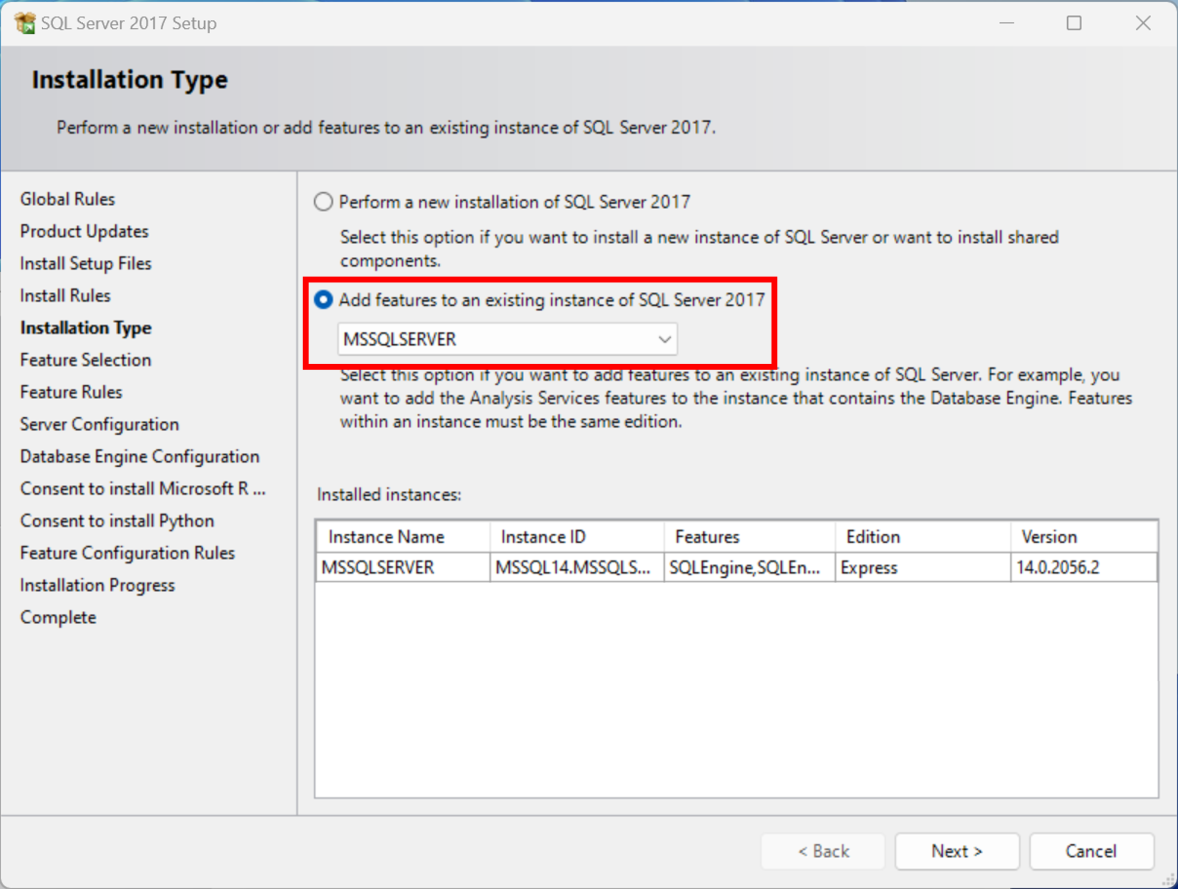
- In [Feature selection], check "Integration Services" from [Features (F)], and select "Next (N)".
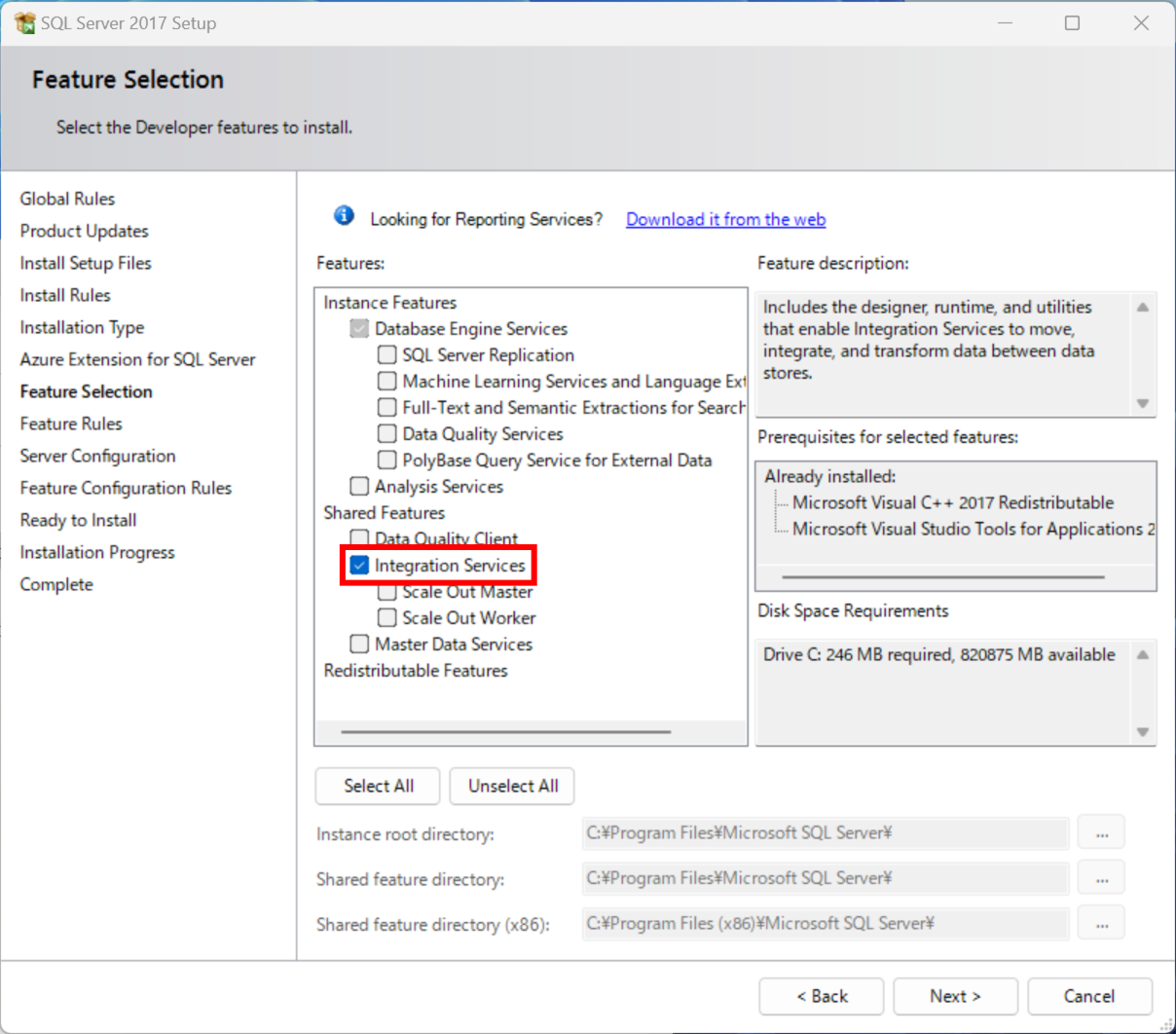
- Follow the SQL Server setup wizard to proceed with the installation.
- After the installation is complete, start [SQL Server 2022 Configuration Manager] and start the SSIS service.
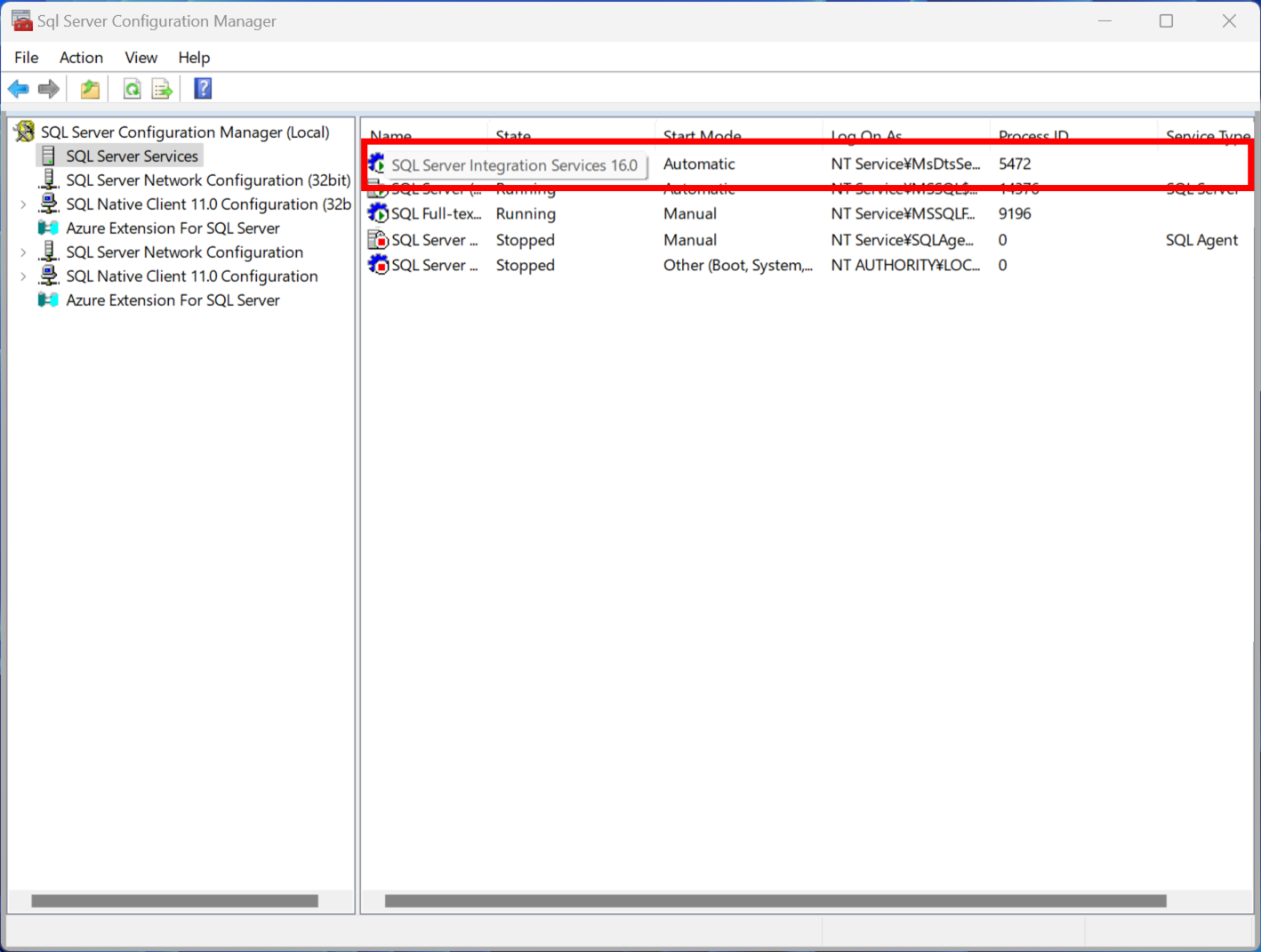
- If the SQL Server Agent is not running, right-click it, select "Properties", and click "Start" from the "Log On" tab of the properties dialog. Also, change "Start Mode" to "Automatic" from the "Service" tab.
2. Setting The Maintenance Plan
-
From SQL Server Management Studio, expand the "Manage" folder from the target SQL Server, right-click the "Maintenance Plan" folder, and select "Maintenance Plan Wizard (W)".
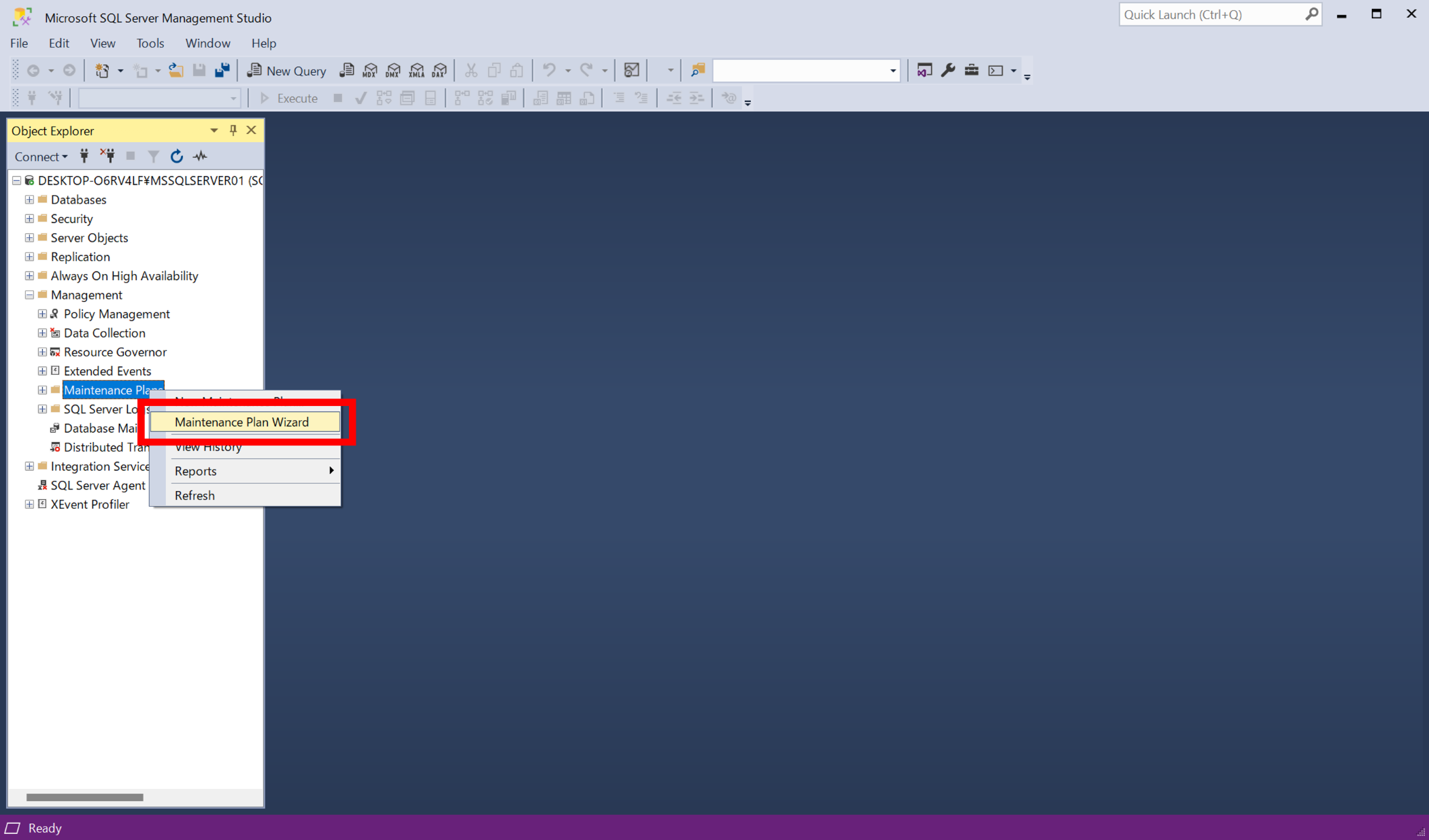
*For details on the Maintenance Wizard, please refer to the Microsoft documentation below.
https://docs.microsoft.com/ja-jp/sql/relational-databases/maintenance-plans/use-the-maintenance-plan-wizard?view=sql-server-2017 -
Follow the Maintenance Plan Wizard to proceed with the settings.
-
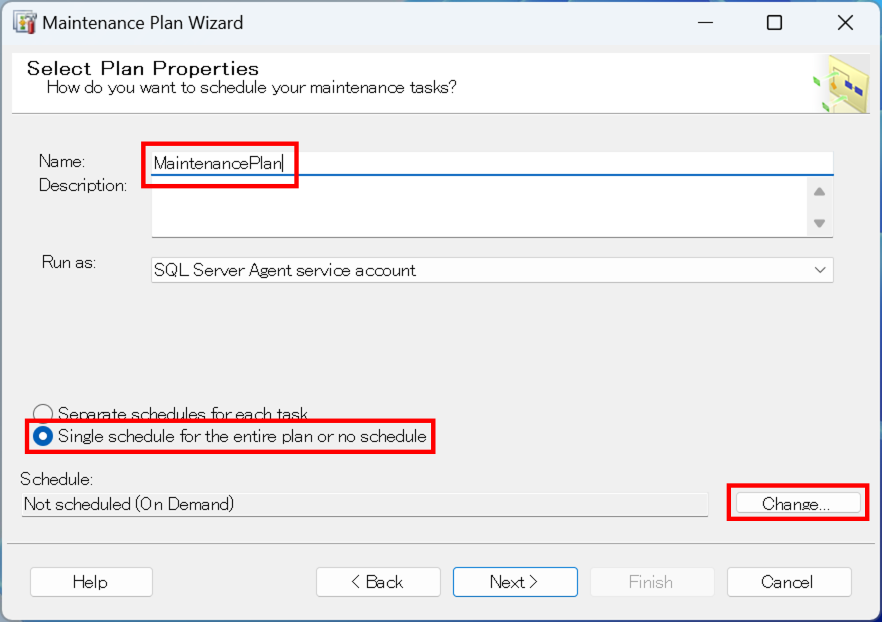
In "Select Plan Properties", set the following:
- Name: Set the name of the maintenance plan as desired
- Select "Use a single schedule for the entire plan or no schedule"
- Schedule: Select "Change"
-
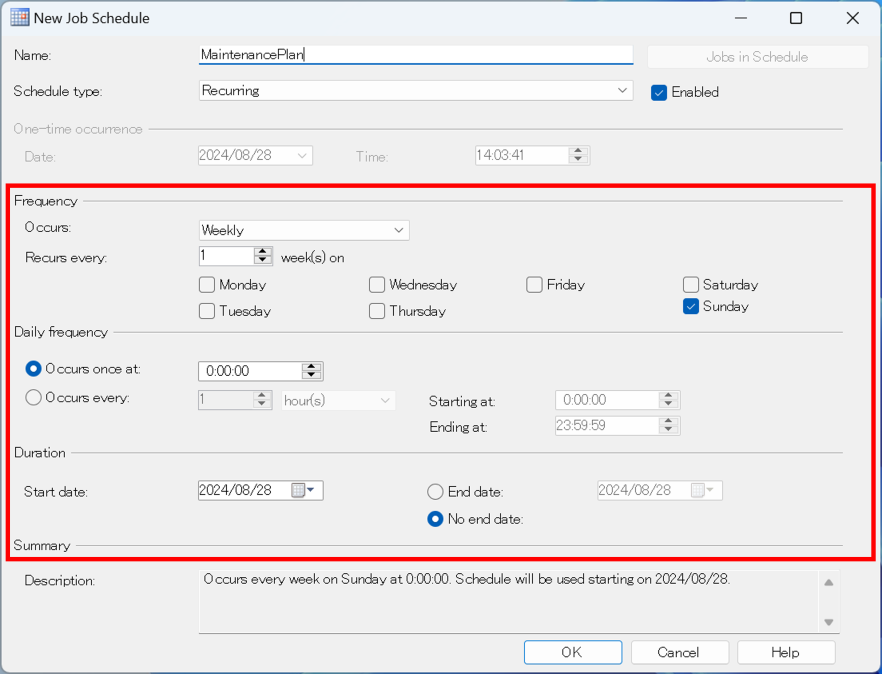
In "New Job Schedule", set the following and select "OK".
- Frequency: Set the desired frequency (Set the frequency at which the job you are configuring will be executed)
- Daily frequency: Set whether to execute once when the frequency occurs or to continue to execute at regular intervals
- Execution time: Set the desired execution time (Set the date to start the job schedule you are configuring)
-
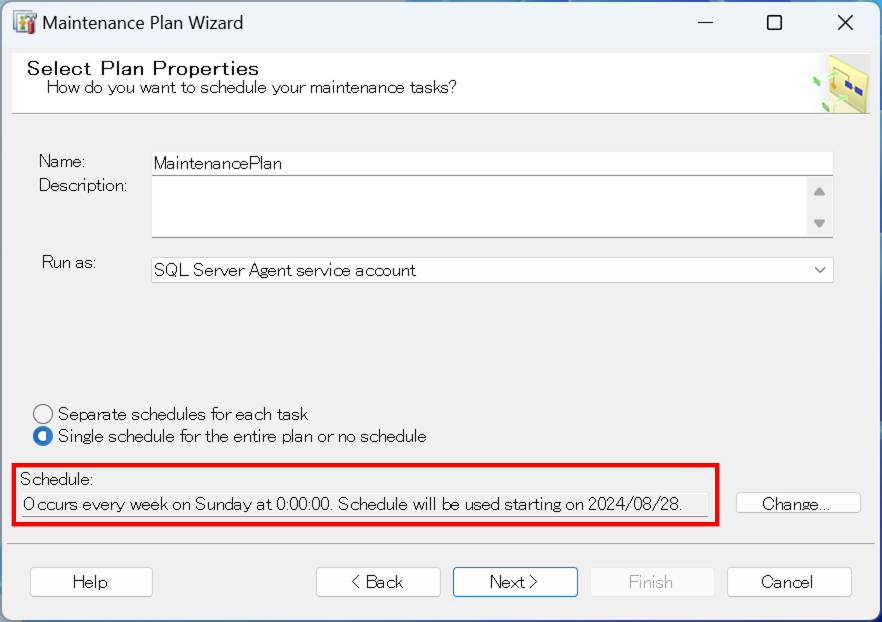
Check the schedule and select "Next (N)".
-
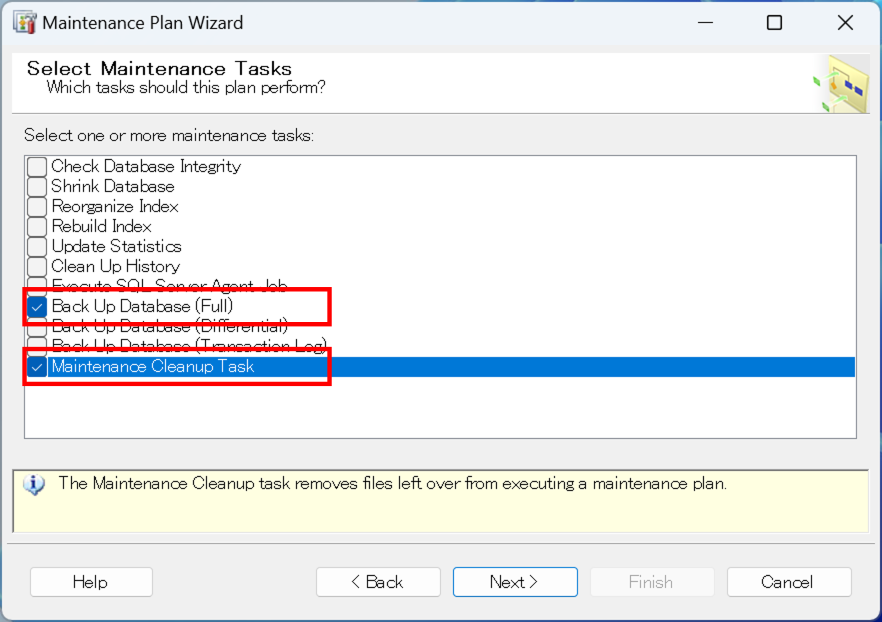
In "Select Maintenance Tasks", check "Database backup (full)" and "Maintenance cleanup task", then click "Next (N)".
-
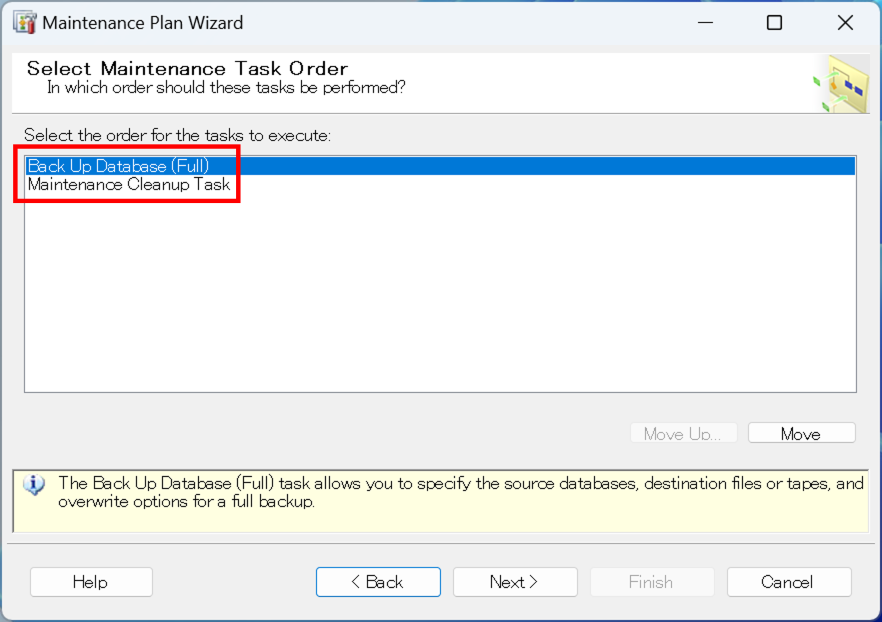
In "Select Maintenance Task Order", set the order to "Database Backup (Full)" -> "Maintenance Cleanup Task" and select "Next (N)".
-
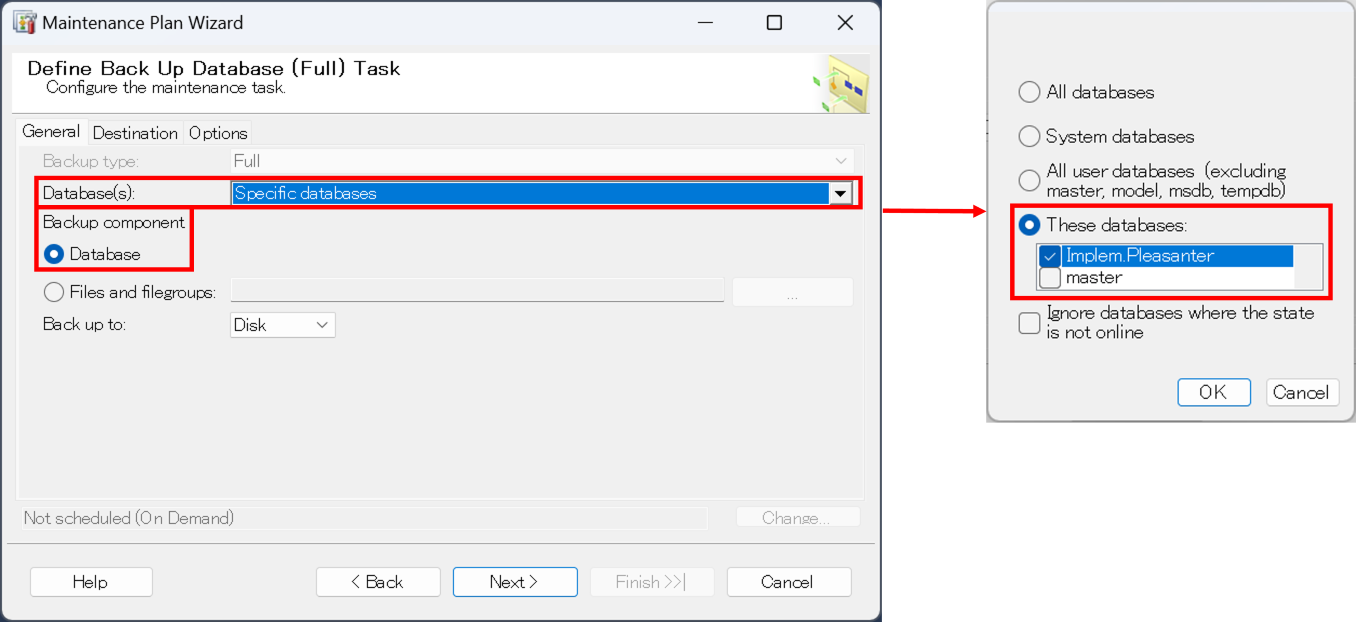
In "Define Database Backup (Full) Task", set the following on the "General" tab.
- Database: Set the database to be backed up (the database used by Pleasanter)
- Backup components: Select "Database (E)" to back up the entire database
-
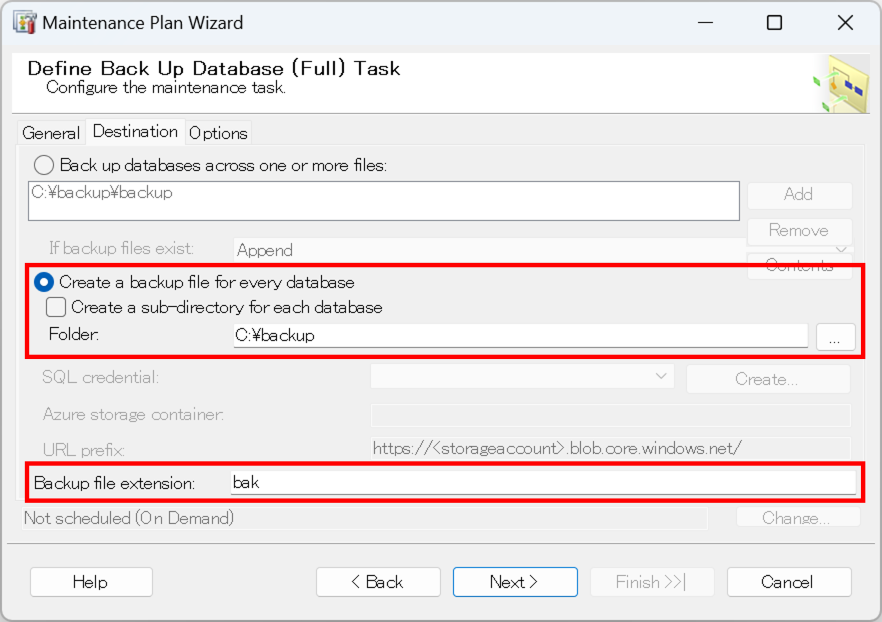
On the "Backup Destination" tab, set the following and select "Next (N)".
- Create backup files for all databases: Specify the folder to create the backup files in "Folder (L)"
- Backup file extension (O): Specify "Bak"
-
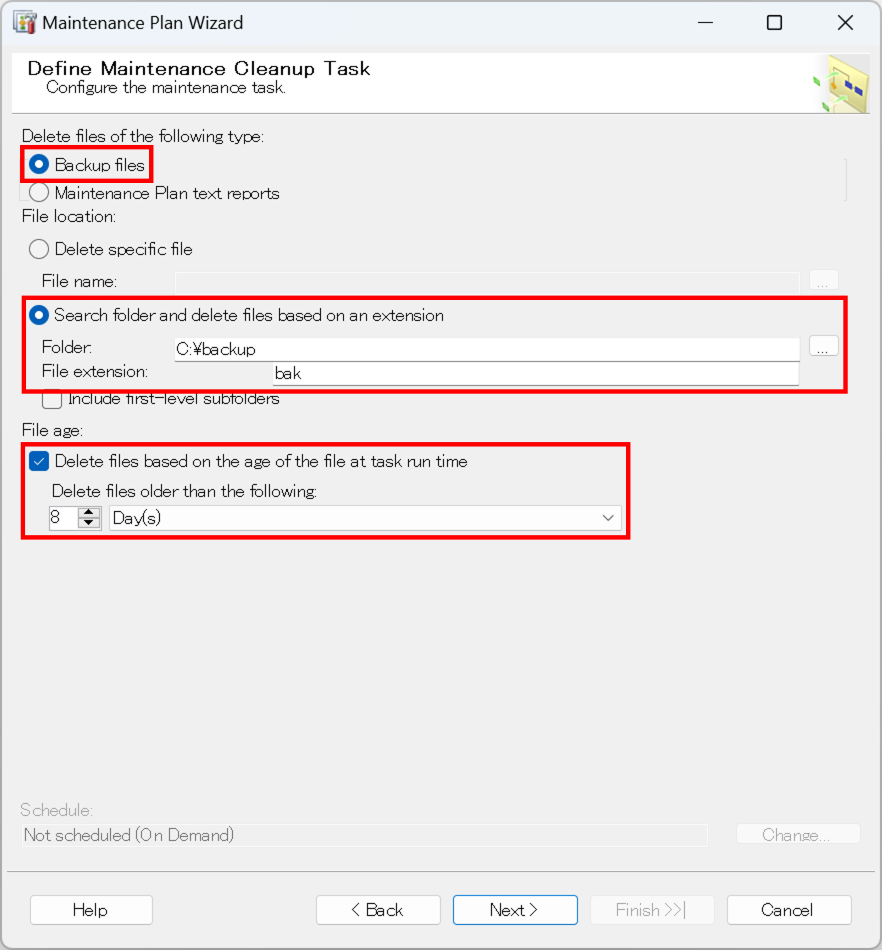
On "Define Maintenance Cleanup Task", set the following and select "Next (N)".
- Delete the following types of files: Select "Backup Files (K)"
- File location: Select "Search Folders And Delete Files Based On File Extension (O)"
- In "Folder (D):", specify the folder to delete backup files from
- In "File Extension (I):", specify "Bak"
- File age: Check "Delete Files Based On File Age When Task Is Executed (T)"
- In "Delete Files Older Than (G):", specify "8 Days" (same deletion schedule as DbBackup.vbs in the Pleasanter manual)
-
Follow the Maintenance Plan Wizard to complete the maintenance plan set up.