I want to access Pleasanter from Excel
Answer
Please execute Pleasanter's API with Excel VBA.
Overview
Here is a sample with code on how to access Pleasanter's API from Excel VBA.
Below is an example of retrieving records from the "Opportunity" table on the demo site by filtering them by "Status" and posting them to a sheet.
Prerequisites
VBA must be available.
The user must be able to use the book with macros enabled and VBA itself.
Libraries used in VBA
In the Pleasanter API, parameters and responses at the time of inquiry are configured in JSON.
The following sample uses VBA-JSON and VBA-Dictionary to interpret the data, so it is necessary to include them in the macro.
- VBA-tools/VBA-JSON: JSON conversion and parsing for VBA
- VBA-tools/VBA-Dictionary: Drop-in replacement for Scripting.Dictionary on Mac
Please note that VBA-JSON and VBA-Dictionary are not included in the Pleasanter product.
Registering for the demo environment
- You must register for the Demo Environment and be able to log in
Procedure
Checking from a browser
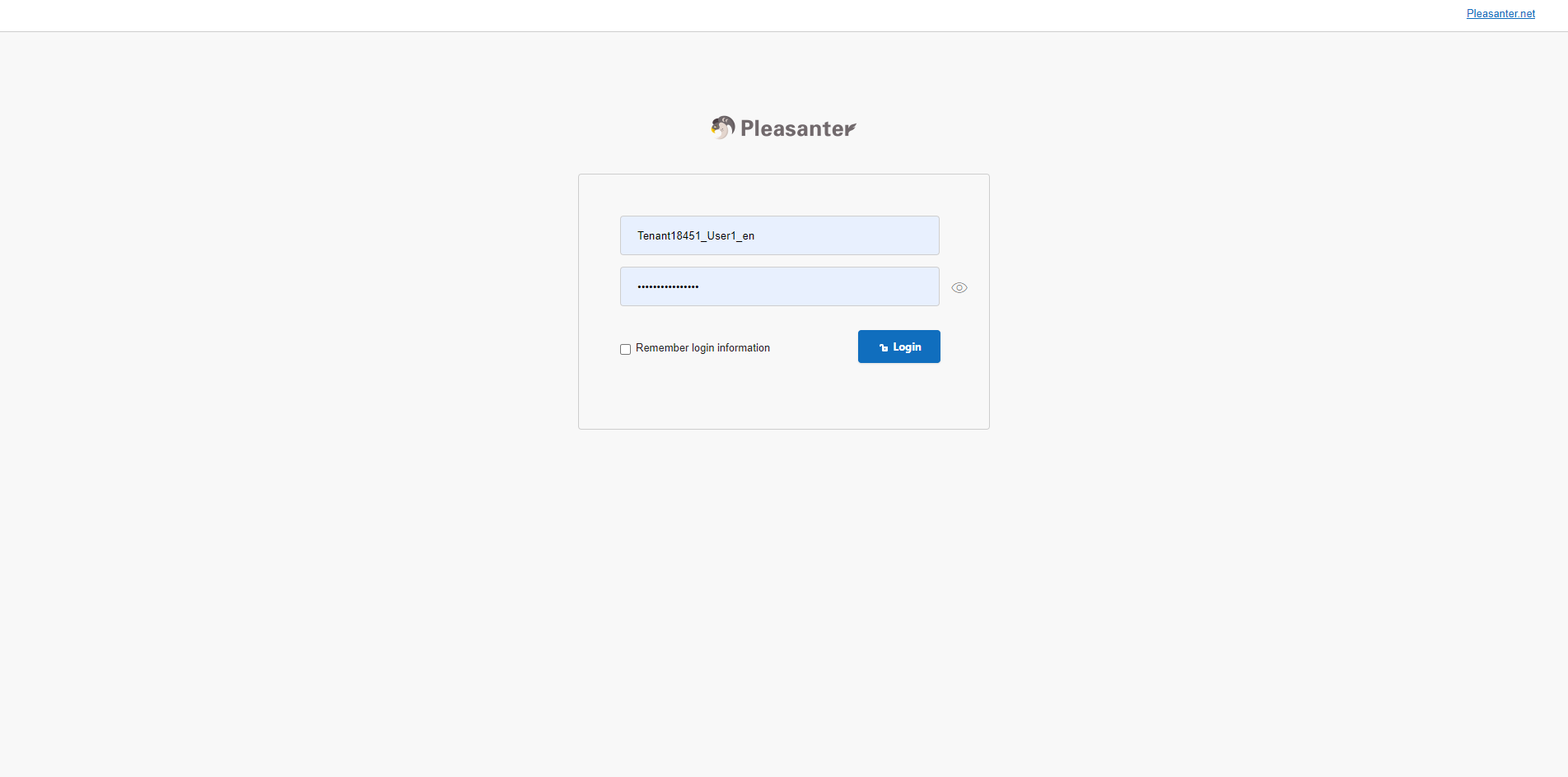
- Log in to the Demo Environment.
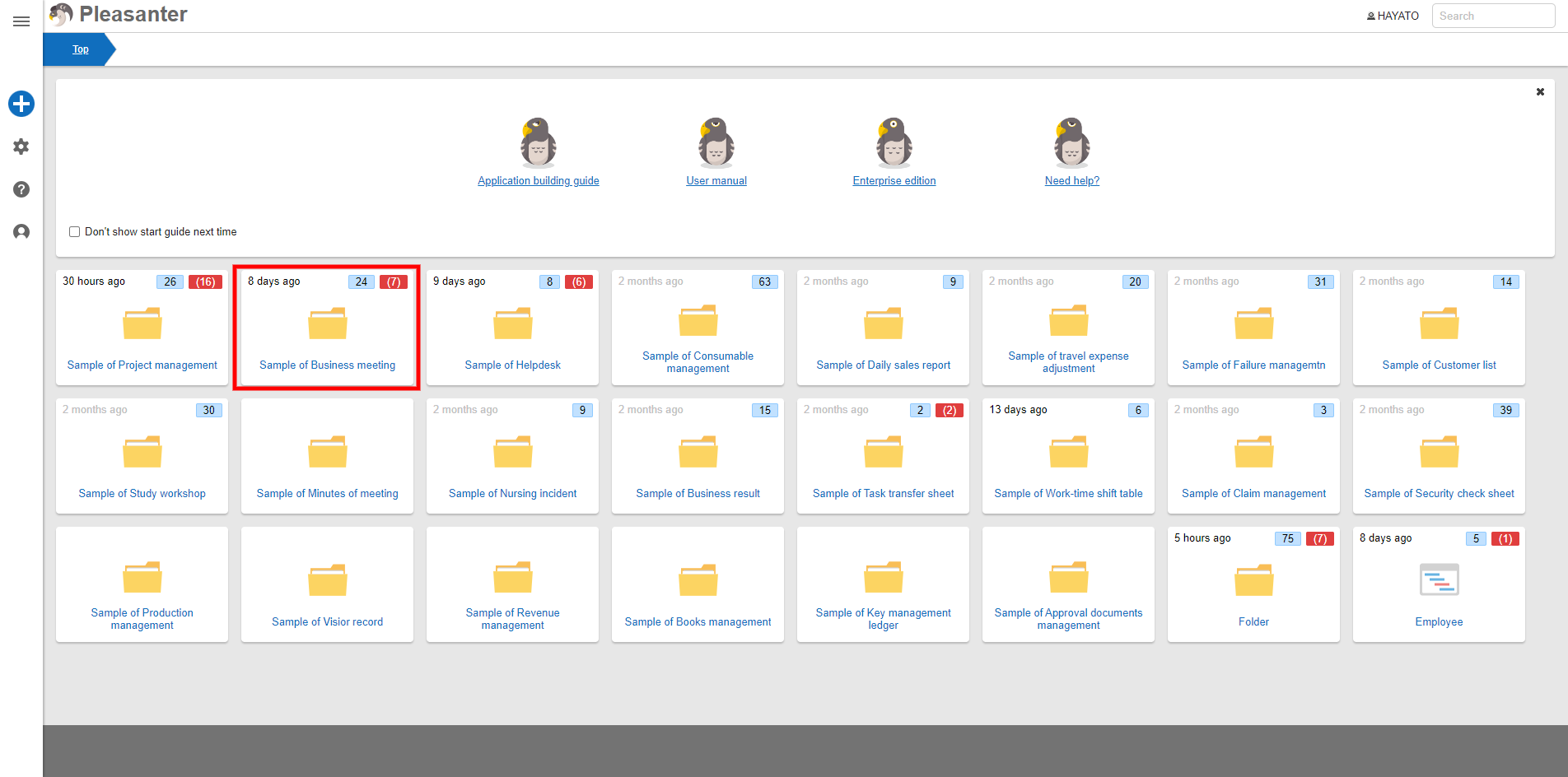
- Click the "Sample of Business meeting" folder.
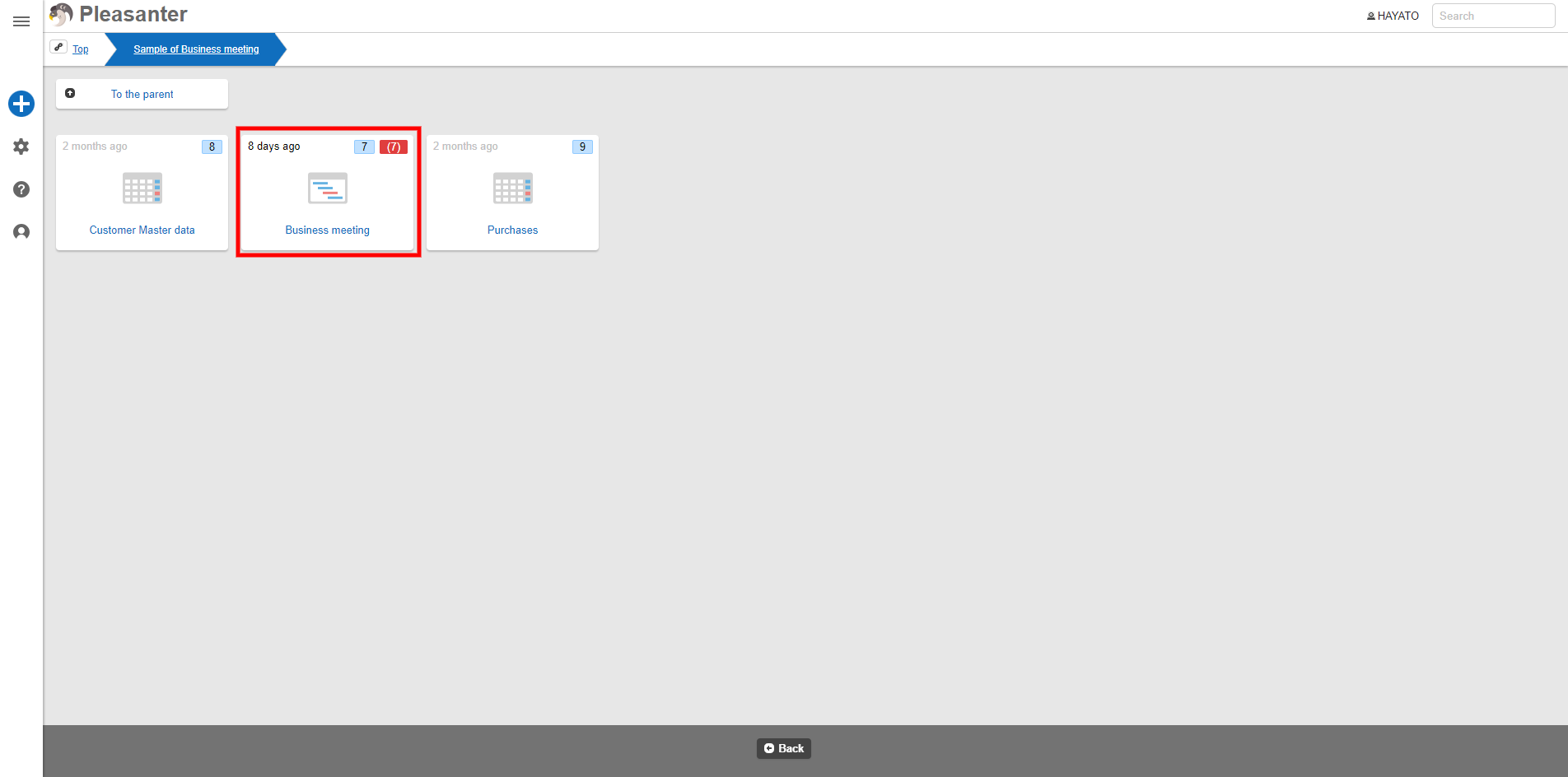
- Click the "Business meeting" table.
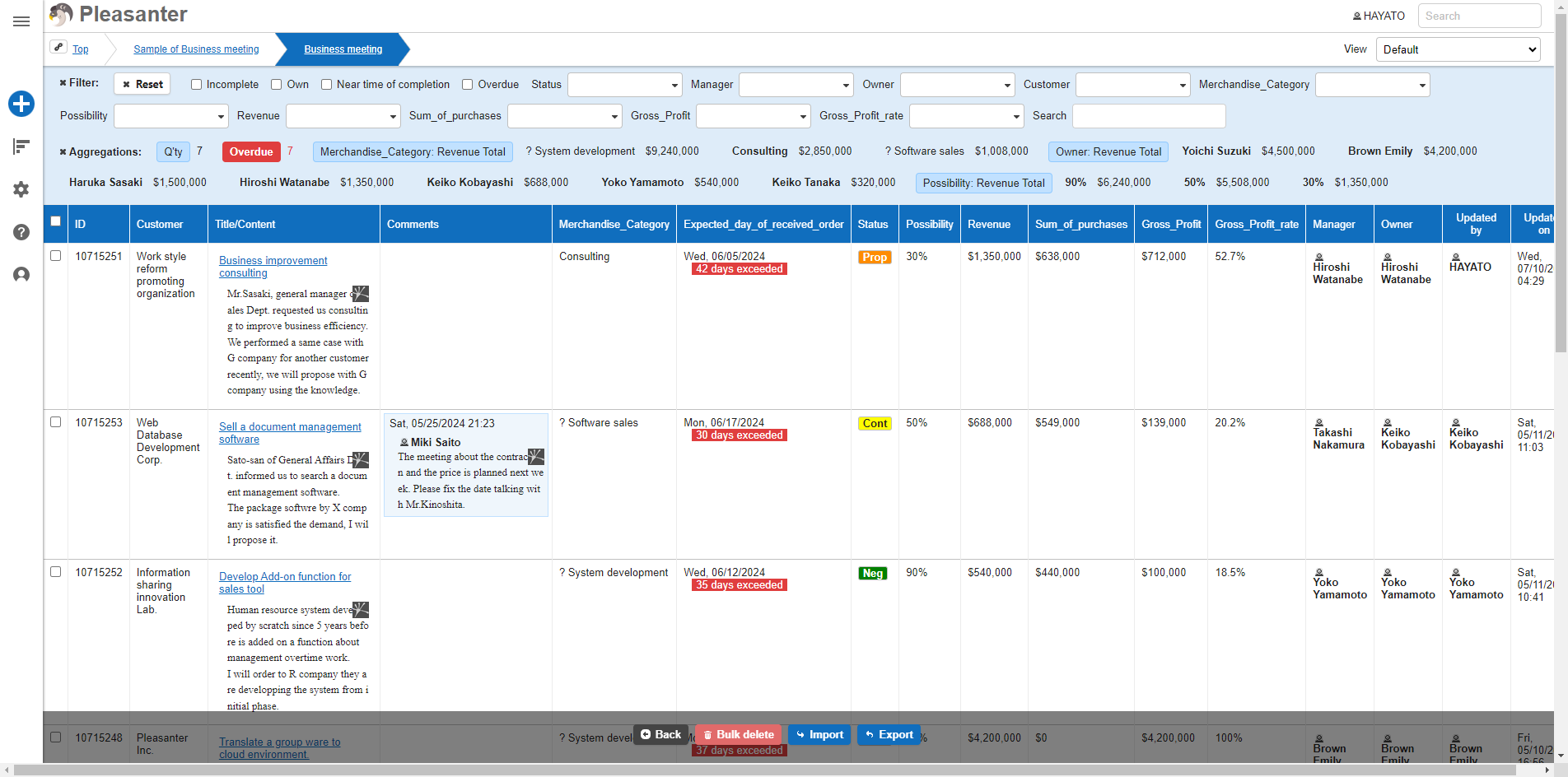
- Check out the sample data for the demo.
Data retrieval with VBA
Paste the following code into the VBA editor and run the SampleCode Sub procedure.
The process is as follows:
- Create request parameters
- Issue a request
- Copy the response to the sheet
Sample code
Private Sub SampleCode()
''' Values that need to be set for each environment
' -------- 1
' Copy the value in the API key field of https://demo.pleasanter.org/users/editapi. If it is blank, click the "Create" button to generate it.
Const APIKEY As String = " Enter the API key as a string here "
' -------- 2
' Open "Example of business opportunity management" > "Business opportunity" on the demo site and replace the following numbers in the URL with 0.
' https://demo.pleasanter.org/items/_number_here_/index
Const SiteID As Long = 0
' -------- 3
' Specify the sheet name. Here, we are assuming it to be Sheet1.
Dim SheetName As String
SheetName = "Sheet1"
'''
Dim jsonRequest As Dictionary
Dim parseResponse As Dictionary
Dim httpRequest As Object
Dim i As Integer
Dim j As Integer
Dim Sheet As Worksheet
Set Sheet = Worksheets(SheetName)
Dim Hashs As Dictionary
'---------------------------------
' 1. Generate request parameters
' Create a Dictionary object containing the data to be used as request parameters.
'---------------------------------
Set jsonRequest = New Dictionary
jsonRequest.Add "ApiVersion", "1.1"
jsonRequest.Add "ApiKey", APIKEY
jsonRequest.Add "View", New Dictionary
jsonRequest("View").Add "ColumnFilterHash", New Dictionary
' Filter by "Status"。Here, we specify the code values corresponding to "Inquiry" and "Proposal".
jsonRequest("View")("ColumnFilterHash").Add "Status", "[""100"",""150""]"
Set httpRequest = CreateObject("MSXML2.XMLHTTP")
httpRequest.Open "POST", "https://demo.pleasanter.org/api/items/" & SiteID & "/get", False
httpRequest.setRequestHeader "Content-Type", "application/json;charset=utf-8"
'---------------------------------
' 2. Issue a request
' Convert the Dictionary to JSON format and execute the request.
'---------------------------------
httpRequest.send JsonConverter.ConvertToJson(jsonRequest)
'---------------------------------
' 3. Copy the response to the sheet
' Read the JSON response from the API from the dictionary and copy it to the sheet.
'---------------------------------
Set parseResponse = JsonConverter.ParseJson(httpRequest.responseText)
Set Records = parseResponse("Response")("Data")
' Stop if the number of records is 0
If Records.Count <= 0 Then
Exit Sub
End If
' Copy to the sheet
Sheet.Cells.Clear
i = 2
For Each Record In Records
j = 1
With Sheet
For Each ColumnName In Record.Keys()
If ColumnName = "ApiVersion" Or ColumnName = "Comments" Or ColumnName = "AttachmentsHash" Then
GoTo ContinueTarget:
ElseIf Right(ColumnName, 4) = "Hash" Then
For Each HashColumn In Record(ColumnName).Keys()
Set Hashs = Record(ColumnName)
.Cells(1, j).Value = HashColumn
.Cells(i, j).Value = Hashs(HashColumn)
j = j + 1
Next
Else
.Cells(1, j).Value = ColumnName
.Cells(i, j).Value = Record(ColumnName)
j = j + 1
End If
ContinueTarget:
Next
End With
i = i + 1
Next
End Sub
Example

Application
Here we have introduced an example of reading.
By referring to this, you can also register and update data from Excel to Pleasanter by constructing request parameters that correspond to the specifications of API Record Creation and API Record Update.