I want to create a database view with the Japanese name displayed set in Pleasanter
Answer
Extract the table name and name displayed from the contents of the SiteSettings column of the Sites table and create a view.
Overview
This is a script that creates a SQL Server view with Japanese column names based on the "Site Settings" information saved in Pleasanter. If you change the table name or name displayed on Pleasanter and then re-run it, the view will be recreated with the new settings.
Cautions
- Since this script performs database operations, please make a backup of the database in advance.
Limitations
- This sample code only works in a SQL Server environment.
- If the column name is duplicated, the view creation will fail.
- If the table title is duplicated, delete the view and recreate it.
Operation Procedure
- Connect to the server using remote desktop, etc.
- Create and save the sample code below with the extension ps1, such as "PleasanterViewCreator.ps1".
- Execute the script in PowerShell.
Code Samples
PowerShell
[object]$ConnectionString = New-Object -TypeName System.Data.SqlClient.SqlConnectionStringBuilder
[object]$ConnectionString['Data Source'] = "(local)"
[object]$ConnectionString['Initial Catalog'] = "Implem.Pleasanter"
[object]$ConnectionString['UID'] = "sa"
[object]$ConnectionString['PWD'] = "SetSaPWD"
[object]$ColumnNames = @{
"IssueId" = "ID"
"ResultId" = "ID"
"Ver" = "Version"
"Title" = "Title"
"Body" = "Contents"
"StartTime" = "Start"
"CompletionTime" = "Completion"
"WorkValue" = "Work Value"
"ProgressRate" = "Progression rate"
"Status" = "Status"
"Manager" = "Manager"
"Owner" = "Responsible"
"Comments" = "Comments"
"CreatedTime" = "Created Time"
"UpdatedTime" = "Updated Time"
"Creator" = "Creator"
"Updator" = "Updater"
}
[object]$ExcludeNames = @(
"RemainingWorkValue"
function Get-Site()
{
[string]$SQLQuery = "select * from [Sites] where [ReferenceType] in ('Issues', 'Results');"
[object]$ResultsDataTable = New-Object System.Data.DataTable
[object]$SqlConnection = New-Object System.Data.SQLClient.SQLConnection($ConnectionString)
[object]$SqlCommand = New-Object System.Data.SQLClient.SQLCommand($SQLQuery, $SqlConnection)
[object]$SqlConnection.Open()
[object]$ResultsDataTable.Load($SqlCommand.ExecuteReader())
[object]$SqlConnection.Close()
return $ResultsDataTable
}
function Mainte-View($Row)
{
[object]$Ss = ConvertFrom-Json ([string]$row.SiteSettings)
[object]$SqlColumns = New-Object System.Collections.Generic.List[string]
[object]$EditorColumns = $ss.EditorColumns
if ($EditorColumns.Count -eq 0)
{
$EditorColumns = New-Object System.Collections.ArrayList
$EditorColumnHash = (ConvertConvertFrom-JsonPSCustomObjectToHash $ss.EditorColumnHash)
foreach ($Key in $EditorColumnHash.Keys)
{
foreach ($Value in $EditorColumnHash[$Key])
{
[int]$Ret = $EditorColumns.Add($Value)
}
}
}
foreach ($ColumnName in $EditorColumns)
{
[string]$Alias = ""
foreach ($Column in $Ss.Columns)
{
if ($Column.ColumnName -eq $ColumnName)
{
$Alias = $Column.LabelText
}
}
if ($Alias -eq "")
{
$Alias = $ColumnNames[$ColumnName]
}
if ($Alias -eq "")
{
$Alias = $ColumnName
}
if ($ExcludeNames -notcontains $ColumnName)
{
$SqlColumns.Add("[$ColumnName] as [$Alias]")
}
}
[string]$JoinedSqlColumns = $SqlColumns -join ","
Delete-View $Row
Create-View $Row $JoinedSqlColumns
}
function Create-View($Row, $JoinedSqlColumns)
{
"Create view:" + $Row.Title
[string]$SQLQuery = @"
create view [$([string]$Row.Title)]
as
select $JoinedSqlColumns
from [$([string]$Row.ReferenceType)]
where [SiteId]=$([long]$row.SiteId);
"@
[object]$SqlConnection = New-Object System.Data.SQLClient.SQLConnection($ConnectionString)
[object]$SqlCommand = New-Object System.Data.SQLClient.SQLCommand($SQLQuery, $SqlConnection)
[object]$SqlConnection.Open()
[int]$Ret = $SqlCommand.ExecuteNonQuery()
[object]$SqlConnection.Close()
}
function Delete-View($Row)
{
[string]$SQLQuery = @"
if exists (select 1 from sysobjects where id = object_id('$([string]$row.Title)'))
drop view [$([string]$row.Title)];
"@
[object]$SqlConnection = New-Object System.Data.SQLClient.SQLConnection($ConnectionString)
[object]$SqlCommand = New-Object System.Data.SQLClient.SQLCommand($SQLQuery, $SqlConnection)
[object]$SqlConnection.Open()
[int]$Ret = $SqlCommand.ExecuteNonQuery()
[object]$SqlConnection.Close()
}
Function ConvertConvertFrom-JsonPSCustomObjectToHash($obj)
{
$hash = @{}
$obj | Get-Member -MemberType Properties | SELECT -exp "Name" | % {
$hash[$_] = ($obj | SELECT -exp $_)
}
$hash
}
[object]$Table = Get-Site
foreach ($Row in $Table)
{
Mainte-View $Row
}
Execution Results
Display in Metabase
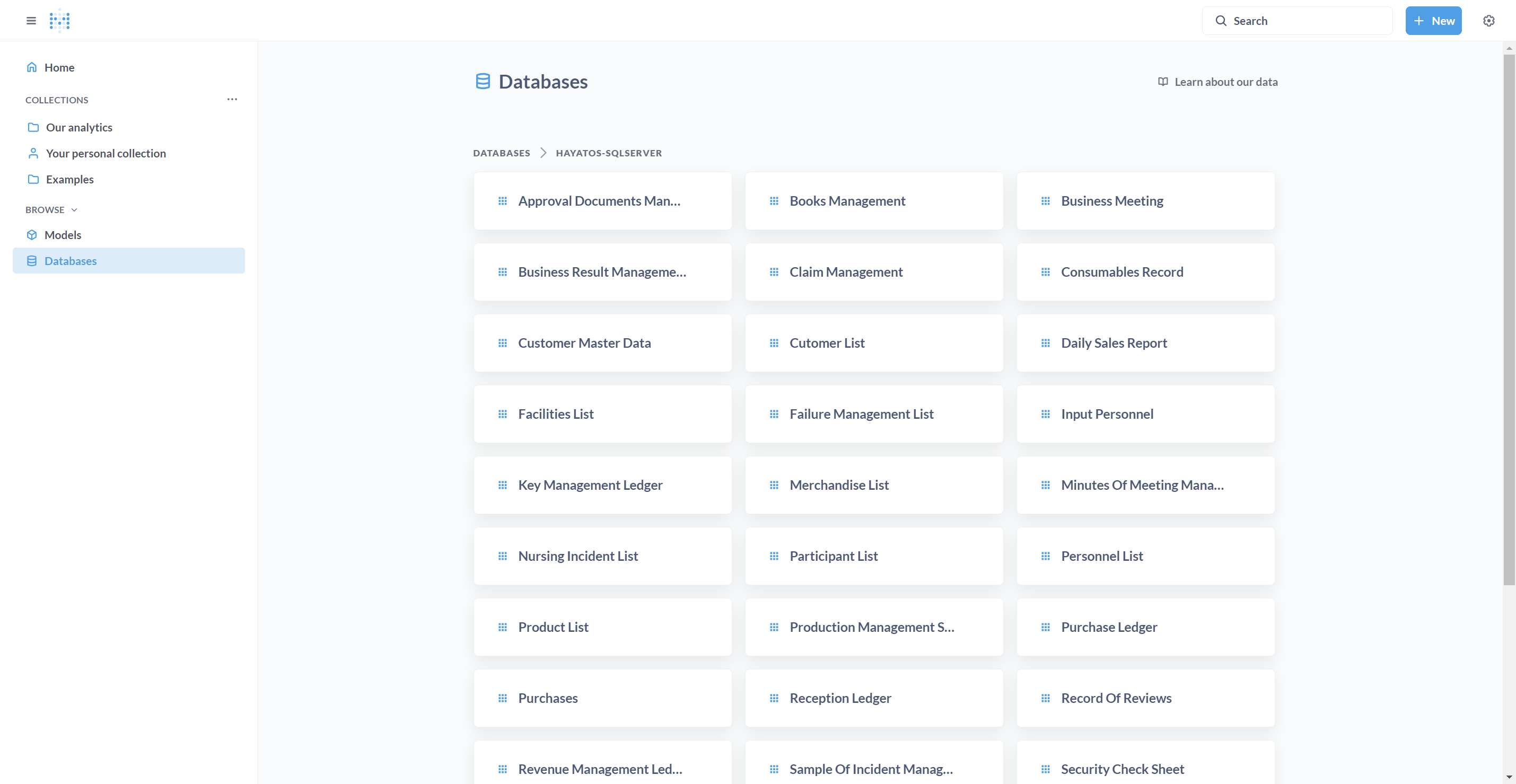
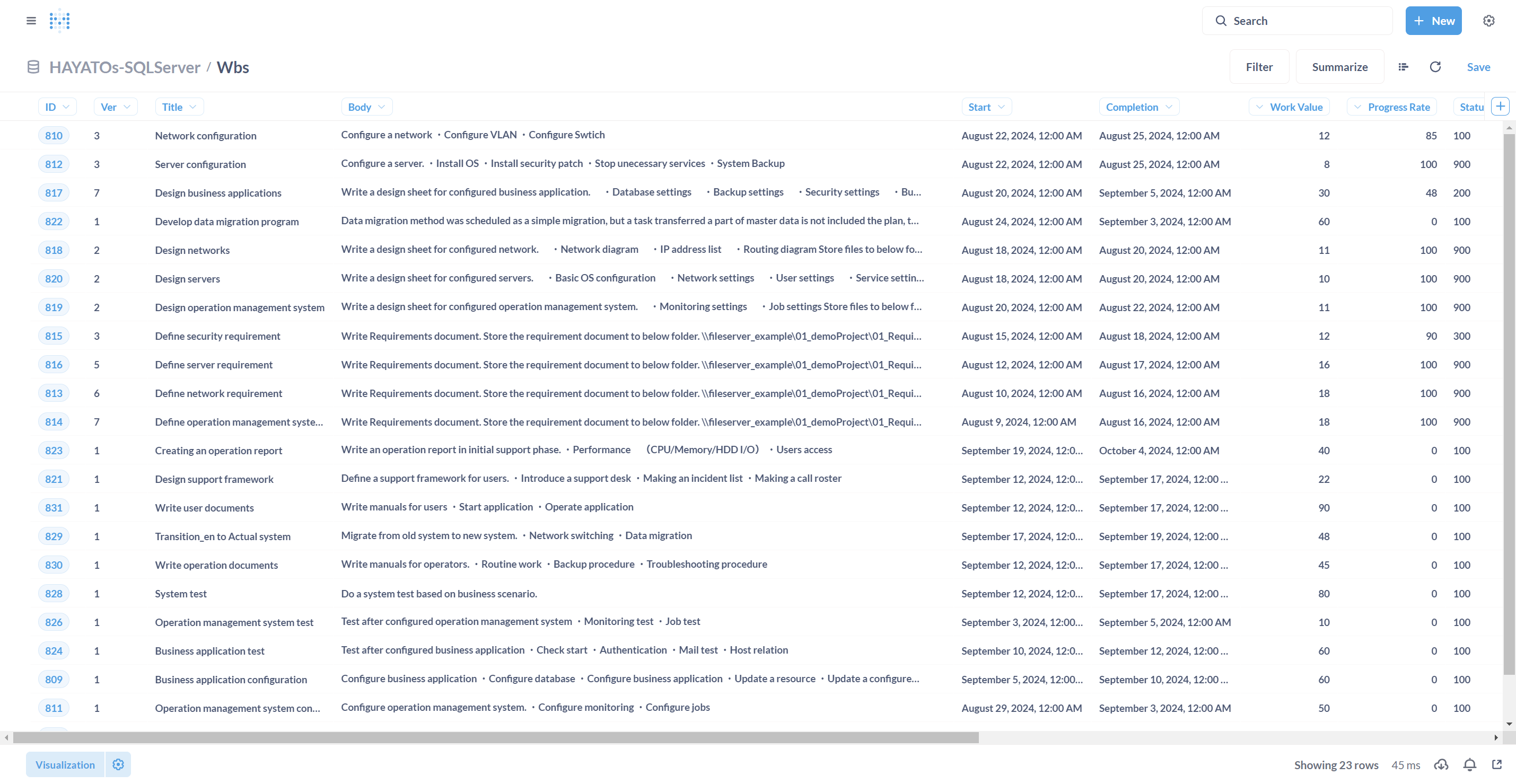
When you display the created view in Metabase, you can see the view in Japanese as shown below.
Lists and graphs can also be displayed in Japanese.
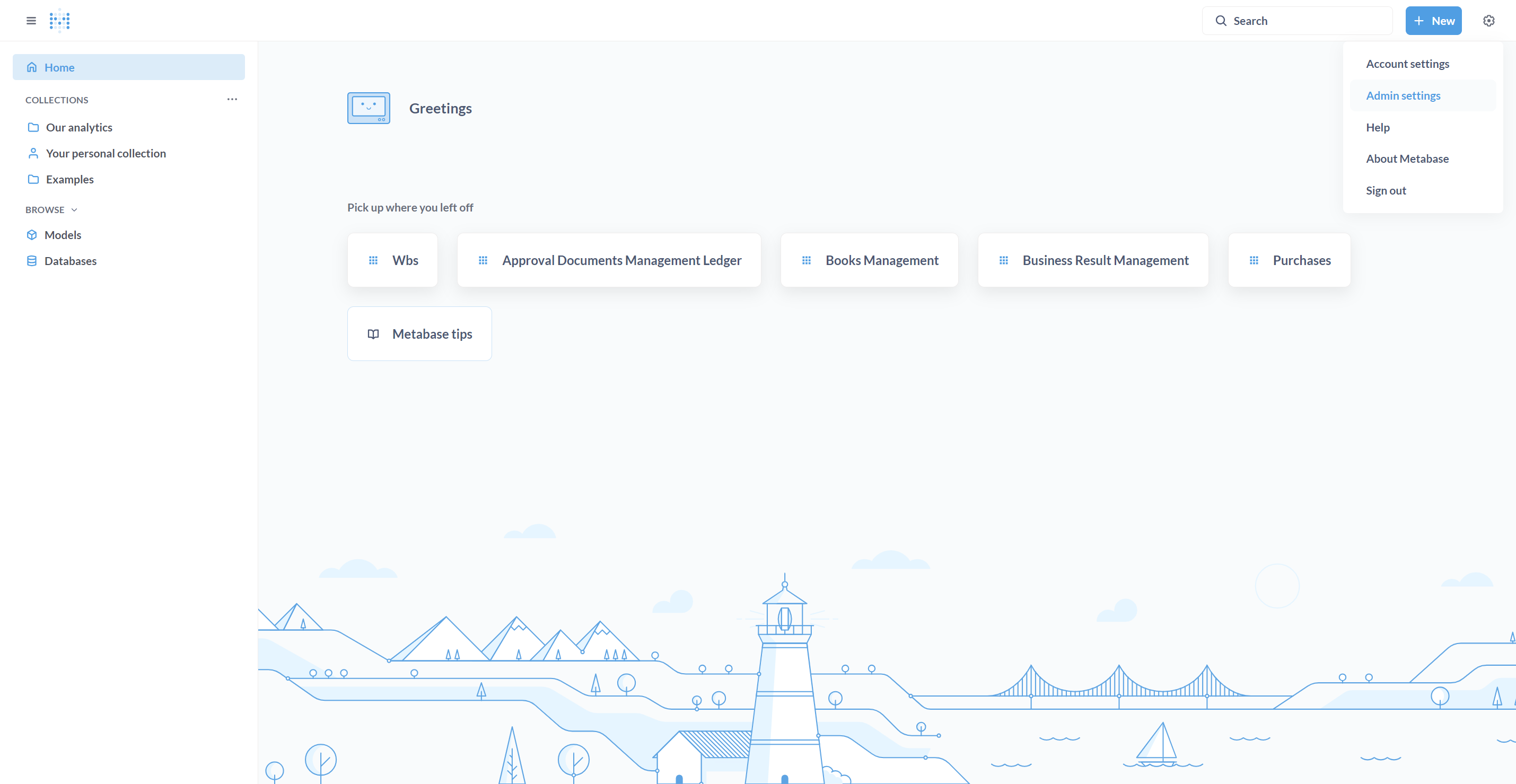
View Hidden Settings
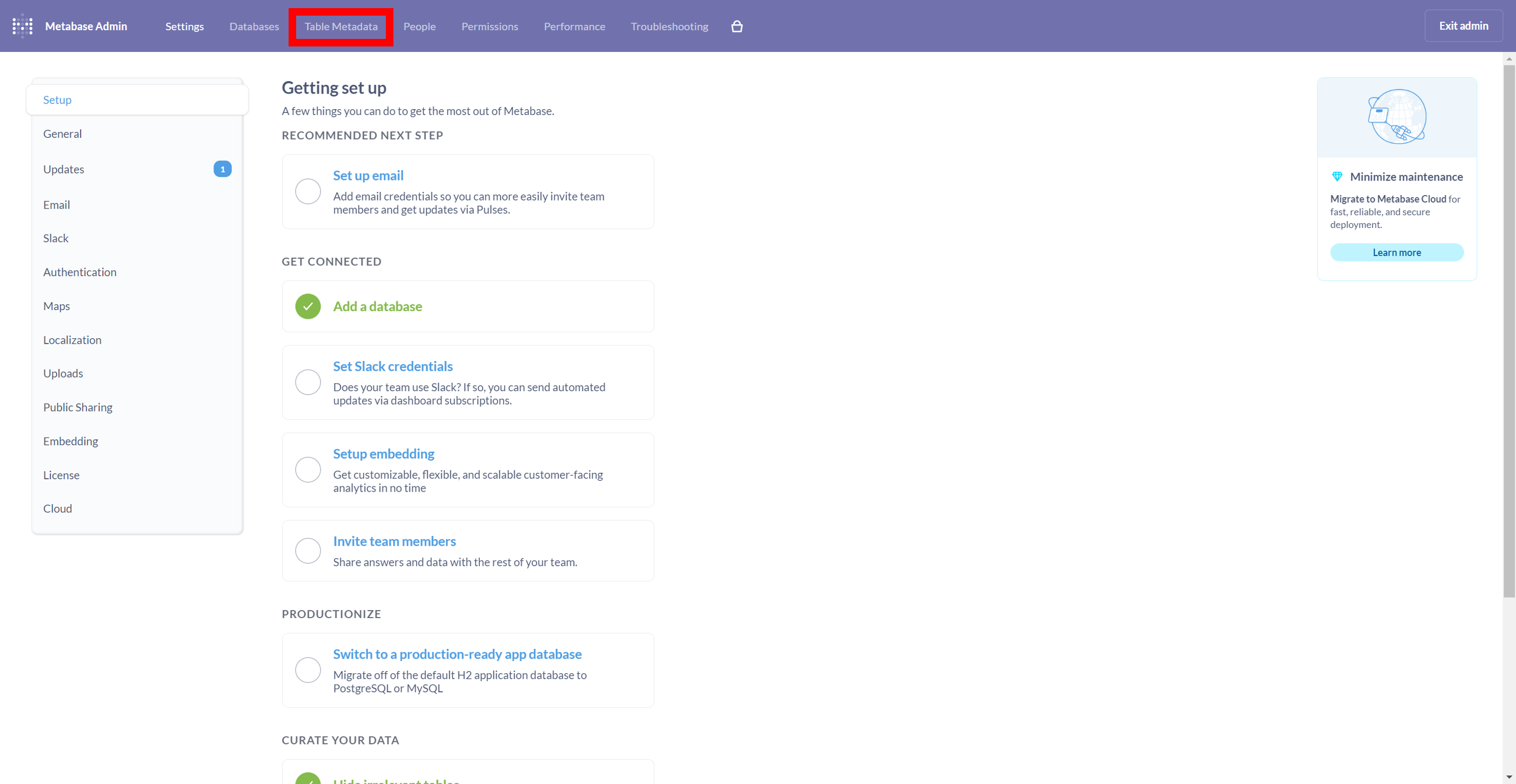
From "Admin settings" in the upper right corner of Metabase Home, select "Table Metadata".
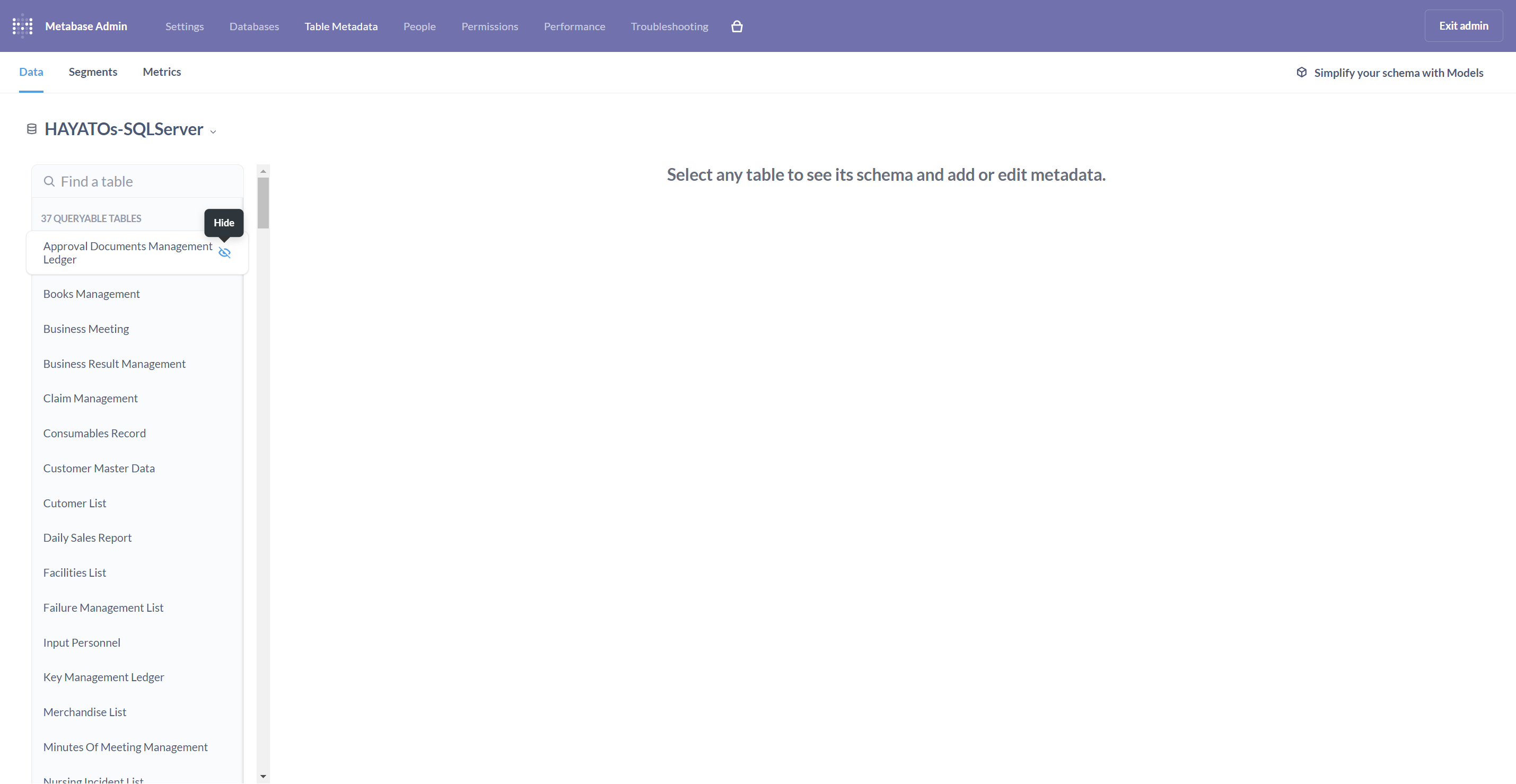
Click the icon to the right of the view you want to hide.