How do I change my Pleasanter.net email address?
Overview
Please follow the steps below to change your Pleasanter.net email address.
Cautions
- Your email address is your login ID for Pleasanter.net. Therefore, please note that if you change your email address, your login ID will also change.
- You cannot change your email address while keeping your login ID the same.
Operation Procedure
-
Log in to the portal screen with your subscriber ID. If you are already logged in, proceed to 2.
https://pleasanter.net/
-
Open your My Page.
https://pleasanter.net/Tenant -
Click "Confirm Account Information".

-
After entering a new email address, click the "Change email address" button.

-
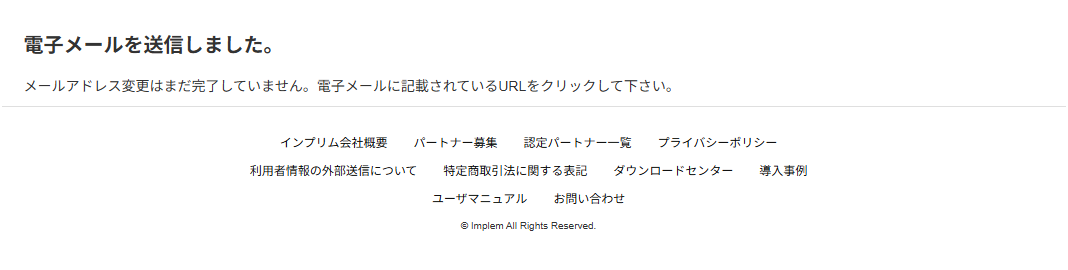
After confirming that the following screen is displayed, click the URL sent to the email address entered in 4.
-
After confirming the notes and checking "Confirmed", click the "Change" button.

-
Click the "OK" button in the confirmation dialog (the display format varies depending on the browser).

-
After confirming that the following screen is displayed, click "Here".

This completes the email address change.