Create New and Edit
Overview
When you click the "New" button on the "Server Script" tab of the "Manage table" screen, the "Server script" screen is displayed. On this screen, you can perform the following operations:
- Create a new server script
- Edit an existing server script
- Individually disable an existing server script
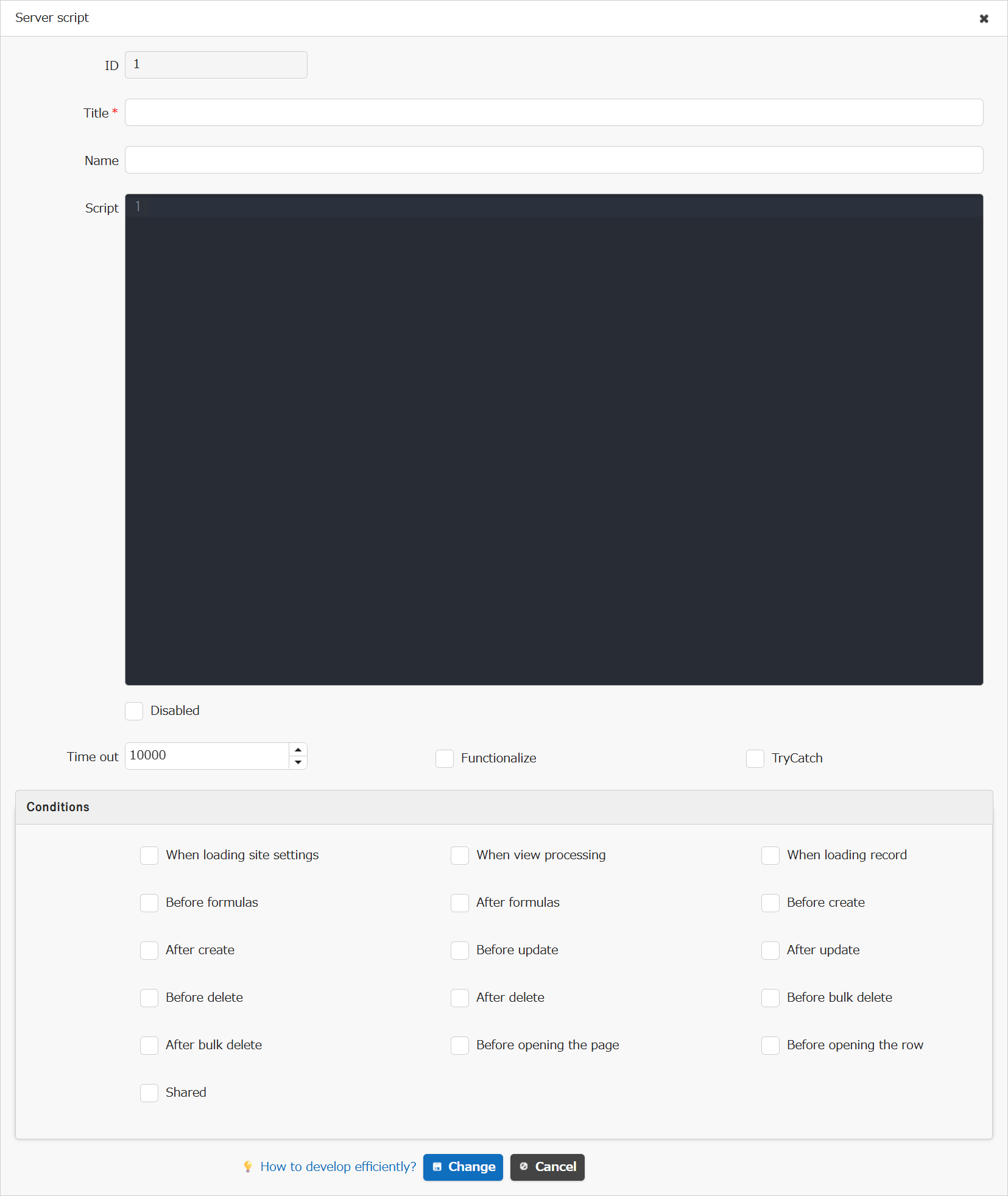
| Item Name | Description | Configuration Method |
|---|---|---|
| ID | A management number automatically assigned to each server script | Users cannot edit this |
| Title | Title of the server script | Enter any title |
| Name | Name of the server script | Enter any name |
| Script | Content of the server script | Enter any server script |
| Disabled | Check if you want to disable the server script | Set with checkbox |
| Timeout | Timeout duration for the server script | Enter timeout duration (milliseconds) |
| Functionalize | Check if you want to execute as an anonymous function | Set with checkbox |
| TryCatch | Check if you want to automatically convert to a try-catch statement for execution | Set with checkbox |
| Conditions | Select the conditions for execution | Set with checkbox |
Script
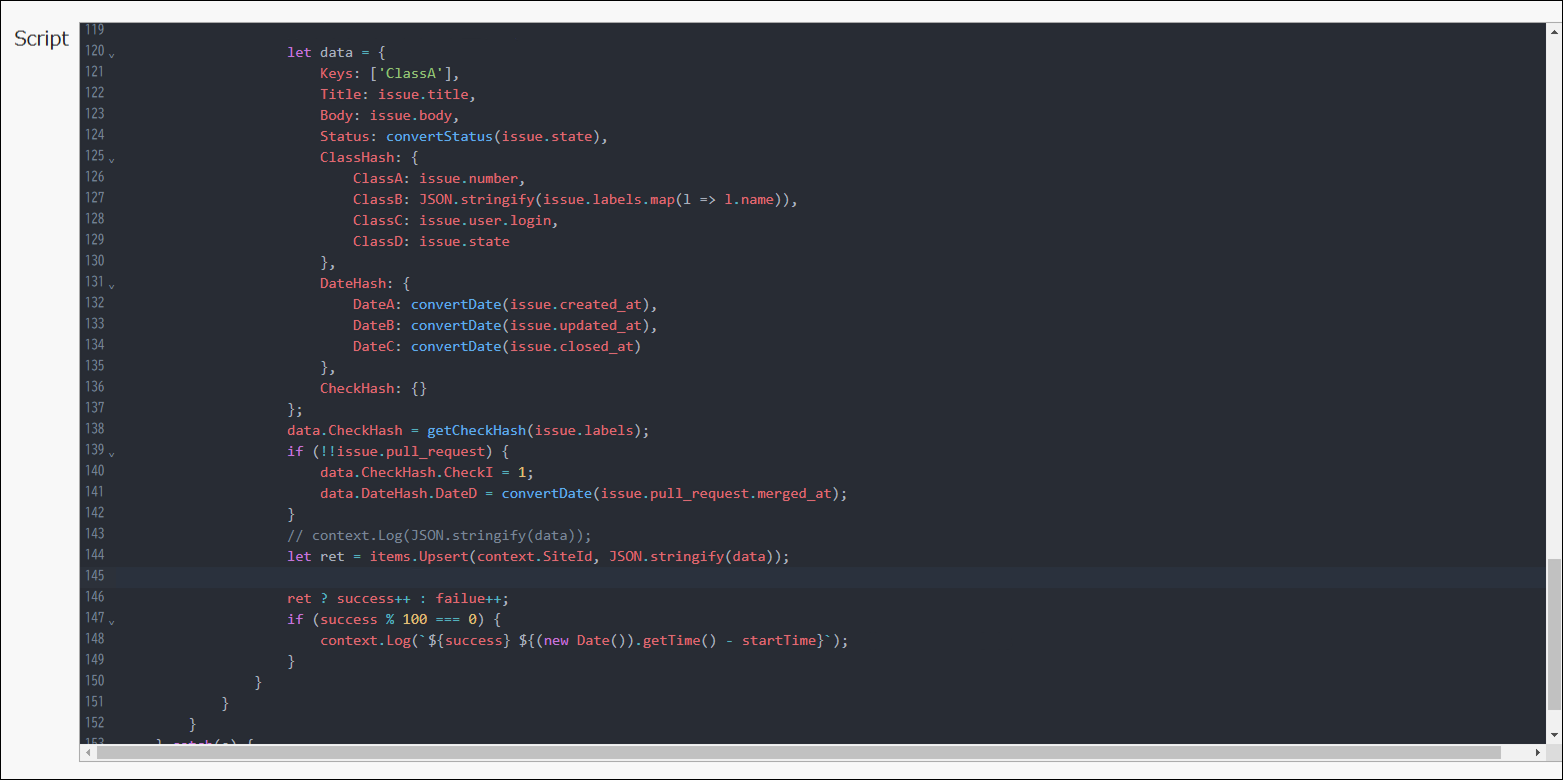
When using the 2nd generation "User Interface Theme", you can utilize the code editor feature. The code editor feature can be enabled by setting the EnableCodeEditor parameter to true in the configuration file "General.json".
| Code Editor Feature | Overview |
|---|---|
| Syntax Highlighting | Displays server scripts with color coding according to syntax. |
| Code Hints | Enables autocomplete input for server scripts. |
| Tab Key Indentation | Allows easy input of appropriate amounts of whitespace. |
Timeout
The timeout item is not displayed on the screen by default. It will be displayed on the screen by setting the ServerScriptTimeOutChangeable parameter to true (enabling it) in the configuration file "Script.json".
Supported Versions
| Supported Version | Content |
|---|---|
| 1.4.12.0 and later | "Disabled" feature added "Function" feature added "TryCatch" feature added |