Aggregation
Overview
Set the "Column" to be displayed in the "Aggregation" field at the top of the "Screen Index". Using "Class Column" enables "Grouping" by classification for aggregation purposes.
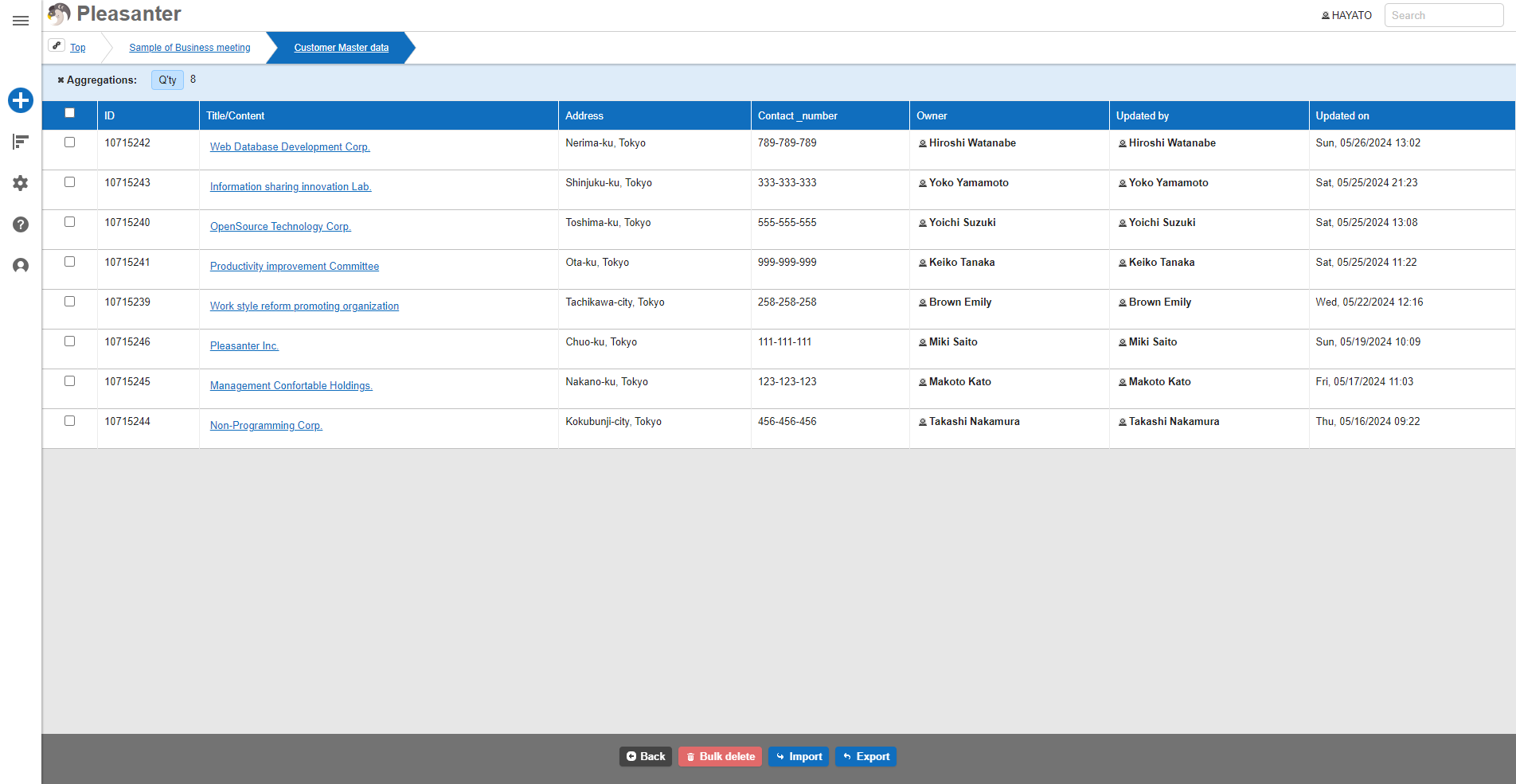
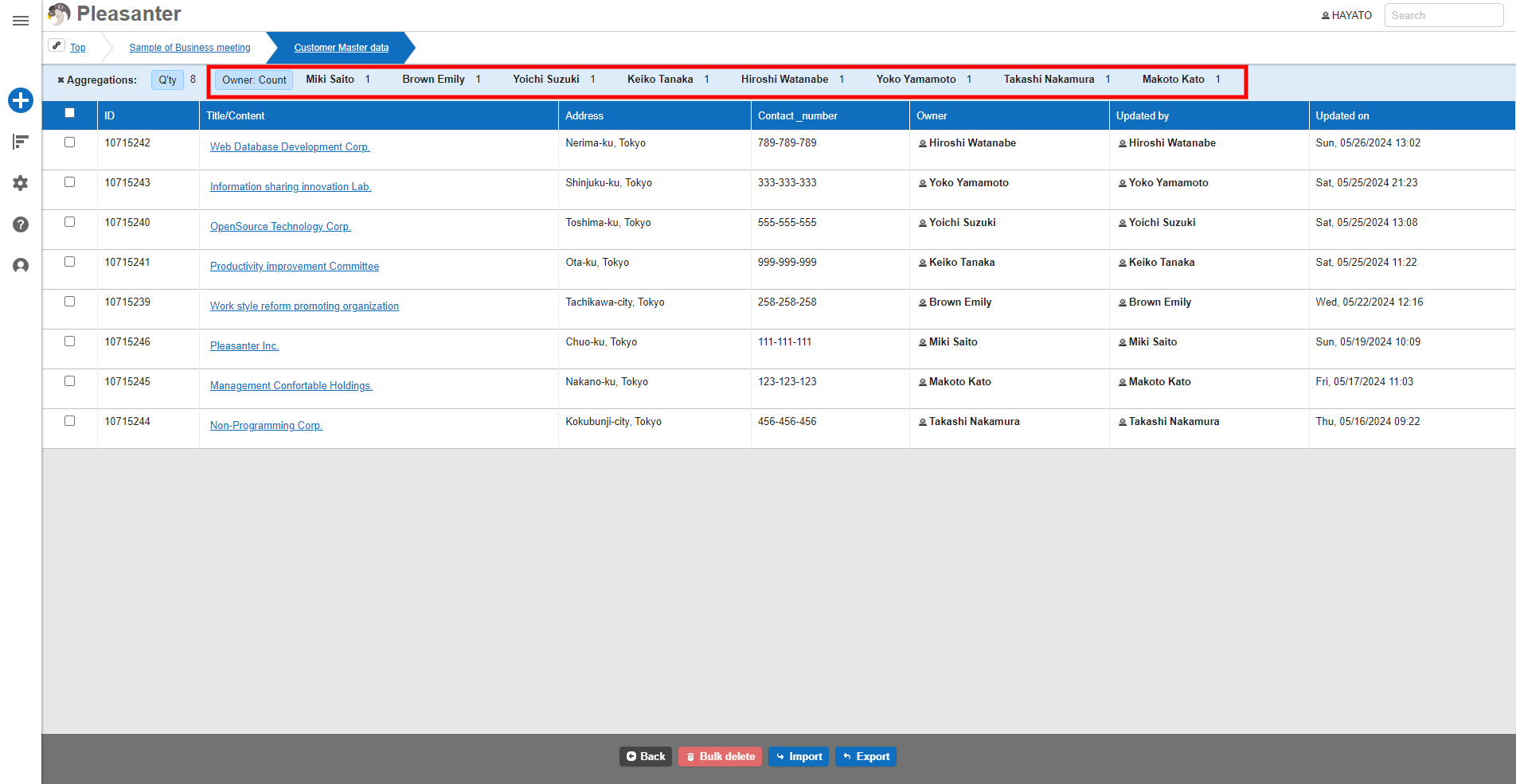
When a Check Column Is Added
If you "Add" a "Check Column" as an aggregation column, aggregation is performed for "Unchecked" and "Checked". In the image below, the left side is "Unchecked" and the right side is "Checked".

Limitations
- Only "Work Volume Column", "Remaining Work Volume Column", and "Numeric Value Column" can be used for "Total" and "Average" aggregation.
- Only "Status Column", "Manager Column", "Owner Column", "Class Column", and "Check Column" can be used as the "Column" for "Grouping".
- "Grouping" by a "Class Column" that has "Multiple Selection" enabled cannot be performed.
Required Permission

Operation Procedure
- Open the relevant table.
- Click "Manage" on the navigation menu.
-
Click "Manage Table".

-
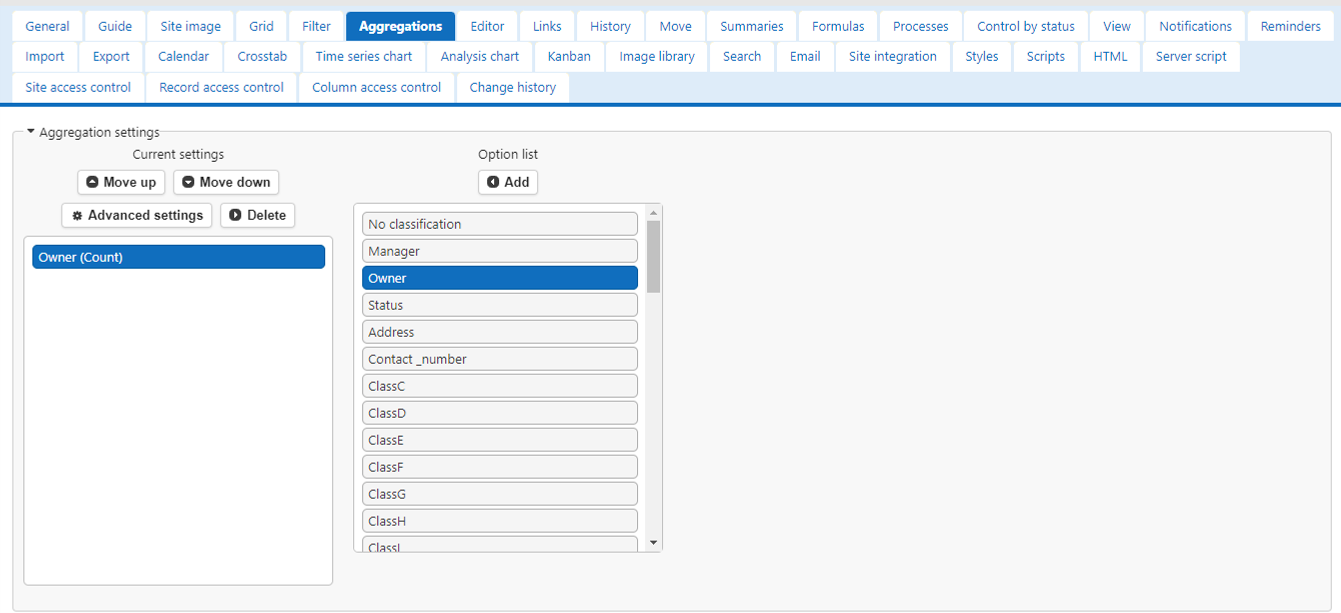
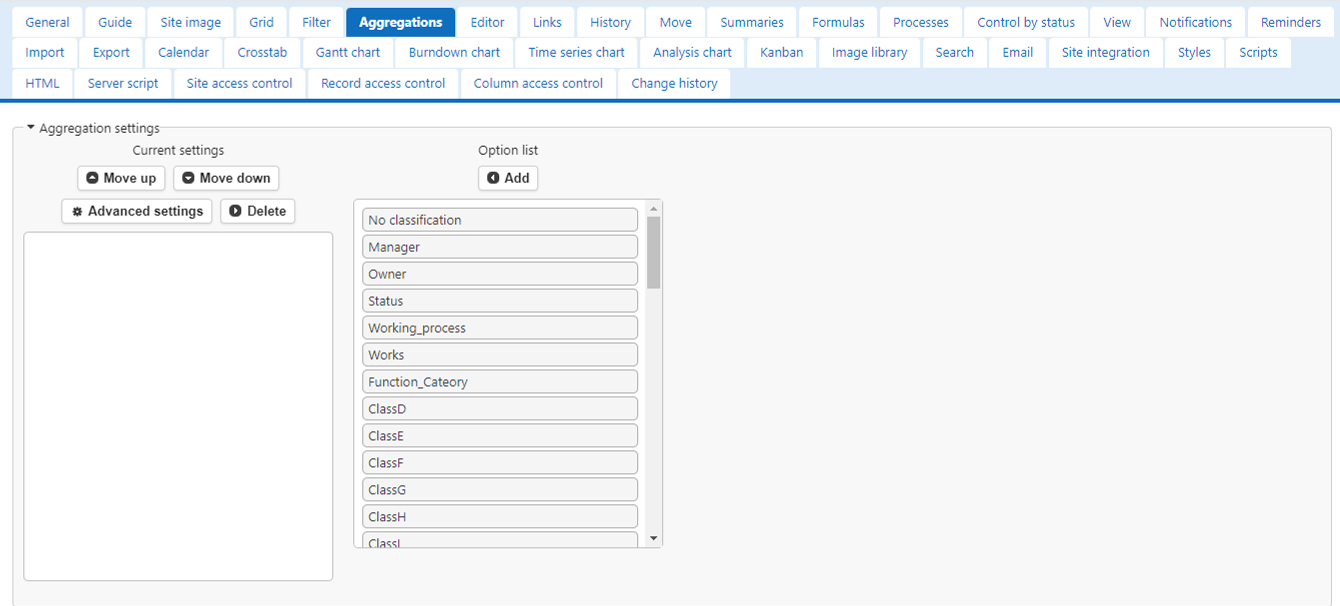
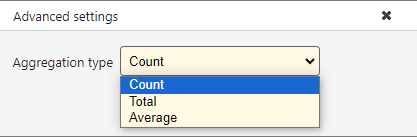
Click the "Aggregation" tab. In "Option List", click the "Column" you want to aggregate and click the "Add" button to move it to "Current Settings". Click the "Advanced Settings" button to set the "Aggregation Type".
Tip
If you select "No Classification" in "Option List", aggregation is performed for the whole without "Grouping".
-
For "Aggregation Type", select one of "Count", "Total", or "Average".
Related Information
- Table Function: Record Screen Index
- Manage Table: Items
- Manage Table: Items: Class
- Manage Table: Items: Work Volume
- Manage Table: Items: Remaining Work Volume
- Manage Table: Items: Numeric Value
- Manage Table: Items: Status
- Manage Table: Items: Manager
- Manage Table: Items: Owner
- Manage Table: Items: Check
- Column Advanced Settings: Multiple Selections
- Manage Table