Editor
Overview
In the "Editor" tab of "Manage table," you can design the record editing screen. You can flexibly design the record editing screen to suit your organization's needs.
Using "Smart Design" allows you to design records with more intuitive operations.
Prerequisites
- "Site management" authority is required.
Operation Procedure
You can open the "Editor" by following these steps:
- Open any table.
- Select "Manage" -> "Manage table" from the "Navigation menu".
- Select the "Editor" tab.
Screen Configuration
1. Editor settings
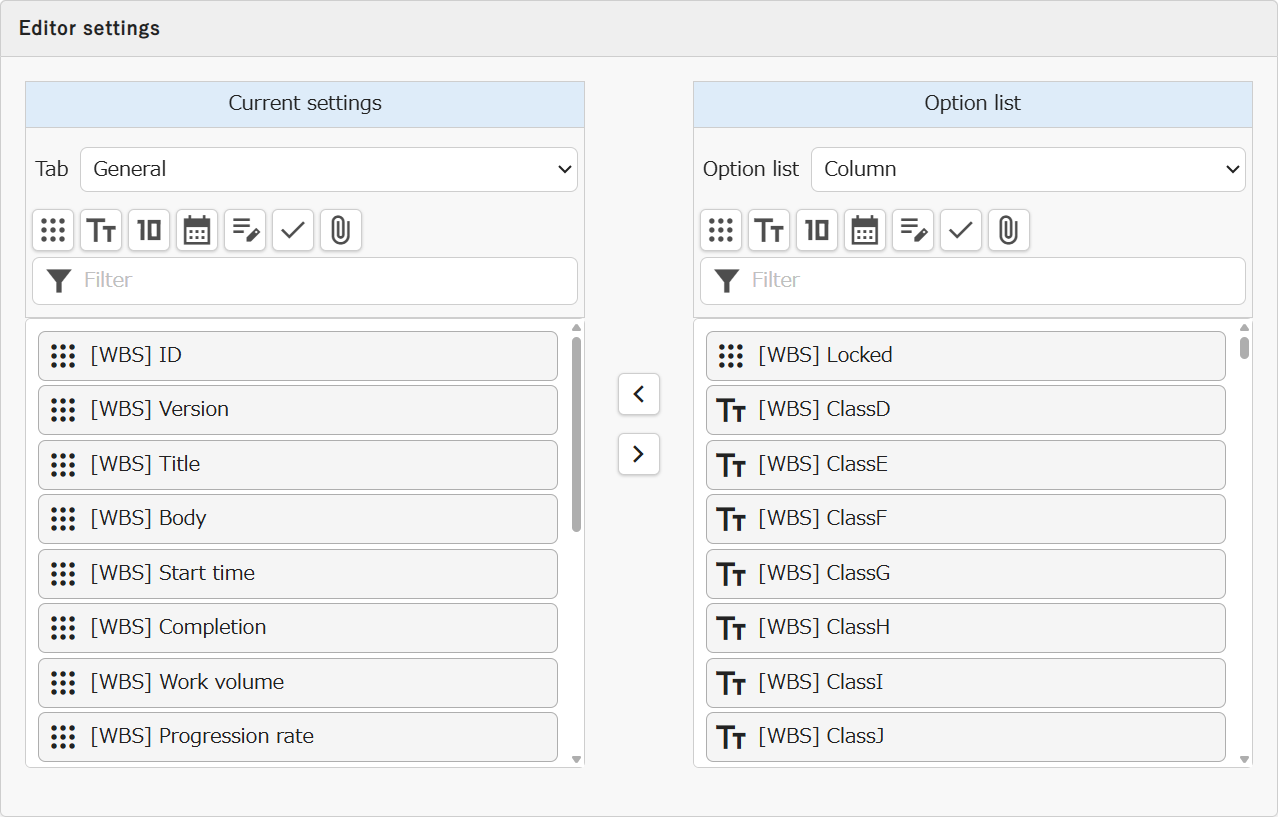
In "Editor Settings," you can configure the following settings. For details, please refer to "Editor settings."
- What "Items" to use
- Where to place them on the record editing screen
- In what order
- What advanced settings to apply when placing them
2. Other columns settings

You can make advanced settings for items other than those that can be configured in "Editor settings" (Created by Item, Updated by Item, Created on Item, Updated on Item). For details, please refer to "Other columns settings."
3. Tab Settings
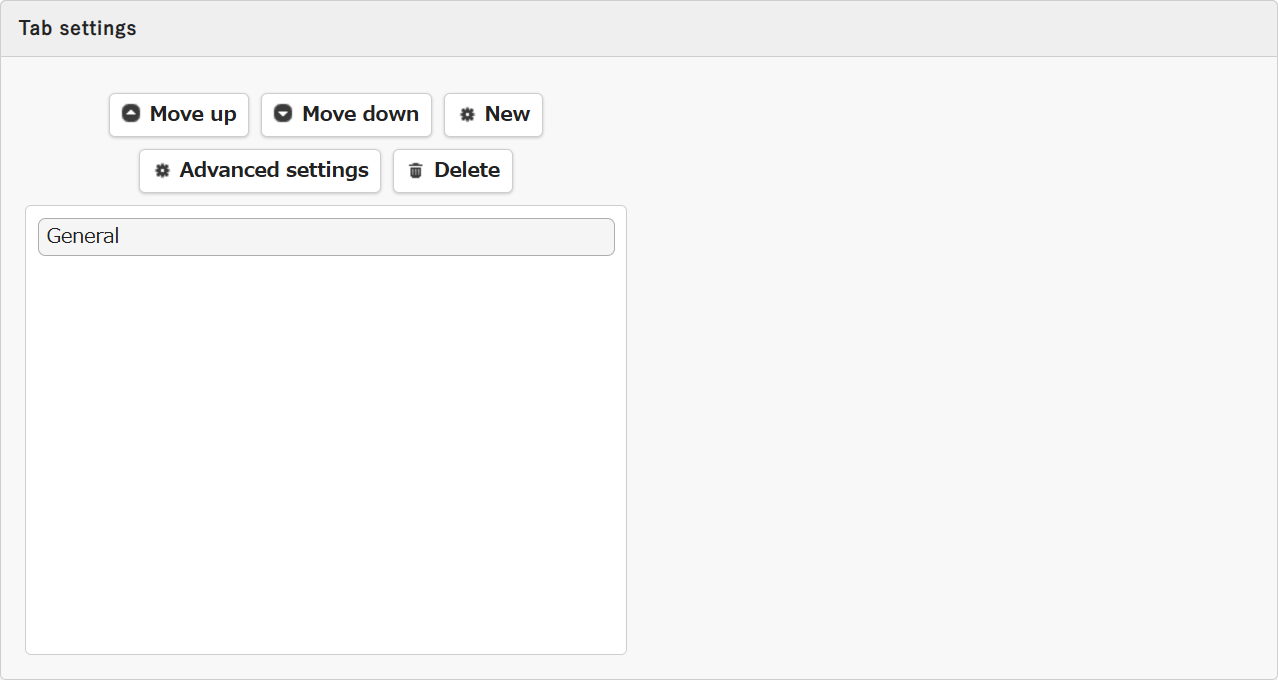
You can create and delete "Tabs," and change their display order. For details, please refer to "Tabs."
4. Relating column settings

You can set parent-child relationships for "Class columns (=Class items)" in the Editor. When a "parent class item" is selected, the "child class item"'s options can automatically switch to those corresponding to the selected value of the "parent class item". For details, please refer to "Relating Column."
5. Multilingual Label Settings
Imports or exports the settings of the Column Advanced Settings: Multilingual tab for each table as a CSV file. In Column Advanced Settings: Multilingual, settings must be made for each column, but "Multilingual label settings" lets you configure them all at once.
For details of this feature, refer to Manage Table: Editor: Import / Export of Multilingual Label Settings.
6. Other Settings on Record Control
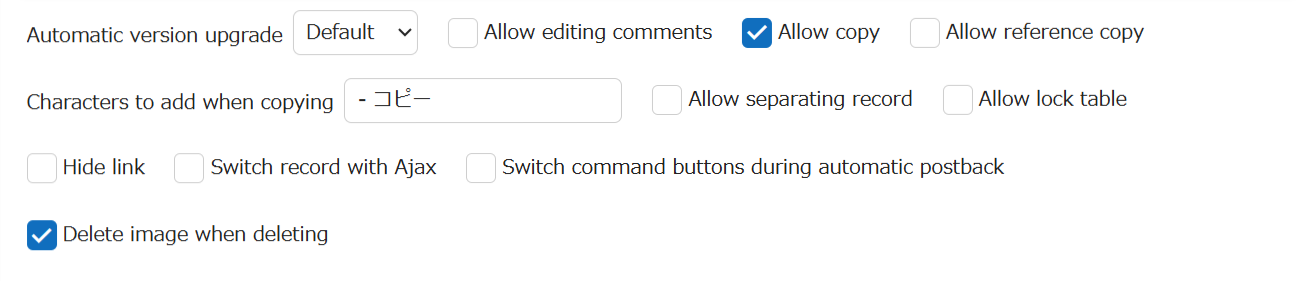
Settings related to controlling processes related to records are summarized here.
| Setting | Overview |
|---|---|
| Automatic version upgrade | Pleasanter has a function to automatically save record history (versions). "Automatic version upgrade" controls what kind of updates are considered version upgrades. For details, please refer to "Automatic version upgrade." |
| After create action | Controls the behavior after a record is created. For details, please refer to "After create action." |
| After update action | Controls the behavior after a record is updated. For details, please refer to "After update action." |
| Allow editing comments | Allows re-editing of comments once they have been submitted. For details, please refer to "Allow editing comments." |
| Allow copy | Controls whether to allow copying of records. For details, please refer to "Allow copy." |
| Allow reference copy | Controls whether to allow reference copying of records. When reference copying is performed, data is copied in a state before new creation, and you can create a record after changing necessary information. For details, please refer to "Allow reference copy." |
| Characters to add when copying | Sets the string that will be automatically appended to the end of the title when copying a record. For details, refer to "Characters to add when copying." |
| Allow separating record | In "Time-limited table", records can be separated into up to 10 pieces. For details, please refer to "Allow separating record." |
| Allow lock table | Locks the table to prevent new record creation, updates, and deletions. For details, refer to "Allow lock table." |
| Hide link | You can control whether to display the list of links shown at the bottom of the screen. For details, please refer to "Hide link." |
| Switch record with Ajax | When turned on, transitions between records using the "< Previous" and "Next >" button records become smoother. For details, please refer to "Switch record with Ajax." |
| Switch command buttons during automatic postback | Controls the timing of switching buttons created with "Process" and the timing when switching button display states with server script "elements.DisplayType." For details, please refer to "Switch command buttons during automatic postback." |
| Delete image when deleting | Sets not to delete images when deleting records. For details, please refer to "Delete image when deleting." |
Supported Versions
| Supported versions | Body |
|---|---|
| 1.4.23.0 and later | Added After create action and After update action |
| 1.5.1.0 and later | Added Import / Export of Multilingual Label Settings |
Related Information
- Smart Design: Editor: How to Use
- Manage Table: Editor: Editor Settings
- Manage Table: Items
- Manage Table: Items: Created By
- Manage Table: items: Updated By
- Manage Table: Items: Created On
- Manage Table: Items: Updated On
- Manage Table: Editor: Advanced Settings for Other Columns
- Manage Table: Editor: Tab
- Manage Table: Items: Class
- Manage Table: Editor: Relating Column
- Manage Table: Editor: Automatic Version Upgrade
- Manage Table: Editor: Allow editing comments
- Manage Table: Editor: Allow Copy
- Manage Table: Editor: Allow Reference Copy
- Manage Table: Editor: Characters to Add When Copying
- Manage Table: Editor: Allow Dividing
- Manage Table: Editor: Allow Table Locking
- Manage Table: Editor: Hide Link
- Manage Table: Editor: Use Ajax for Record Transitions
- Manage Table: Process
- Developer's Guide: Server Script: elements.DisplayType
- Manage Table: Editor: Toggle Command Button on Auto Postback
- Manage Table: Editor: Delete Image on Delete