Export
Overview
You can set the format of the data to be exported.
Limitations
- The "Version Column" is not output by default. To output it, you need to create a new export setting and add it to the column to be exported.
Prerequisites
- This operation requires "Site Administration Permission".
Operation Procedure
- Open the target table.
- Click "Manage Table" from the "Manage" menu.
- Open the "Export" tab.
- Click the "New" button.
- Enter/set the columns in the table below.
- Click the "Add" button.
- Click the "Update" button at the bottom of the screen.
Settings
| Column name | Description | Setting method |
|---|---|---|
| Name | Column for giving a title to the export settings | Enter any name |
| Export type | Set the file type | Select from [CSV] or [JSON] |
| Delimiter | Set the delimiter for each column to be output | Select from [Comma] or [Tab] |
| Enclose in double quotes | Set whether to enclose in double quotes or not for each column to be output | Check to enable the setting to enclose in double quotes |
| Export method | Set the export method | Select from [Direct] or [Email URL to own] |
| Output header | Set to enable/disable output of column name | Check to enable output of header |
| Export comments in JSON format | Set to enable/disable Export comments in JSON format | Check to enable Export comments in JSON format |
| Current settings | Columns to export | Reorder, advanced settings, and disable any column |
| Option list | Columns not to export | Enable any column |
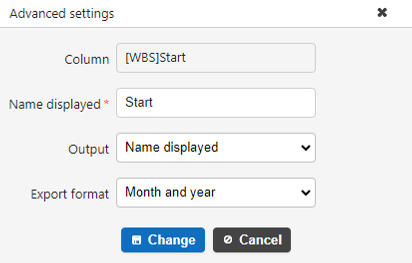
In the advanced settings of the columns to export, set the following.
| Column name | Description | Setting method |
|---|---|---|
| Name displayed | Column name when exported | The default is the name displayed of the column. If you want to change it, enter any name. |
| Output | Output contents to export | Choose from the following three. The default is the name displayed. Name displayed: Contents displayed on the screen Short name displayed: Contents displayed on the list screen Value: Record ID |
| Output classification in a column | Output method for multiple selection columns | If checked ON, all options are output in a column, and the selected column is marked with a "1". For details, see "Multiple Selection" |
| Export format | Export format | Only date column can be set. Default is year/month/date |
Operation Image
With the relevant table open, click "Manage" - "Manage Table" from the navigation menu.

Set the template for export.

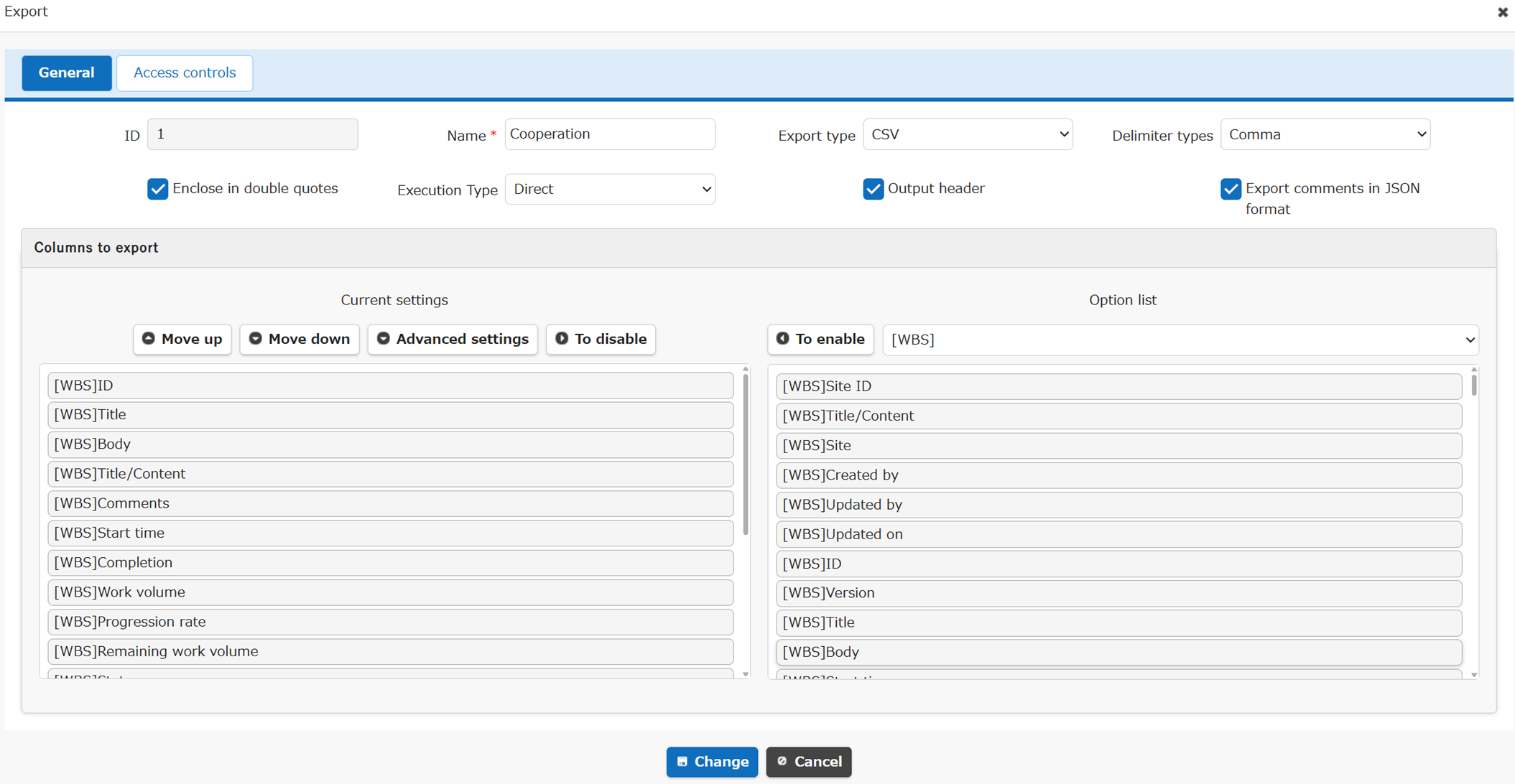
If you select "Direct" for "Export method", normal downloading will start. If you select "Email URL to own", the URL will be sent to you by email when the export process is complete.
Access control can be set for each template.
Manage table: Export: Access Control Tab
If a link is set, you can set the columns of the linked table to be exported.

List of Export Formats
The Export tab of the Manage Table screen displays a list of the formats that have been created and added.
The format list is initially empty. When you add formats, they are listed. Clicking an added format lets you edit it.
By selecting formats with the checkboxes at the left edge of the list, you can perform the following operations.
| Button Name | Function |
|---|---|
| Move up | Moves the selected format up by one. |
| Move down | Moves the selected format down by one. |
| Copy | Duplicates the selected format. The duplicated format is added to the bottom of the list. |
| Delete | Deletes the selected format from the list. When you click the Delete button, a confirmation dialog is displayed. Clicking the "OK" button deletes it from the list. |
New
Clicking the "New" button displays the Export: General Tab.
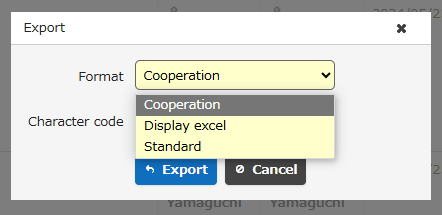
Allow standard export
Switches whether the "Standard" format is displayed in the "Format" field of the export dialog.
The Export dialog is the screen displayed when you open the index screen and click the Export button in the command button area.
If "Allow standard export" is disabled and there is no format other than the "Standard" format that the user has access to, the Export button in the command button area is not displayed.
The default value of "Allow standard export" can be changed with the parameter AllowStandardExport in the configuration file General.json.
Standard export types
In version 1.5.2.0 or later, in addition to the conventional "Standard" format, you can select two format patterns (Grid and Editor).
| Standard Export Types | Columns to Be Exported |
|---|---|
| Default | Columns in "Current settings" of the index screen or the editor screen (*Same as the "Standard" format in version 1.5.1.0 or earlier) |
| Grid | Columns in "Current settings" of the index screen |
| Editor | Columns in "Current settings" of the editor screen |
The default value of "Standard export types" can be changed with the parameter StandardExportType in the configuration file General.json.
Manage Table: Export: General Tab
For the General tab, refer to Export: General Tab.
Manage Table: Export: Access Control Tab
For the Access Control tab, refer to Export: Access Control Tab.