Form
Overview
This page explains the "Form function", which publishes any table (a record table or a table with a deadline) to external users who do not have a Pleasanter account, for a limited period. External users can create records by accessing the published address.
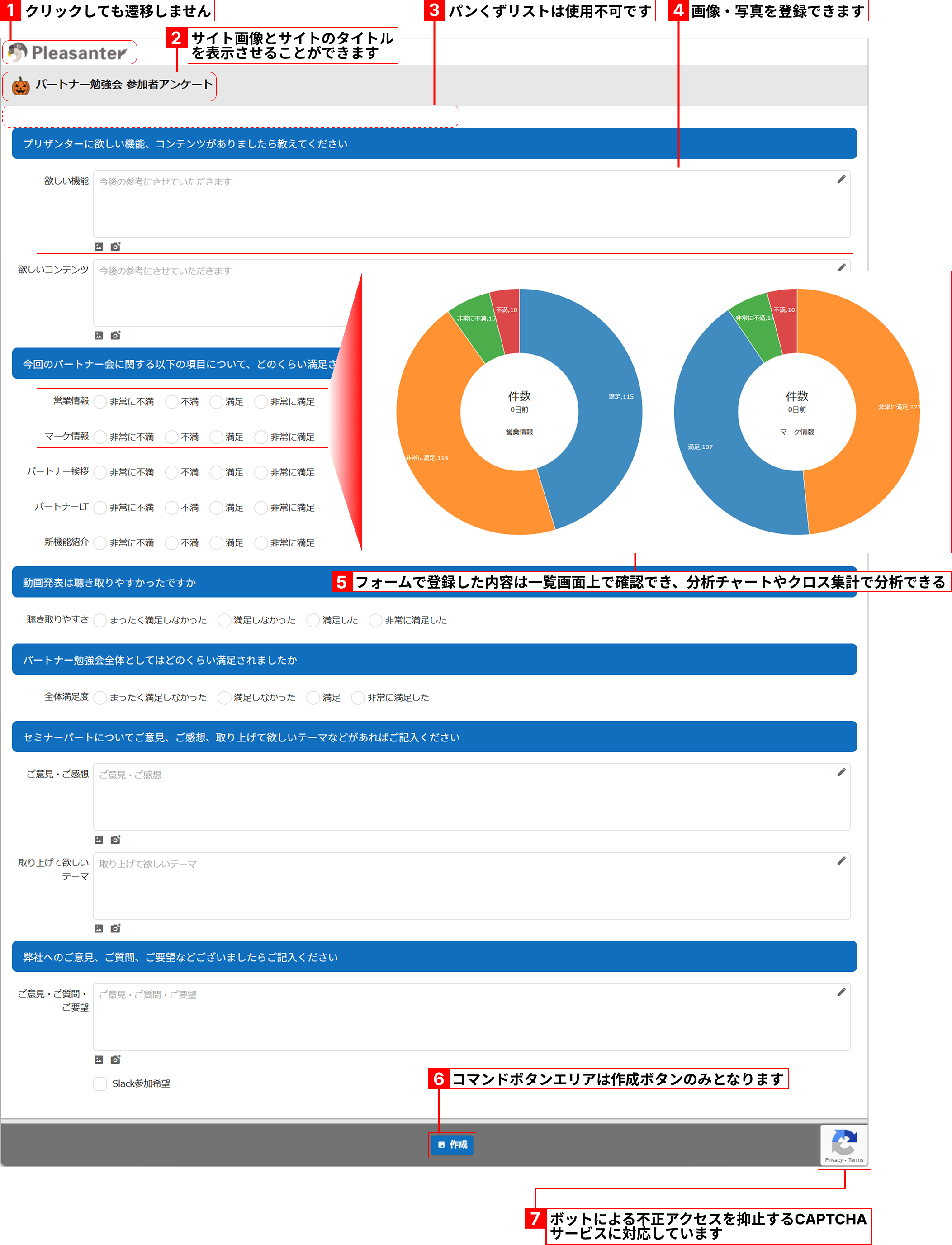
The following is a sample of a record creation screen published with the Form function.
Sample of a record creation screen published with the Form function
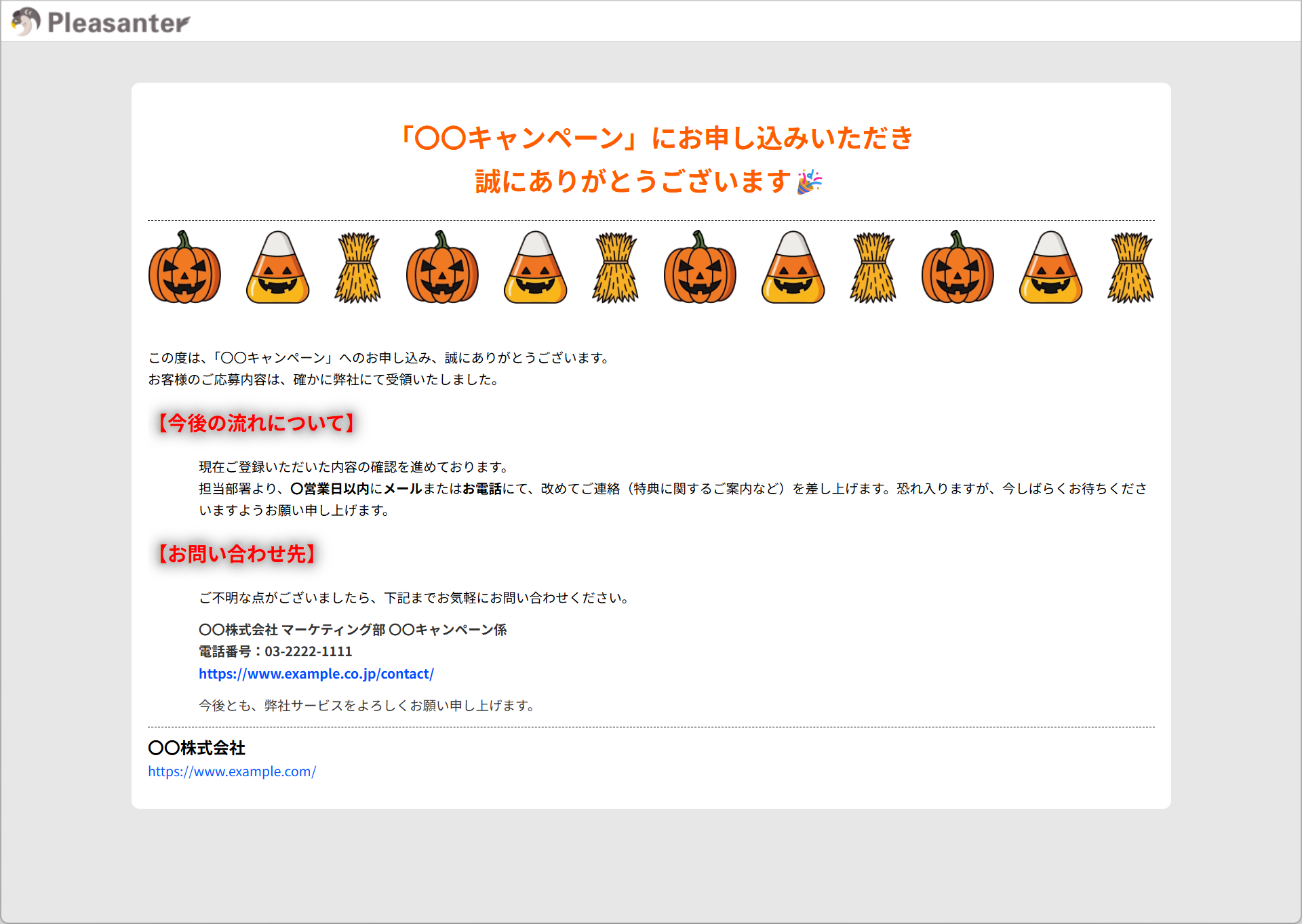
Thanks message
For cases such as a questionnaire, it provides a function that shows a message to the respondent.
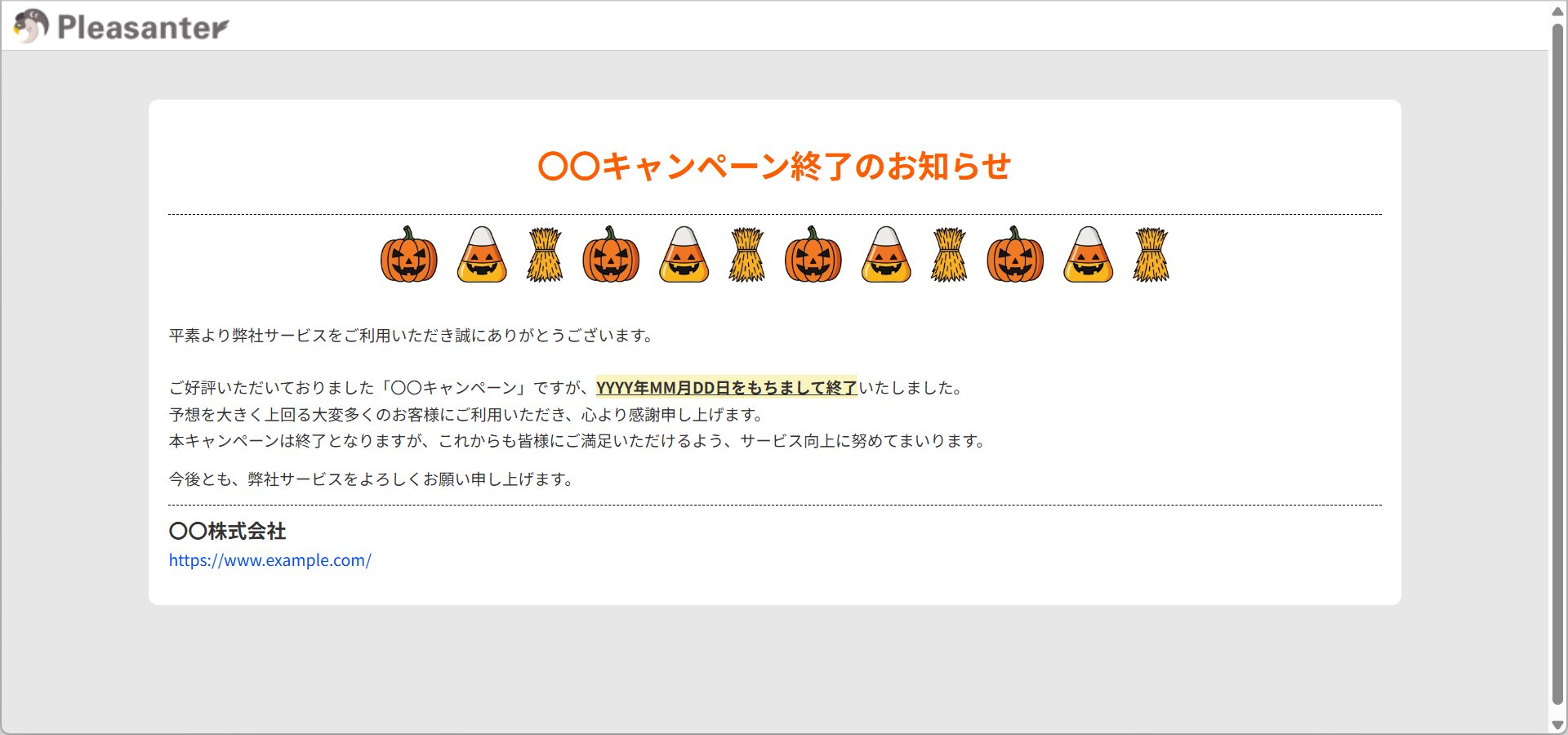
Unavailable message
It provides a function that shows that the page is not available when it is accessed outside the publication period.
Cautions
- If you use the Form function to collect information from an unspecified number of people, for example with a questionnaire, comply with the related laws such as the act on the protection of personal information.
- If you use the Form function to publish to an unspecified number of people outside your organisation, we recommend that you introduce SSL/TLS (hereafter TLS). To introduce TLS you need to obtain a TLS server certificate. In Pleasanter, you can force connections over https by setting the parameter "RequireHttps" of the configuration file "Service.json" to true.
- Pleasanter is designed to move to the login screen when a URL that Pleasanter can interpret is accessed while not logged in to Pleasanter. If this transition is a security concern when you use the Form function, set the value of the parameter "ShowLoginPageOnAuthError" of the configuration file "Security.json" to false.
- Using the CAPTCHA function can incur a charge. For details, check the site of each service.
- Cloudflare Turnstile
- Google reCAPTCHA v3/v2
- The start date and time and the end date and time of the publication need to be set in UTC (9 hours before JST).
Limitations
- Enabling and disabling the Form function requires a restart of Pleasanter.
- Enabling and disabling the CAPTCHA function supported by the Form function requires a restart of Pleasanter.
- When you enable the Form function, the parameter "TokenCheck" of the configuration file "Security.json" does not work (because the standard CSRF countermeasure of ASP.NET Core is built in, the CSRF countermeasure always works).
- Links in an option list (for example a setting such as [[8882]] in an option list) can be used only for tables for which the "information publication function" is enabled.
- Some scripts and server scripts that do not run with the permission of the logged-in user do not work. For details, refer to "Precautions regarding the permissions of scripts" in Script and "Precautions regarding the permissions of server scripts" in Server Script.
- The tenant logo displayed at the top left of the published screens (the record creation screen, the thanks message and the unavailable message) cannot be changed (the settings on the tenant management screen are not reflected).
- To show the site image and the site title on the published screen, you need to enable the Title column. To show the site title while not showing the Title column on the published screen, enable "Hide" on the advanced settings screen of the Title column.
Prerequisites
- Site management permission is required to enable and disable the Form function.
- Site management permission is required to enable and disable the CAPTCHA function.
- To use the CAPTCHA function, you need to obtain a "site key" and a "secret key" from the corresponding service in advance.
Operation Procedure
The explanation follows this flow.
- Enable the Form function
- Create a table to publish
- Enable the publication function of the table
- Create custom messages
- Prevent unauthorised access by bots with CAPTCHA
- Settings for the page transition when an unauthenticated user accesses
Supported Versions
| Supported Version | Description |
|---|---|
| Version 1.4.23.0 | Function added |