Formulas (Default)
Overview
"Formulas (Default)" is a feature that performs arithmetic operations on data entered in Numeric value items. Automatic calculations are performed based on the configured formula when the screen display is updated and when records are added, changed, or deleted.
Key Points for Creating Formulas (Default)
- In "Formulas (Default)", you can use Name displayed, "Item name", "Column name", numbers, arithmetic operators (+, -, *, /), and parentheses.
- Please enter spaces before and after operators.
- Using "Formulas (Extended)" or "Server Script" enables calculations with functions and date calculations.
Prerequisites
- Site management permission is required to configure formulas.
Operation Procedure
This procedure explains how to configure automatic calculation of the "Subtotal" item when data is entered in the "Unit price" and "Quantity" items.
- Select "Manage" → "Manage table" from the navigation menu.
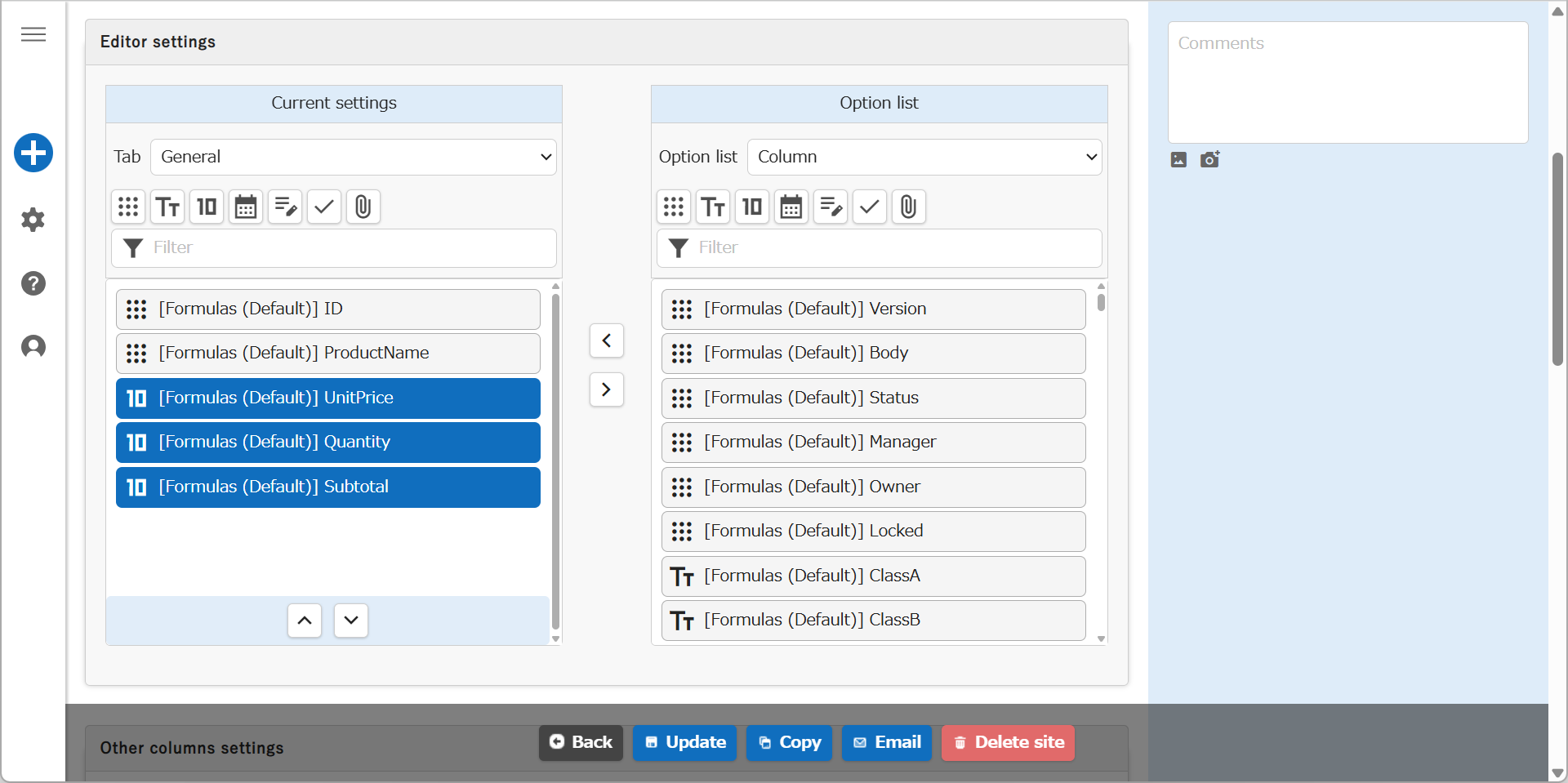
- Open the "Editor" tab and enable three "Numeric value" items. Change the "Name displayed" to "UnitPrice", "Quantity", and "Subtotal" respectively. After making changes, click the "Update" button in the command button area.
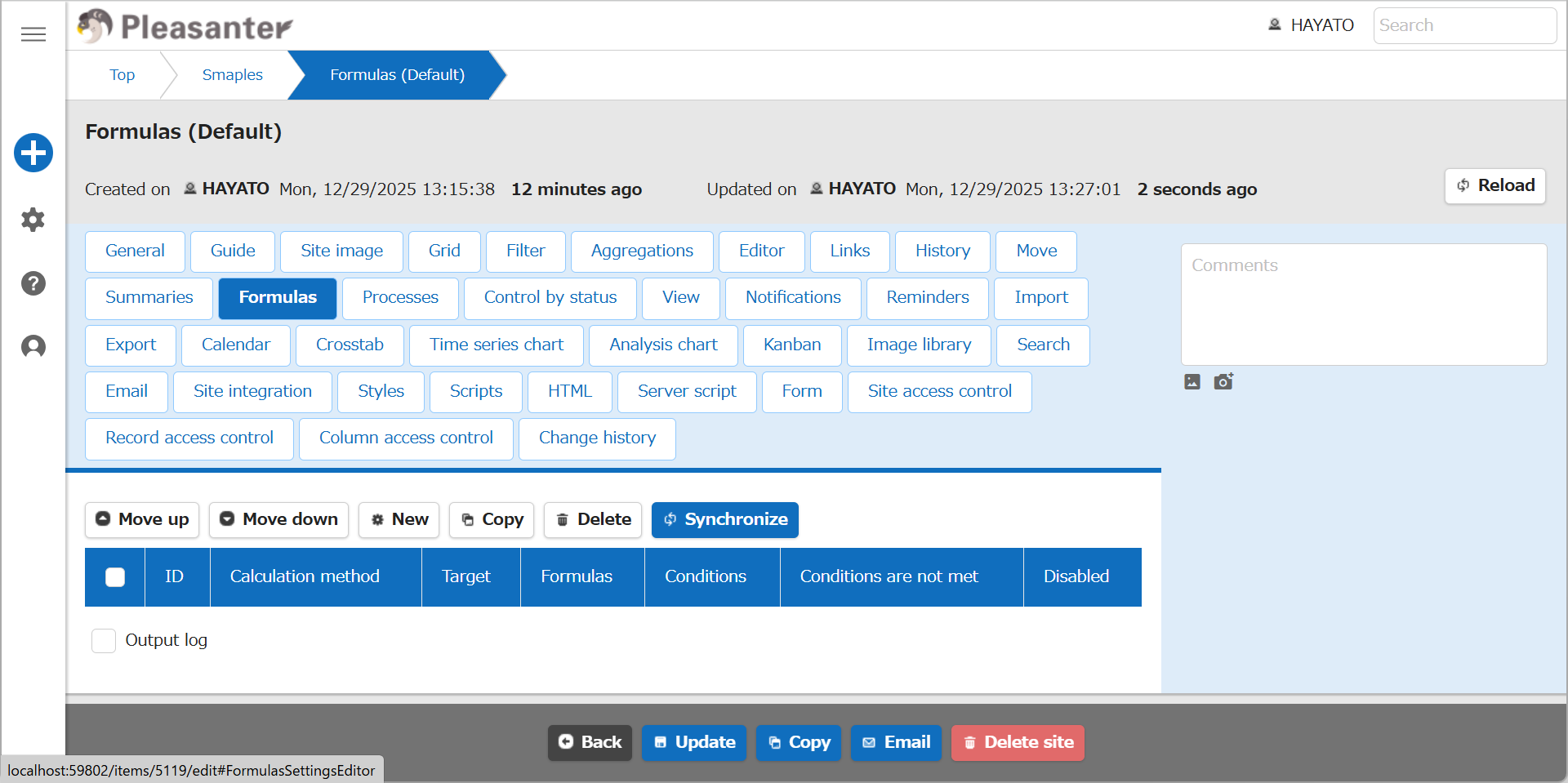
- Open the "Formulas" tab and click the "New" button.
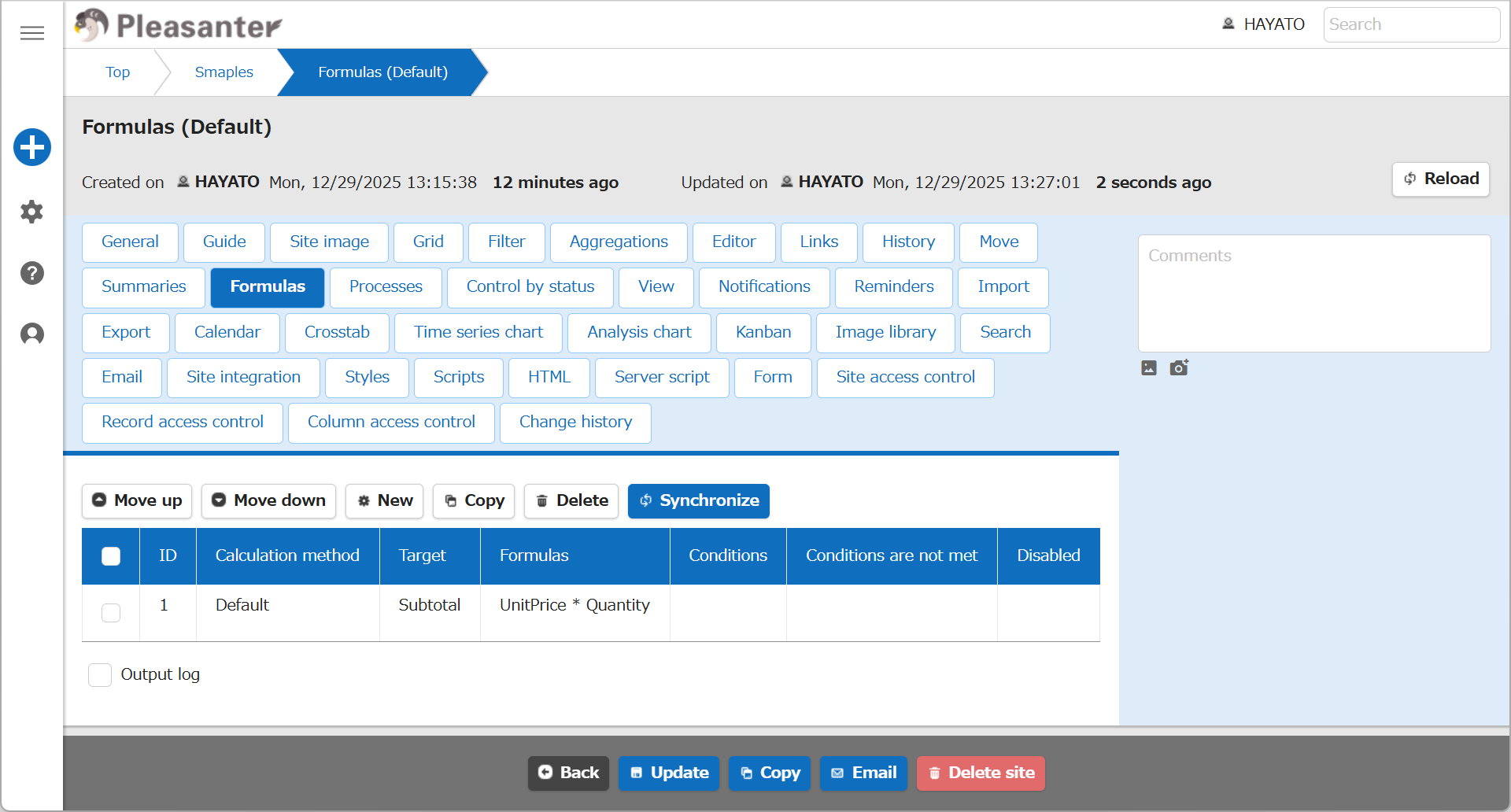
- Select "Default" for "Calculation method". Select "Subtotal" for "Target". Enter "UnitPrice * Quantity" in "Formula". After entering, click the "Add" button.

- If the following screen is displayed, the configuration was successful. Click the "Update" button in the command button area.
- In the record edit screen, enter "UnitPrice" and "Quantity", then click the "Create" button.

- The formula is automatically processed when you press the "Create" or "Update" button, and the calculation result is entered in the Subtotal item.

Applying Formulas to Existing Records or Modifying Existing Formulas
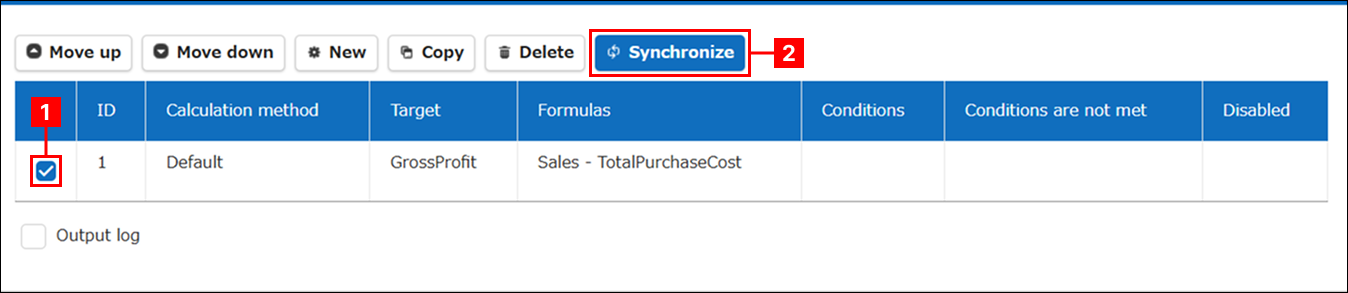
When you newly configure formulas for existing records or update existing formulas, check the target formula in the "Formulas List" and click the "Synchronize" button to recalculate.
Settings on the "Advanced Settings" Screen
Calculation method
To use the "Default" calculation method, select "Default" in "Calculation method".
ID
A management number assigned by Pleasanter after the formula is added.
Target
Select the numeric value column to store the calculation result.
Formulas
Enter the formula as follows. Columns used in the formula must be enabled in the editor in advance.
- You can use + (addition), - (subtraction), * (multiplication), and / (division) as operators.
- Add a half-width space before and after each operator.
- Specify the numeric value columns to be calculated by Name displayed or column name.
- The part enclosed in half-width parentheses is calculated first.
If the name displayed of a calculation target contains half-width parentheses, refer to "When Name displayed of Calculation Target Contains Parentheses".
Don't use display name
Enable this when you want to save a "formula created with names displayed" as a "formula created with column names".
Conditions / Conditions are not met
When views are defined in the table, the Conditions pull-down menu is displayed. When you select a view in Conditions, the "Conditions are not met" text box is displayed. When the filter conditions of the view are met, the formula runs, and when the filter conditions of the view are not met, the formula entered in "Conditions are not met" runs.
Disabled
Enable this when you want to temporarily stop a formula that is being edited from running.
After adding or changing a formula, run synchronization or update the table.
When Name displayed of Calculation Target Contains Parentheses
For example, if you are using a display name that includes parentheses such as "ConsumptionTax(10%)", specify the "Column name" such as NumA.
An error will occur if you specify an item with parentheses in the "Name displayed".

In that case, specify using the column name as shown below.

In the formulas list, it will be displayed replaced with the Name displayed.
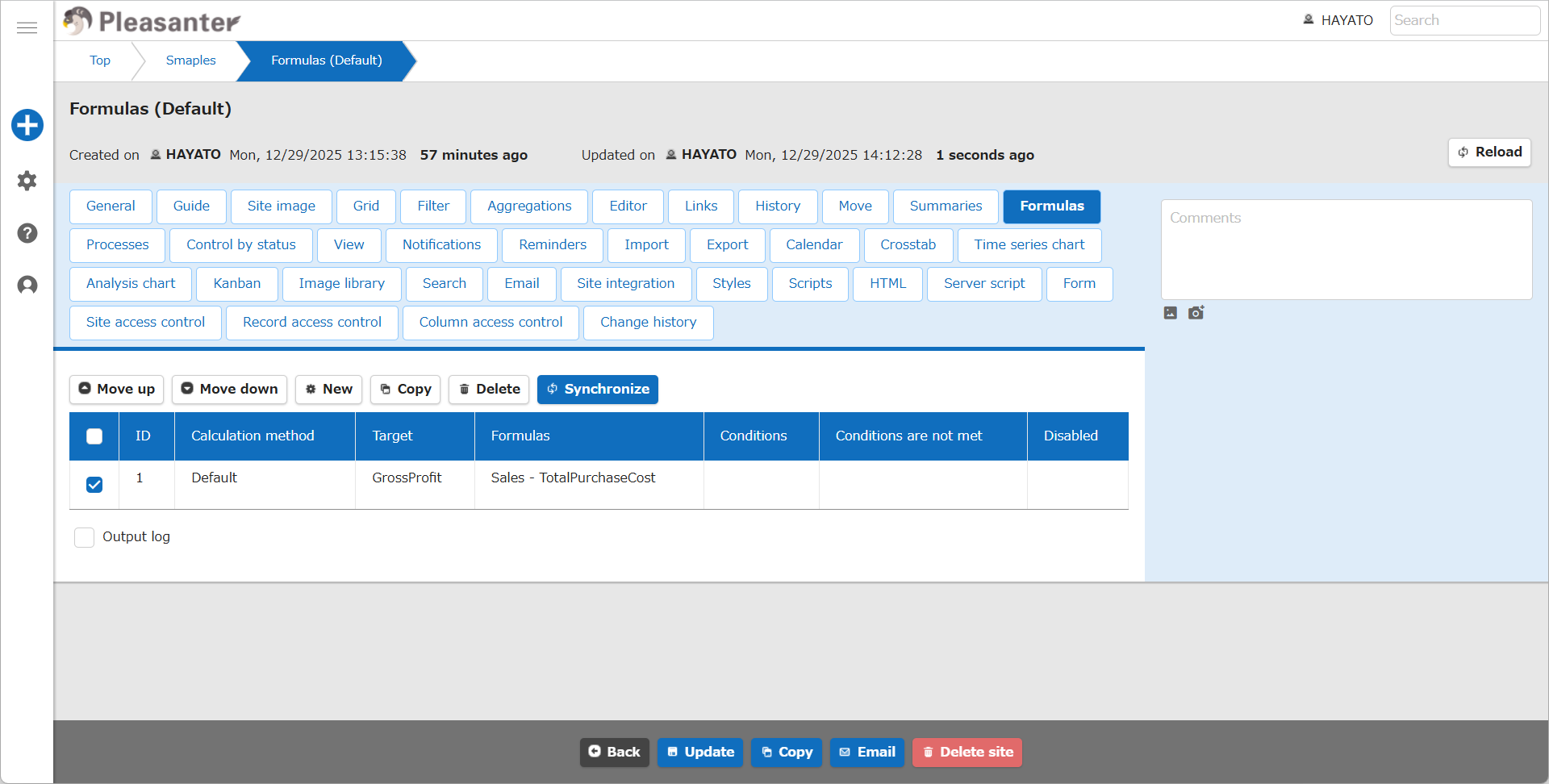
Formulas Output log
When formulas do not work as intended, Output log can be helpful. Here, we will explain using the example of log output when calculating "GrossProfit = Sales - TotalPurchaseCost".
-
Prepare three items as follows:
Item name Column name Name displayed Role Num A NumA GrossProfit Store calculation result Num B NumB Sales Enter calculation target Num C NumC TotalPurchaseCost Enter calculation target -
Open the "Formulas" tab and configure the formula as shown in the table below:
Calculation method Target Formulas Default GrossProfit Sales - TotalPurchaseCost -
Check "Output log".
- Click the "Update" button in the command button area.
- Open the web browser's "Developer Tools" and open the "Console".
-
Open the new record creation screen, enter the values below for "Sales" and "TotalPurchaseCost", and click the "Create" button.
Sales TotalPurchaseCost 1000000 500000 -
When you click the "Update" button in the command button area, a log like the following will be output to the "Console".
Formatted Log
When formatted, you can see that three objects are output.
formulaSet: {
    "CalculationMethod": "Default",
    "Target": "NumA",
    "Formula": {
        "OperatorType": 0,
        "Children":[
            {"ColumnName": "NumB", "OperatorType": 0},
            {"ColumnName": "NumC", "OperatorType": 2}
        ]
    },
    "Id":1
}
formulaSource: {
    "NumA": 500000.0000,
    "NumB": 1000000.0000,
    "NumC": 500000.0000
}
formulaResult: {
    "NumA": 500000
}
How to Read the Log
Details of the three objects are as follows:
| JSON Object | Meaning |
|---|---|
| formulaSet | Formula configuration |
| formulaSource | Value of each column subject to calculation |
| formulaResult | Calculation result |
Details of the formulaSet object are as follows:
| formulaSet Object Value | Meaning |
|---|---|
| Target | Target item |
| Formula | Formula |
| Children | Calculation content |
| OperatorType | Operator (0: None, 1: Addition, 2: Subtraction, 3: Multiplication, 4: Division) |
| ColumnName | Column name |
| Id | Formula ID |