Reminders
Overview
Reminders is a function that sends reminder notifications at a specified time and interval for records whose due date has passed, or whose due date is approaching within a specified range. Reminder notifications can be sent by email or through communication tools such as Teams, Slack, and Chatwork.
Limitations
If FixedFrom is set in "Mail.json", the sender input column will be hidden. The FROM of the reminder email will be the email address set in FixedFrom.
Prerequisites
Settings are required to enable reminders. Please refer to the manual below and set them in advance.
Enable the reminder function of Pleasanter
Setting Procedure

With the relevant table open, click "Manage" - "Manage Table" from the navigation menu.
*Not displayed for users without Site Administration Permission.
Set up Pleasanter to automatically notify you of reminder emails at the specified time and frequency.
Email addresses listed in specific columns can also be specified as recipients.
Reminder emails are sent based on the date specified in the "Column" of each record and the "Status" value.
If the "Status" option list is left as standard, reminder emails will not be sent for "Completed" or "Pending" (codes of 900 or higher) (they will be sent if "Send previously completed columns" is checked).

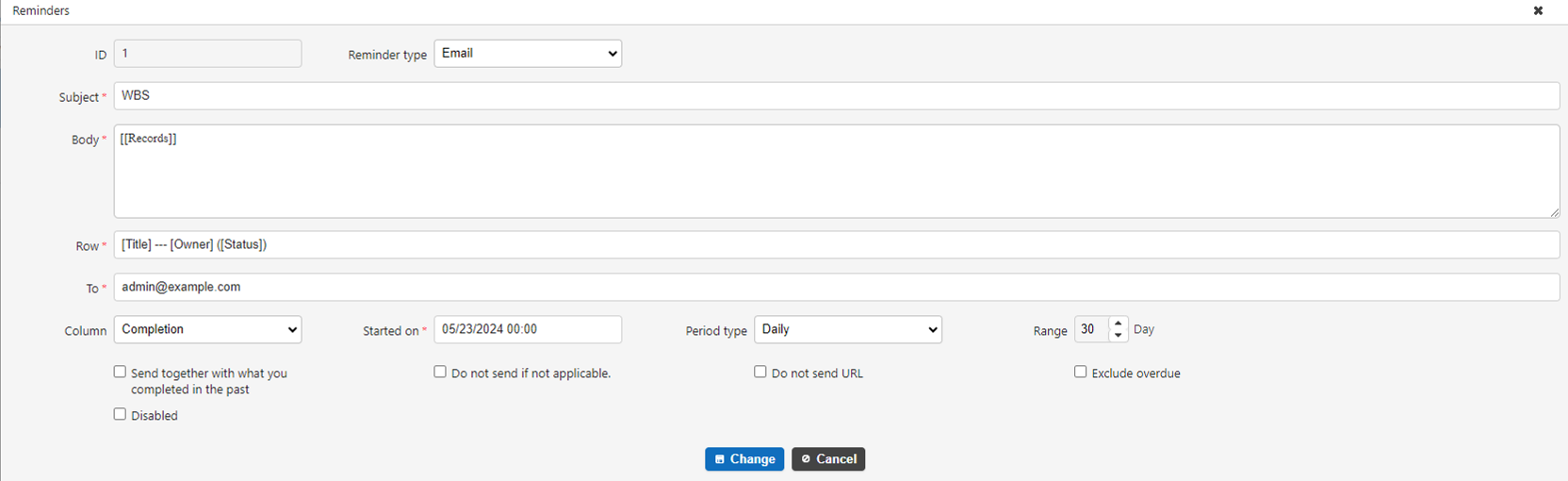
Settings:
| Column name | Description | Setting method |
|---|---|---|
| Reminder type | Specify the type of reminder | Select from email, Slack, Chatwork, LINE, LINE group, Teams, Rocket.Chat, InCircle |
| Subject | Subject of reminder email | Enter any subject |
| Body | Add text before or after record list | Enter any content, record list will be output at [Records] position |
| Row | Layout of columns to display in record list | Enter any content |
| Sender | Address to use for FROM of email. If FixedFrom is set in "Mail.json", this field will be hidden and the address specified in FixedFrom will be the sender. | Enter any address |
| Destination | Address to use for TO emails | Enter any address separated by commas |
| Column | Date column to use as reminder basis | Specify any date column |
| Start date and time | Date and time to start the reminder | Enter any date and time |
| Period type | Specify repeat period | Every day, every week, week/day of the week, every month, end of the month, yearly *See below |
| Range | Period for reminding. If 10 is specified, the range will be 10 days including the current day. For example, if a reminder email is sent on the 1st, records up to the 10th will be targeted. | Enter any number of days |
| Send past completed columns | Select whether to send past completed items | Check to send completed items |
| Do not send if no applicable | Check to not send reminder emails when there are no target records | |
| Do not send URLs | Do not include URLs in emails | Check to not include URLs in emails |
| Do not send expired columns | Do not send expired columns | Check to not send expired columns |
| Conditions | Conditions for sending reminder emails | Specify any view |
| Disable | Disable the target reminder | Check to disable |
The reminder function executes the process using the "Start Date and Time" as the base time for time, day, week/day, and month.
If the date entered in the column specified in "Column" is included within the number of days in "Range" from the time of execution, a reminder will be sent.
About The Period Type
Daily: Executes every day at the same time specified in the start date and time
Weekly: Executes once a week at the same time on the day of the week specified in the start date and time
Week/Day of the Week: Executes once a month at the same time on the day of the week of the xxth week specified in the start date and time
Monthly: Executes once a month at the same time on the day of the month specified in the start date and time
End of the Month: Executes once a month at the same time on the last day of the month on the day of the start date and time
Yearly: Executes once a year at the same time on the day of the start date and time
Specify The Reminder Type
Specify the reminder type. You can select from the following reminder types that you have enabled in "Reminder.json".
| Reminder type | Description |
|---|---|
| Set up to send email from Pleasanter | |
| Slack | Set up to notify Slack |
| Chatwork | Set up to notify Chatwork |
| LINE | Set up to notify LINE (to notify individual users) |
| LINE Group | Set up to notify LINE (to notify LINE groups) |
| Teams | Set up to notify Microsoft Teams |
| Rocket.Chat | Set up to notify Rocket.Chat |
| InCircle | Set up to notify InCircle |
*If you want to be notified by email, you need to set up email sending.
Targets That Can Be Specified As Recipients
| Target | Behavior |
|---|---|
| Fixed email address (example@example.com) | All target records will be sent to the specified fixed address. If multiple fixed addresses are specified, all fixed addresses will be sent as TO. |
| Owner, Manager | Send to the email addresses of the Owner of the target record and the user specified as the manager. |
| Title, Content, Category, Description | Send to all email addresses listed in the title, content, category, and description of the target record. Email addresses can be specified with a comma or line break separator. |
Example Settings And Sending Results
If the reminder destination is set as follows, a fixed reminder email will be sent to example@example.com, and in addition, if an email address is listed in the Owner and content registered for each record, a reminder email will also be sent to that address.
example@example.com, [contact person], [content]
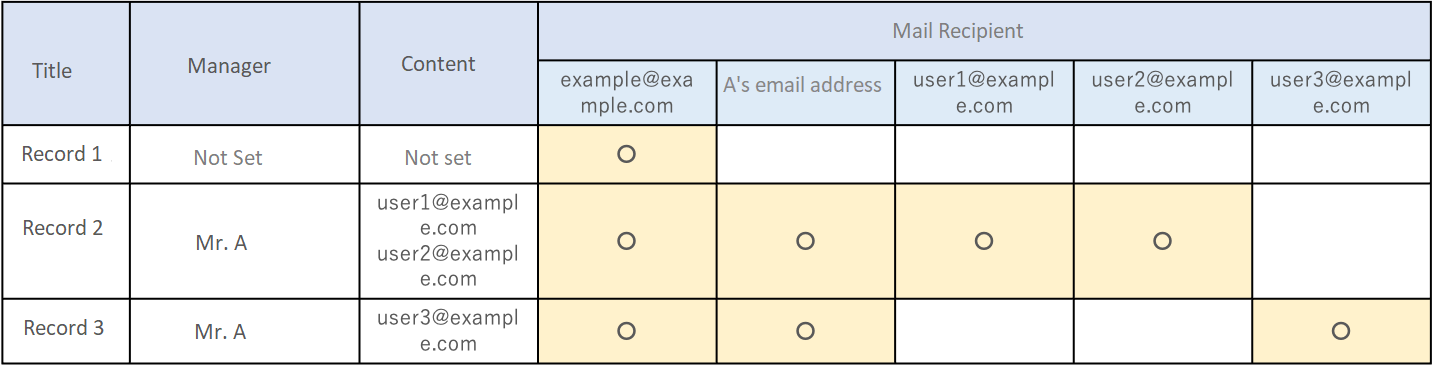
Actual Configuration Example
The following is the configuration screen when "DescriptionA" is placed as "Destination Address" based on the above table and specified as the destination target.
A user is specified as the destination address.


Sending Result
The email received by A looks like this.
2024/05/20 Mon (2 days over)
    Requirements definition) Work [non-routine]) Confirmation of network requirements --- A (In progress)
    http://pleasanter.example.local/items/11071/edit

2024/05/17 Fri (5 days over)
    Unit testing) Review response) Unit testing --- A (Review)
    http://pleasanter.example.local/items/11072/edit
The email sent to user3 (user3@example.com) is as follows.
2024/05/17 Fri (5 days over)
    Unit testing) Review response) Unit testing --- A (Review)
    http://pleasanter.example.local/items/11072/edit
As shown above, the record will be reminded to the user listed in the columns set as the reminder destination (in this case, "Owner" and "Destination address").
The content specified in the AbsoluteUri of "Service.json" is output at the beginning of the URL.
Dynamic destination specification by user/dept/group
If the reminder type is "email", you can dynamically specify the destination. However, user/dept/group that are disabled will not be notified.
Specify ID directly in the address
You can directly specify the user ID/dept ID/group ID in the address. The name of the user/dept/group will not be displayed, so please be careful not to make any mistakes in the ID you specify.
Example of settings:
| No | Specify address | Description |
|---|---|---|
| 1 | [User1] | Notify the user with user ID:1. |
| 2 | [Dept1] | Notify the users who belong to department ID:1. |
| 3 | [Group1] | Notify the users/departments who belong to group ID:1. |
Specify Class Column For Address
You can specify class columns with "Users Option List", "Department Option List", and "Group Option List" set for the address. Use this when you want to dynamically change the destination for users/departments/groups set on a record-by-record basis. If the class column is set to "Multiple Selection", all multiple selections will be notified.
Example of settings:
| No | Name displayed of category A | Category A option list | Specify address | Description |
|---|---|---|---|---|
| 1 | User | [[Users]] | [User] | Notify the users set in category A of the target record. |
| 2 | Department | [[Depts]] | [Department] | Users who belong to the department set in the target record's ClassA will be notified. |
| 3 | Group | [[Groups]] | [Group] | Users/Departments who belong to the group ID set in the target record's ClassA will be notified. |
Output The Contents Of The Fields In The Email Title And Body
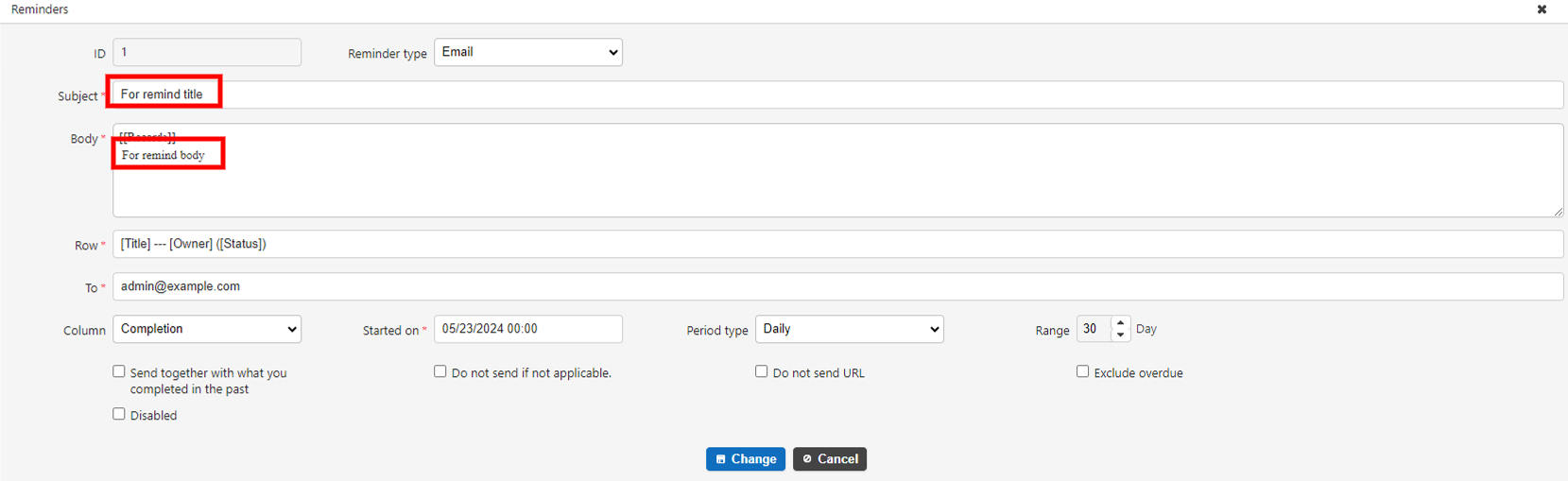
As with the destination, you can also output the contents of the fields in the title and body.
Supported Versions
| Supported versions | Body |
|---|---|
| 1.3.9.0 and later | Added a function to specify a class column in an address as a dynamic destination specification for users/depts/groups |
| 1.3.10.0 and later | Added a function to directly specify an ID in an address as a dynamic destination specification for users/depts/groups Added a function to specify a reminder type |