Site function: Import Site Package
Overview
Import table settings, access rights, data, etc. from the site package (JSON file) output by exporting the site package. Import can be performed even if the server is different. After import, the site ID will be different from before the import, so link destination information, etc. will be automatically converted.
Limitations
- Attachments and images cannot be imported.
- Import creates a new site, but cannot overwrite an existing site.
- If the top folder of the site to be exported inherits access rights, the access rights will not be set correctly at the import destination and the site will be inaccessible when the import is complete. When exporting, please export from a folder that does not inherit access rights. If an inaccessible site is imported, please access the site using a "Privileged User" and restore the access rights.
- If a script is embedded and the site ID or record ID is specified, the ID will change and the site may not work properly. You will need to manually change the ID written in the script.
- When importing a site package exported from a different Pleasanter, the dept, group, and user information stored in the record will not be converted to the ID of the import destination.
Prerequisites
- You need the "Site Administration Permission".
Operation Procedure
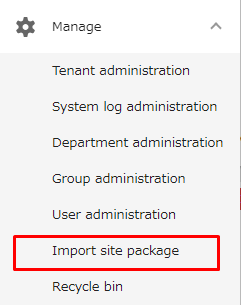
- Select "Import Site Package" from the "Administration" menu.
- A dialog will appear, so select the site package (JSON file).
- Check and change optional settings such as access rights as necessary.
- Click the "Import" button. A site package (JSON file) based on the settings you made will be imported.
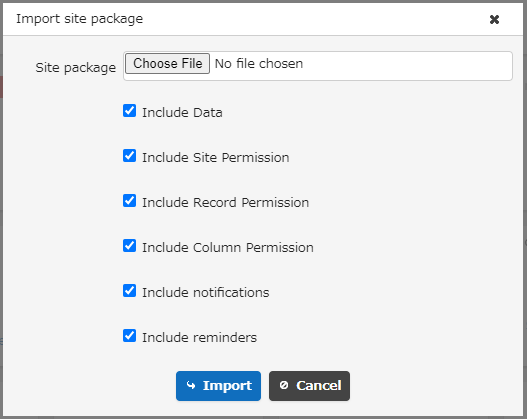
Optional Settings
| Column name | Description |
|---|---|
| Site package | Select the exported site package file (json) |
| Include Data | Export data along with tables |
| Include Site Permission | Whether to Include Site Permission settings |
| Include Record Permission | Whether to Include Record Permission settings |
| Include Column Permission | Whether to Include Column Permission settings |
| Include notifications | Whether to include notifications settings |
| Include reminders | Whether to include reminders settings |
Conversion of Departments, Groups, and Users
When you import a site package from a different Pleasanter, the department, group, and user information is converted as follows, depending on the version of Pleasanter that exported the site package.
1. Ver1.4.16.3 or Earlier
This is how information is converted when importing a site package exported with Pleasanter ver1.4.16.3 or earlier.
Department, Group, and User Information Set in Access Control
| Type | Conversion |
|---|---|
| Department | Converted to the department whose department code matches. If no record matches, registered as "0" |
| Group | Converted to the group whose group name matches. If no record matches, registered as "0" |
| User | Converted to the user whose login ID matches. If no record matches, registered as "0" |
Department, Group, and User Information Registered in Records
| Type | Conversion |
|---|---|
| Department | Converted to the department that matches the department code of the department specified in the table's access control. If no record matches, registered as "0" |
| Group | Converted to the group that matches the group name of the group specified in the table's access control. If no record matches, registered as "0" |
| User | Converted to the user that matches the login ID of the user specified in the table's access control. If no record matches, registered as "0" |
2. Ver1.4.17.0 or Later
This is how information is converted when importing a site package exported with ver1.4.17.0 or later. When importing a site package exported with ver1.4.16.3 or earlier, information is converted as described in "1. Ver1.4.16.3 or Earlier" above.
Department, Group, and User Information Set in Access Control
| Type | Conversion |
|---|---|
| Department | Conversion is performed in the following numbered order 1. Converted to the department whose department code matches 2. Converted to the department whose department name matches 3. If no record matches either 1 or 2 above, registered as "0" |
| Group | Converted to the group whose group name matches. If no record matches, registered as "0" |
| User | Conversion is performed in the following numbered order 1. Converted to the user whose login ID matches 2. Converted to the user whose user code matches 3. Converted to the user whose user name matches 4. If no record matches any of 1 to 3, registered as "0" |
Department, Group, and User Information Registered in Records
| Type | Conversion |
|---|---|
| Department | Based on the information of the department specified in the table's access control, conversion is performed in the following numbered order 1. Converted to the department whose department code matches 2. Converted to the department whose department name matches 3. If no record matches either 1 or 2, registered as "0" |
| Group | Converted to the group that matches the group name of the group specified in the table's access control. If no record matches, registered as "0" |
| User | Based on the information of the user specified in the table's access control, conversion is performed in the following numbered order 1. Converted to the user whose login ID matches 2. Converted to the user whose user code matches 3. Converted to the user whose user name matches 4. If no record matches any of 1 to 3, registered as "0" |
Supported Versions
| Supported versions | Body |
|---|---|
| 1.4.17.0 and later | Changed how department, group, and user information stored in records is converted when importing a site package exported from a different Pleasanter |
| 1.5.6.0 and later | Fixed an issue where filter conditions set in processes, views, etc. were lost when importing a site package that includes data |