Upload source code to the Extensions table
Overview
Uploads source code and JSON configuration data, such as Extension scripts, Server scripts, SQL extensions, and CSS extensions, stored on your local PC to Pleasanter's Extensions table.
Operation Procedure
- Open "Settings.json" in Editor.
- Add the environment to be uploaded to Environments. Set the Name / Title / Dbms / ConnectionString.
- Specify the upper directory path where the source code is stored in BasePath.
- Specify the ExtensionId / ExtensionName / ExtensionType / Path in Extensions.
- Launch Implem.PleasanterManagementStudio.exe.
- Click the target environment from the list of environments to select it.
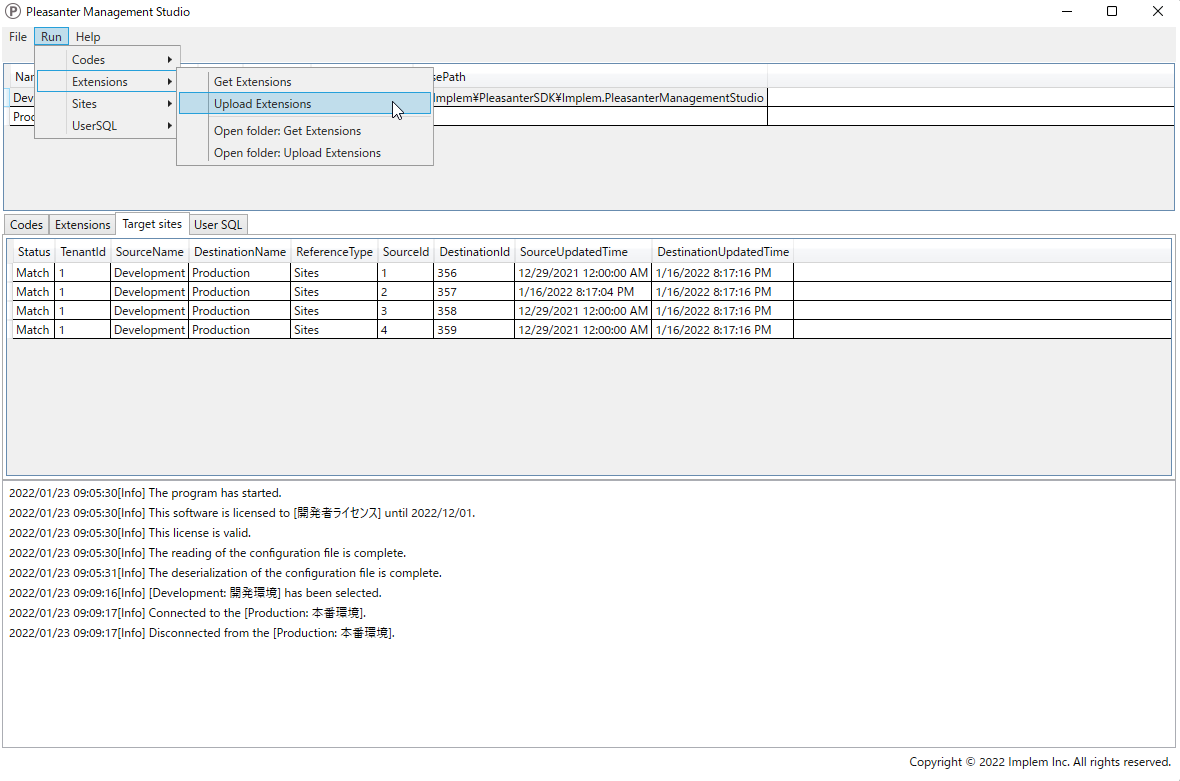
- From the menu at the top of the screen, click [Run] > [Extensions] > [Upload Extensions].
- Check the confirmation items in the dialog box and click "Yes".
- From the menu at the top of the screen, click [File] > [Open log folder] to open the log folder.
- Open the [UploadExtensions] folder in the log folder to view the source code before and after the changes. You can also open the same folder by clicking [Extensions] > [Open folder: Upload Extensions] from the menu at the top of the screen.