Extensions
Overview
This page explains the function of Pleasanter Code Assist that registers and updates source code on the extensions table. It registers and updates scripts, server scripts, styles and SQL created and edited in Visual Studio Code on the extensions table.
From Pleasanter version 1.4.16.0, the conditions for use have changed to strengthen security. Update to version 1.4.16.0 or later and turn on the "Allow the Extensions API" checkbox only when you need it.
Conditions for use
To use the extensions table (the Extensions table), the following conditions need to be met.
Conditions for use in version 1.4.16.0 and later
- After logging in as a privileged user, turn on the "Allow the Extensions API" checkbox on the Tenant Management screen
- Use the API key of a privileged user
Conditions for use in version 1.4.15.0 and earlier
- Use the API key of a tenant administrator
Limitations
- After the content is reflected on the extensions table, Pleasanter needs to be restarted.
Operation Procedure
- In Visual Studio Code, use "Open Folder" to open the base folder you created in the setup steps.
-
Create a settings file in each folder under the extensions folder. The settings file must be a JSON file that contains the content below. The file name is up to you. The extension must be
.json.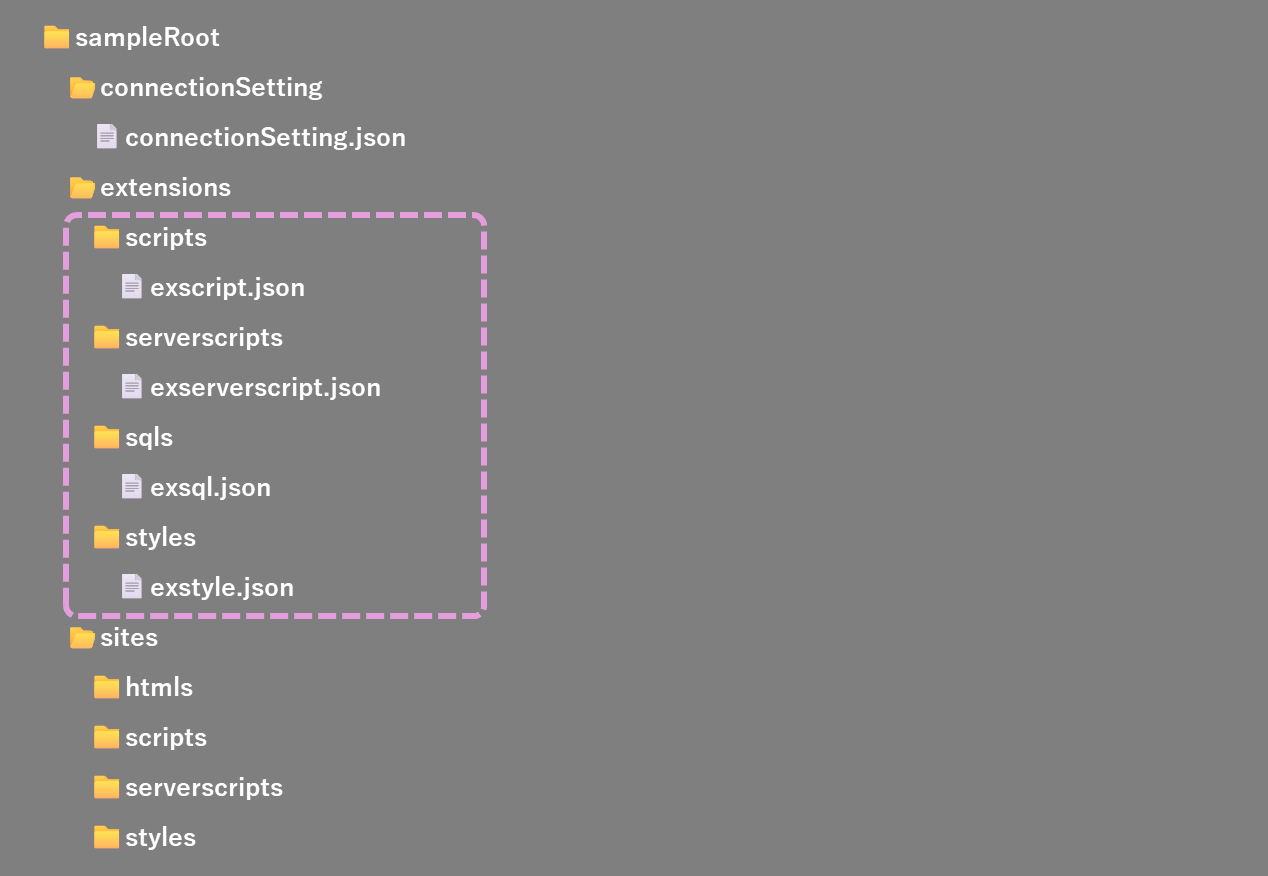
You can insert a template of the setting information with the Ctrl+Alt+I key.
Common
Parameter Name Configuration Example Description Name Sample Sets the name used when running an extended server script or extended SQL from the API. Description "This SQL runs ..." The description of the source code. It does not affect the behaviour. Disabled false When true, it is disabled and does not work. DeptIdList [1,2,3] Specifies the target department IDs in array format. It can be omitted when you do not specify it. GroupIdList [1,2,3] Specifies the target group IDs in array format. It can be omitted when you do not specify it. UserIdList [1,2,3] Specifies the target user IDs in array format. It can be omitted when you do not specify it. SiteIdList [1,2,3] Specifies the site IDs of the target sites in array format. It can be omitted when you do not specify it. IdList [1,2,3] Specifies the IDs of the target records in array format. It can be omitted when you do not specify it. Controlles ["items"] Specifies the target controllers in array format. It can be omitted when you do not specify it. Actions ["index","edit"] Specifies the target actions in array format. It can be omitted when you do not specify it. For extended server scripts only
Click here to open and close the details
For an extended server script, set the parameters in the table below as appropriate, in addition to the common parameters above.
Parameter Name Configuration Example Description WhenloadingSiteSettings false When true, it runs under the condition "when the site settings are loaded". WhenViewProcessing false When true, it runs under the condition "when the view is processed". WhenloadingRecord false When true, it runs under the condition "when the record is loaded". BeforeFormula false When true, it runs under the condition "before the formula". AfterFormula false When true, it runs under the condition "after the formula". BeforeCreate false When true, it runs under the condition "before creating". AfterCreate false When true, it runs under the condition "after creating". BeforeUpdate false When true, it runs under the condition "before updating". AfterUpdate false When true, it runs under the condition "after updating". BeforeDelete false When true, it runs under the condition "before deleting". AfterDelete false When true, it runs under the condition "after deleting". BeforeBulkDelete false When true, it runs under the condition "before bulk deleting". AfterBulkDelete false When true, it runs under the condition "after bulk deleting". BeforeOpeningPage false When true, it runs under the condition "before the page is displayed". BeforeOpeningRow false When true, it runs under the condition "before the row is displayed". For extended SQL only
Click here to open and close the details
For extended SQL, set the parameters in the table below as appropriate, in addition to the common parameters above.
Parameter Name Configuration Example Description ColumnList ["ClassA"] Specifies the column names in the database targeted when you use OnSelectingColumn, in array format. Api false When true, you can run the extended SQL from the API. It also becomes available from the "extendedSql object" of a Server Script. DbUser "Owner" Specifies the DB user used when running the extended SQL from the API. When it is not specified, it runs as "User". It is valid only when it is run from the API. Html false When true, the value obtained is stored in an HTML input tag as a hidden type. OnCreating false When true, it runs before a record is created. OnCreated false When true, it runs after a record is created. OnUpdating false When true, it runs before a record is updated. OnUpdated true When true, it runs after a record is updated. OnDeleting false When true, it runs before a record is deleted. OnDeleted false When true, it runs after a record is deleted. OnBulkDeleting false When true, it runs before records are bulk deleted. OnBulkDeleted false When true, it runs after records are bulk deleted. OnImporting false When true, it runs before records are imported. OnImported false When true, it runs after records are imported. OnSelectingColumn false When true, it adds SQL for getting the content of the columns displayed on the index screen and the edit screen dynamically. OnSelectingWhere false When true, it adds a Where clause that limits the records displayed on the index screen and the edit screen. OnSelectingWhereParams ["ExtendedFieldName"] When a value is entered in the specified extended field, the value is added to OnSelectingWhere as a parameter. * Specify the "Name" of the extended field as the value OnSelectingWherePermissionsDepts false When true, it adds a Where clause that limits the records of the Depts table shown in the option list of the access control OnSelectingWherePermissionsGroups false When true, it adds a Where clause that limits the records of the Groups table shown in the option list of the access control OnSelectingWherePermissionsUsers false When true, it adds a Where clause that limits the records of the Users table shown in the option list of the access control OnSelectingOrderBy false When true, it adds an OrderBy clause that sorts the records displayed on the index screen. OnSelectingOrderByParams ["ExtendedFieldName"] When a value is entered in the specified extended field, the value is added to OnSelectingOrderBy as a parameter. * Specify the "Name" of the extended field as the value OnUseSecondaryAuthentication false When true, it runs before the 2-step authentication. -
Create the source code file that pairs with the settings file you created in step 2. Give it the same name as the settings file you created in step 2. For the extensions, refer to the table below. For example, when the settings file is sample.json, the source code file of the extended SQL is sample.sql. The extensions can be changed in the settings. With Pleasanter Code Assist 1.3.0 and later, you can create subfolders in the folders under the extensions folder.
Type Folder Extension Remarks Extended script scripts .js The extension can be changed with pleasanter-code-assist.fileExtensionMappings.js Extended server script serverscripts .js The extension can be changed with pleasanter-code-assist.fileExtensionMappings.js Extended SQL sqls .sql The extension can be changed with pleasanter-code-assist.fileExtensionMappings.sql Extended style styles .css The extension can be changed with pleasanter-code-assist.fileExtensionMappings.css 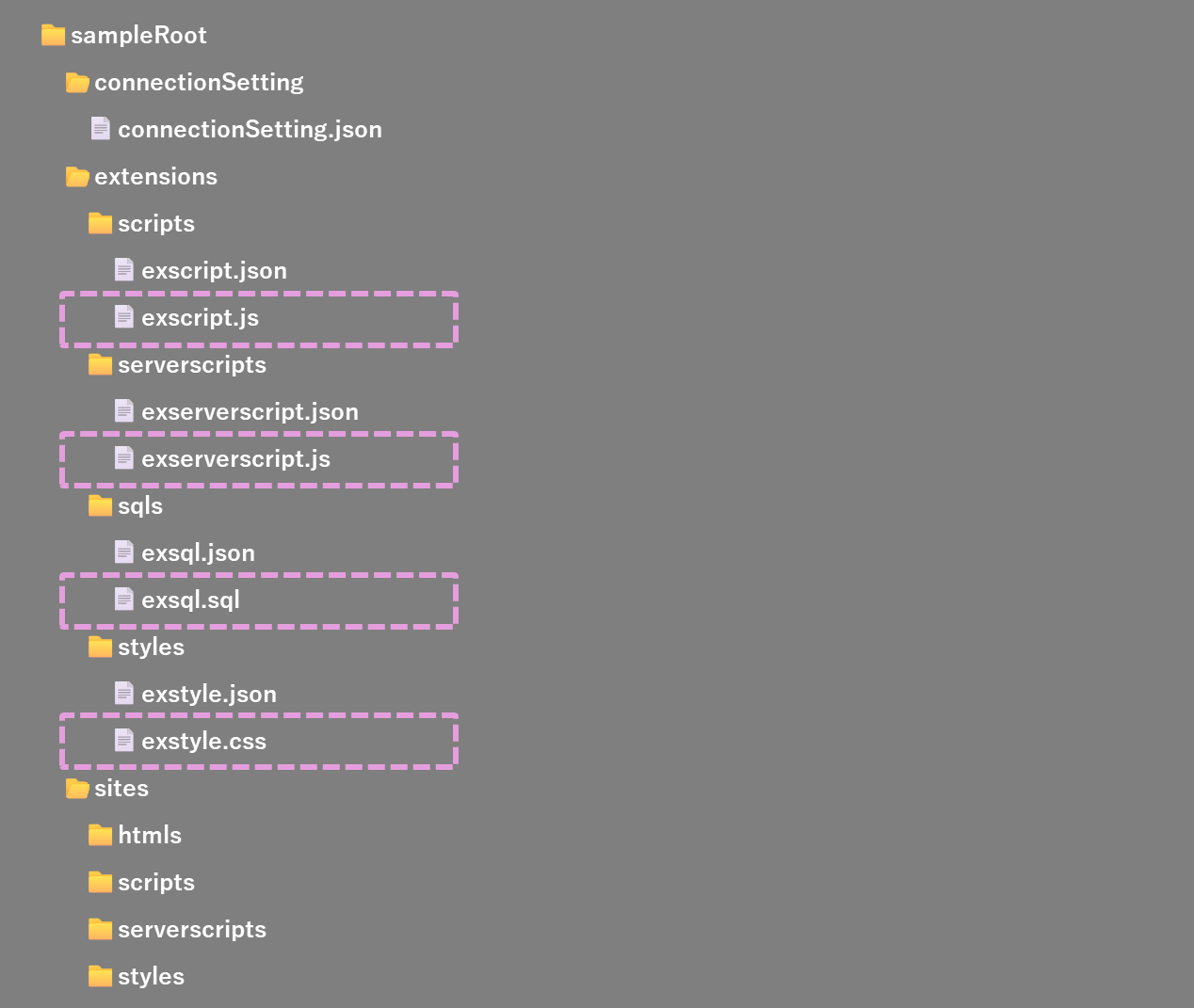
-
Write the meta information in the source code file you created. Write the meta information as a comment starting from the first line. You can insert a meta information template with the Ctrl+Alt+I key.
Setting values
Parameter Name Required Configuration Example Description @config Yes server.json Set the server connection information file you created in the setup steps @filename samplesql.json.js Specifies the file name. You can set the name of the file itself with the dedicated variables @name Yes Sample extended SQL Sets the name @description This is a sample of extended SQL. Sets the description @disabled false Set true to disable it. When it is omitted, it is taken to be false About the dedicated variables for the file name
You can use the following variables when specifying @filename. When you set a variable, it is converted into the corresponding string and then registered or updated on Pleasanter. It is not converted in the source code file itself.
Parameter Name Description ${psFileBasename} The name of the file itself ${psFileBasenameNoExt} The name of the file itself (without the extension) ${psFileExtname} The extension of the file itself -
Save the source code file. When you save it, the content of the settings file and the content of the source code are registered or updated on the Extensions table according to the settings in the meta information.
- Restart Pleasanter so that the content of the Extensions table takes effect.
Specification of Registration and Update
The specification of the data registration and update by this function is as follows.
| Operation | Description |
|---|---|
| Read | Data cannot be downloaded |
| Register | If there is no data with the same name as @name (the name) in the meta information, which is used as the key, it is registered as new |
| Update | If there is data with the same name as @name (the name) in the meta information, which is used as the key, it is updated |
| Delete | Data cannot be deleted. Either update @disabled in the meta information to true (disabled), or delete the data in the Extensions table directly |
Supported Versions
| Supported Version | Description |
|---|---|
| Pleasanter 1.4.16.0 and later | BeforeBulkDelete and AfterBulkDelete added to the parameters for extended server scripts |
| Pleasanter 1.4.16.0 and later | Conditions for use added |
Related Information
Pleasanter Code Assist
Developer's Guide
- Correspondence of Column name and Name in the system in the Database
- Developer's Guide: Extensions: Extended SQL: Executing Extended SQL from the API
- Developer's Guide: Server Script