Site Settings Display
Overview
This page explains the function of Pleasanter Site Visualizer that displays the setting information of a site. It displays the setting information of a site of the Pleasanter you are logged in to.
Prerequisites
- "Site management permission" is required.
1. Operation Steps (common: displaying the screen and downloading the file)
- Log in as a user with site administrator permission.
- Move to the site whose setting information you want to display.
-
Click the "Pleasanter Site Visualizer" browser extension icon.
Icon State Description 
When the icon is blue, you can use it. 
When the icon is grey, you cannot use it. (This is the state when you are not logged in, or when the page you have open cannot open site management.) -
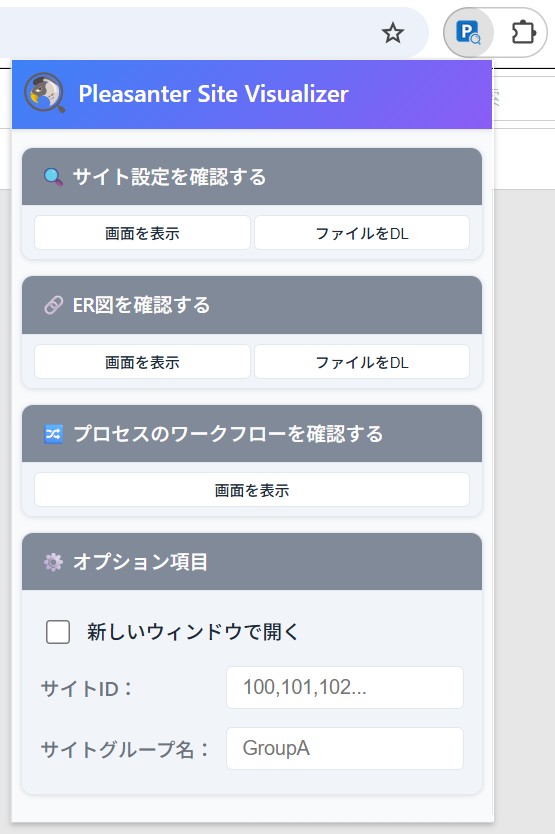
The operation screen of "Pleasanter Site Visualizer" is displayed.
2. Operation Steps (displaying the screen)
-
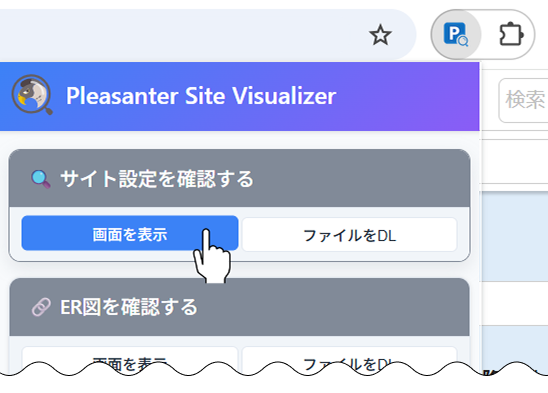
Click "Show screen" under "Check the site settings".
-
The site setting information is displayed in a separate window.

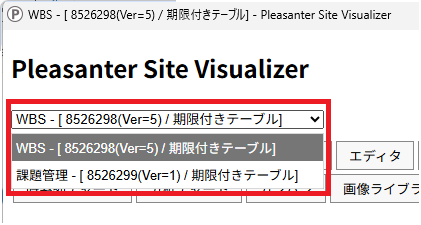
If you specify a site ID or a site group name in the optional columns, you can switch the site to display with the dropdown list at the top right of the screen.
-
You can switch the lower part of the display with the buttons at the top of the screen.

3. Operation Steps (downloading the file)
-
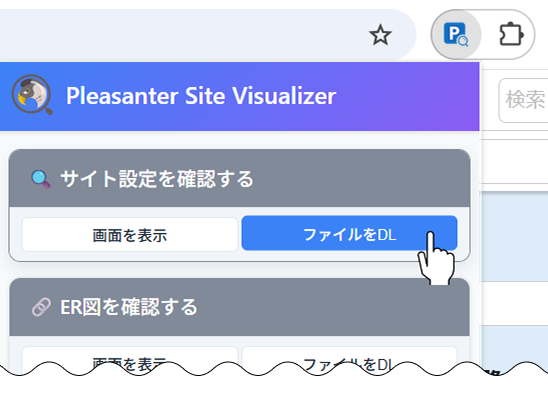
Click "Download file" under "Check the site settings".
-
An Excel file compressed in zip format is downloaded. An Excel file is generated for each site. If you specify a site ID or a site group name in the optional columns, several Excel files are stored in the zip file.

Description of the Optional Columns
Open in a new window
Opens the setting information display screen in a new window when you use "Show screen" from the second time onwards. When the checkbox is off, the content of the window that is already open changes.
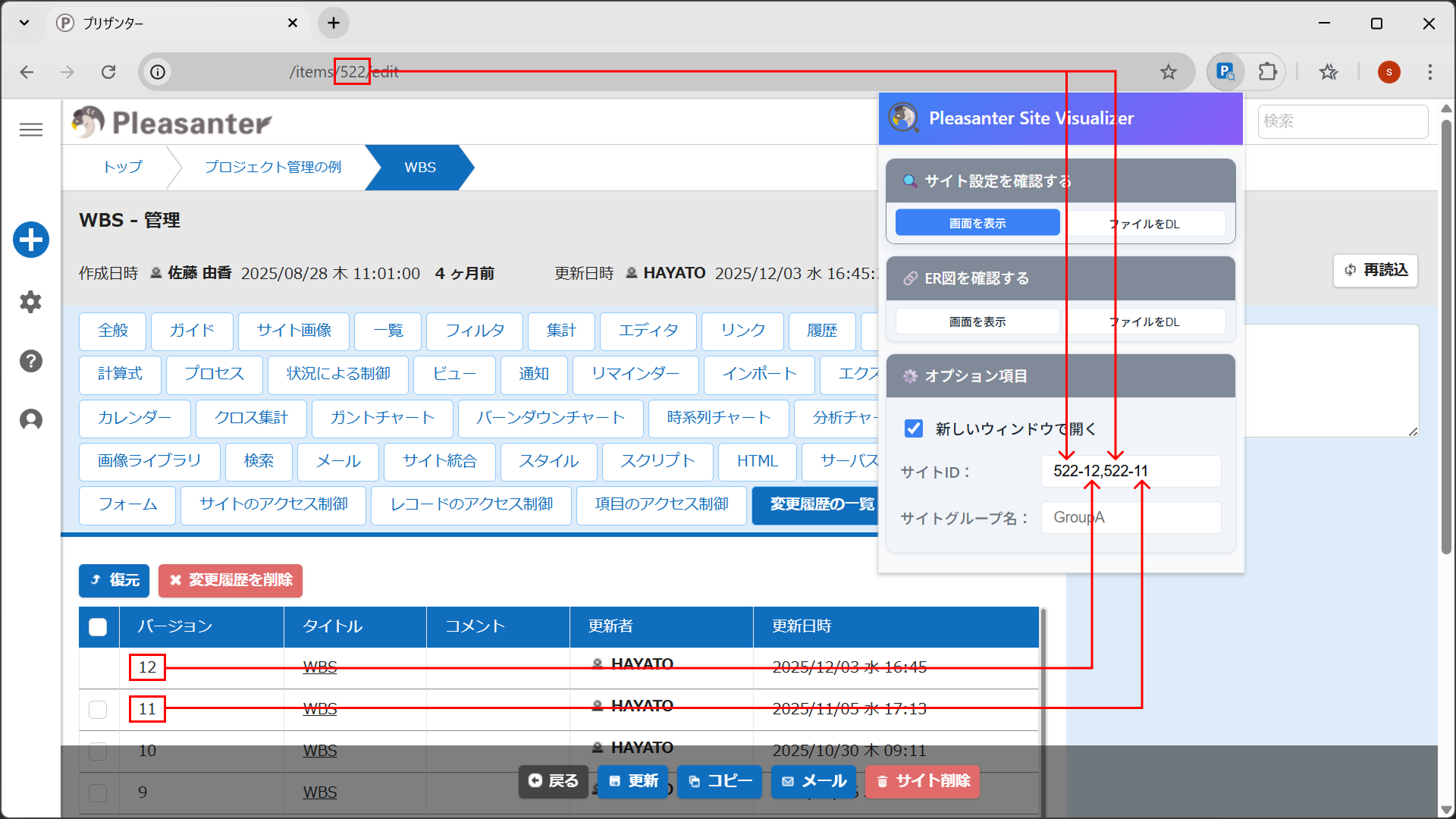
Site ID
Displays the setting information of the specified site ID. For how to specify it, refer to the table below. To specify several sites, enter them separated by commas (,). It cannot be used together with "Site group name".
| Example | Data to Display |
|---|---|
| 213 | Version 1 of the site whose site ID is 213 |
| 543-21 | Version 21 of the site whose site ID is 543 |
| 5,4 | Version 1 of the site whose site ID is 5, and version 1 of the site whose site ID is 4 |
| 5-4,3-2 | Version 4 of the site whose site ID is 5, and version 2 of the site whose site ID is 3 |
Site group name
Displays the setting information of the sites that have the specified group name. You cannot specify more than one. It cannot be used together with "Site ID".
Supported Versions
| Supported Version | Description |
|---|---|
| Pleasanter 1.4.19.0 and later | Function added |