Setup and Prerequisites
Overview
This page explains the setup of Pleasanter Site Visualizer.
Prerequisites
- The browser you use (Google Chrome or Microsoft Edge) is installed
Operation Procedure
When You Use Google Chrome
1. Installing the Google Chrome extension
- Start Google Chrome.
-
Open the "Pleasanter Site Visualizer" page of the Chrome Web Store.
https://chromewebstore.google.com/detail/pleasanter-site-visualize/chmbbjkleibfaeifnbhdiklibfckgjbf
-
Press the "Add to Chrome" button.

-
Click the "Add extension" button in the confirmation dialog.

2. Configuring the Google Chrome extension
-
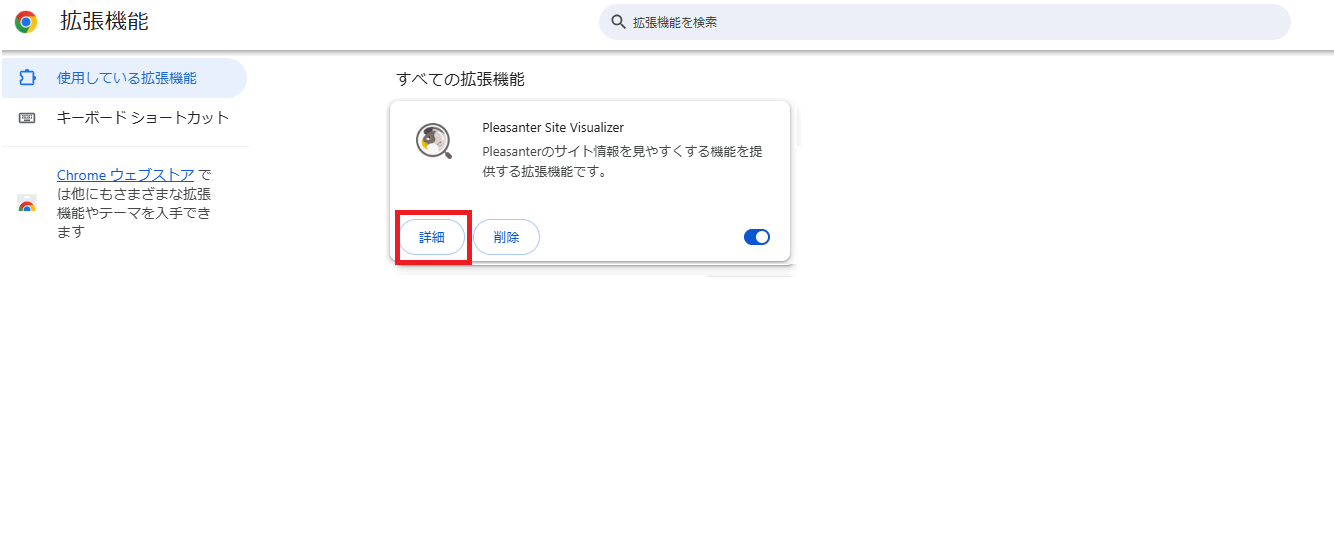
Open the extensions and click the "Details" button of "Pleasanter Site Visualizer".
-
Select "On specific sites" for "Site access".

-
Enter the URL of the Pleasanter you want to work with in the "Add a site" dialog and click the "Add" button.

-
Confirm that the URL you added is shown under "Site access".

When You Use Microsoft Edge
1. Installing the Microsoft Edge extension
- Start Microsoft Edge.
-
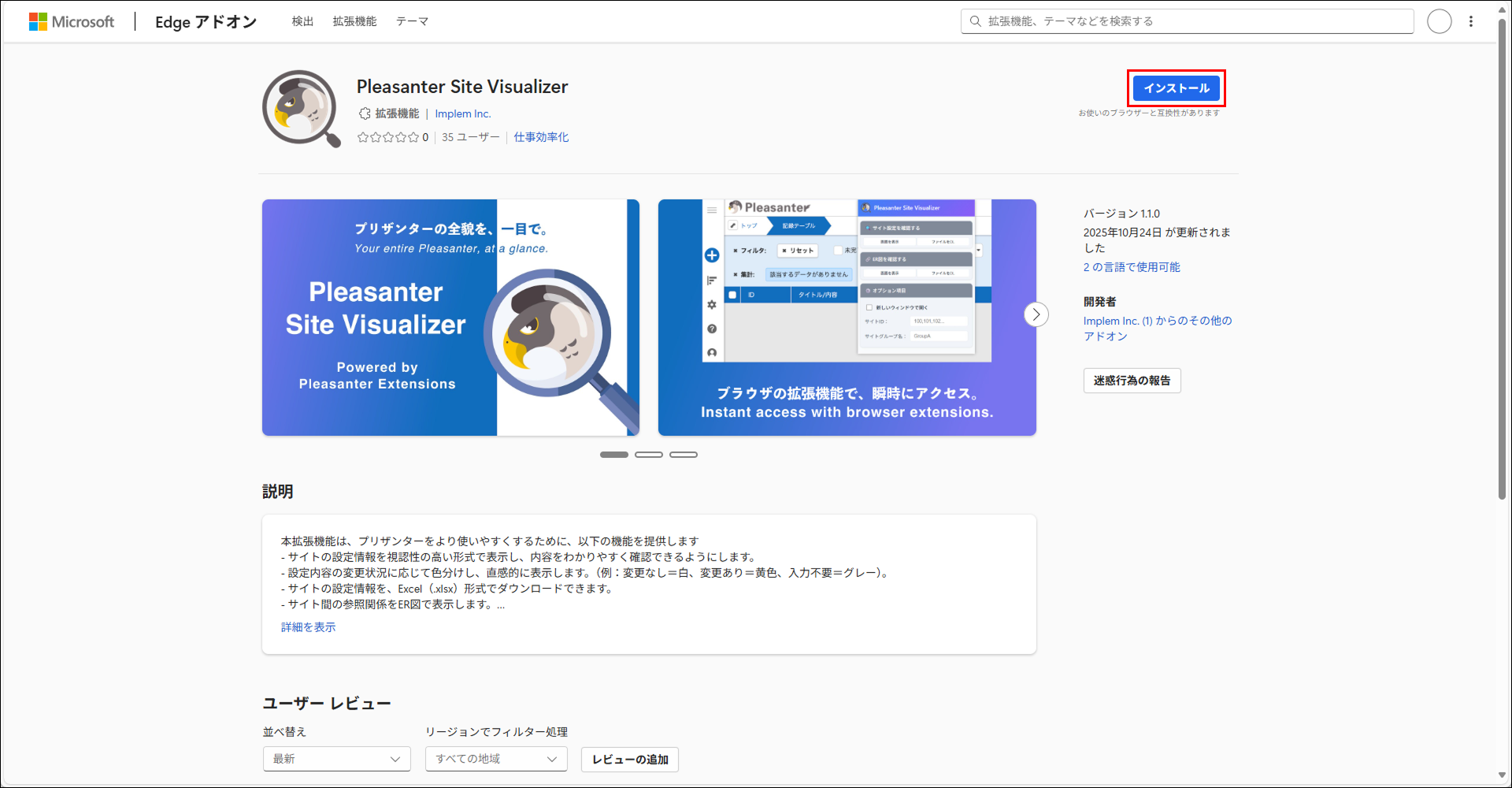
Open the "Pleasanter Site Visualizer" page of Edge Add-ons.
-
Click the install button.
-
Click the "Add extension" button in the confirmation dialog.

2. Configuring the Microsoft Edge extension
-
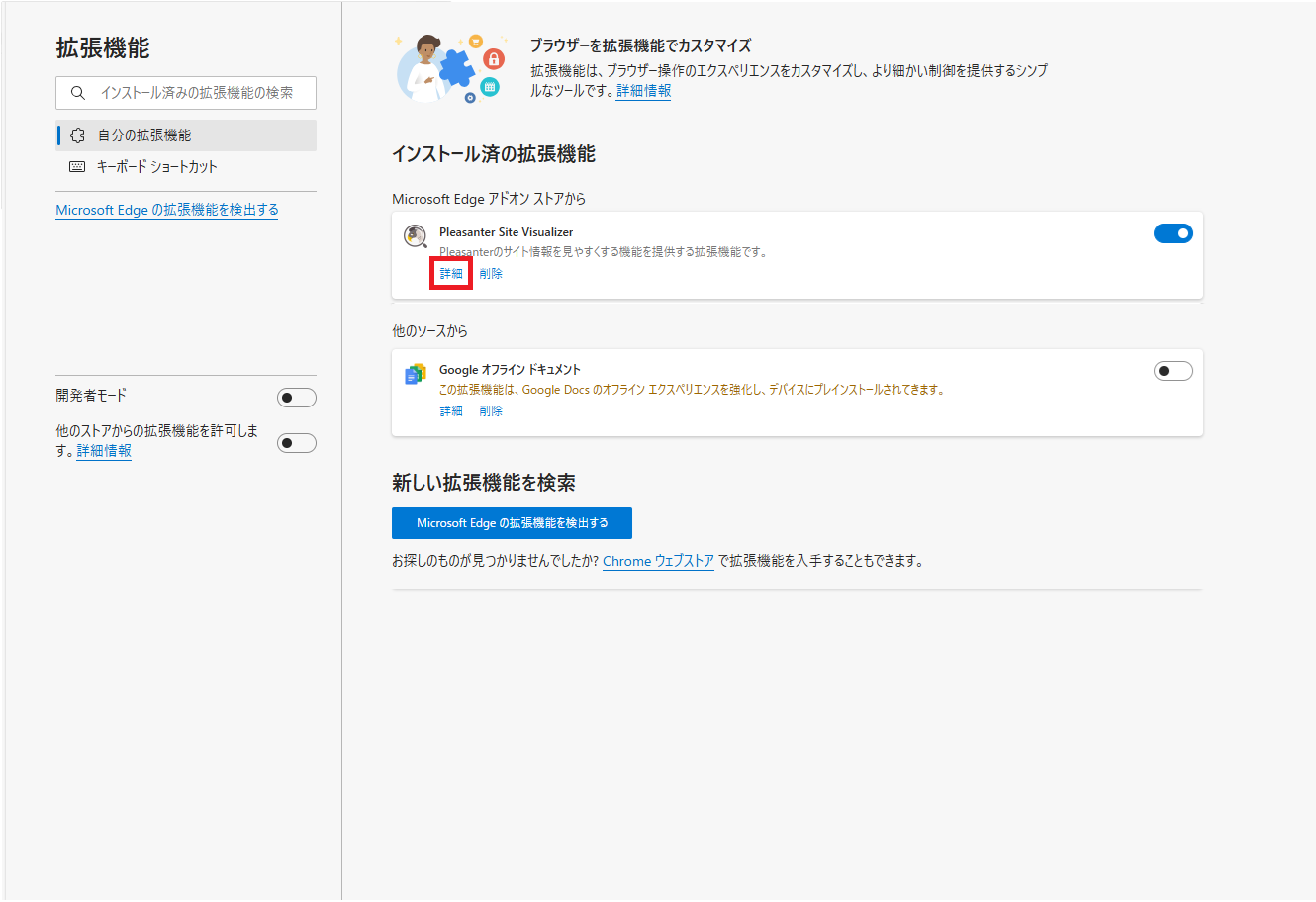
Open the extensions and click the "Details" button of "Pleasanter Site Visualizer".
-
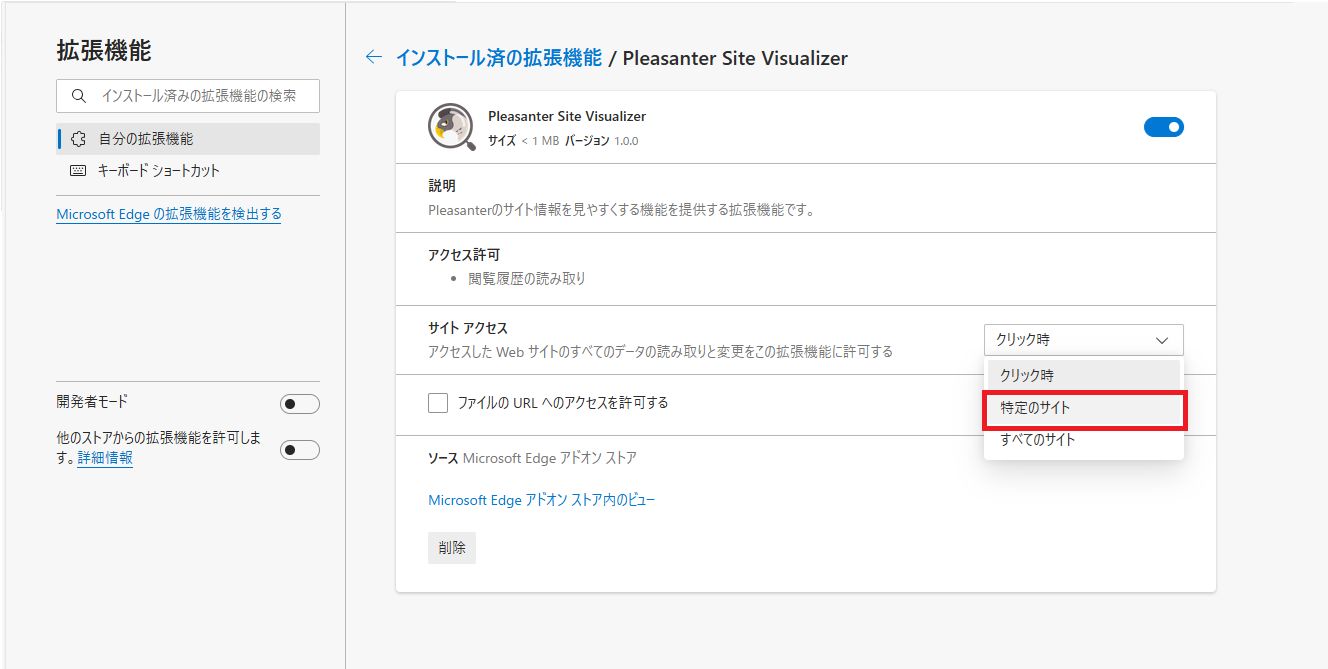
Select "On specific sites" for "Site access".
-
Enter the URL of the Pleasanter you want to work with in the "Add a site" dialog and click the "Add" button.

-
Confirm that the URL you added is shown under "Site access".

Supported Versions
| Supported Version | Description |
|---|---|
| Pleasanter 1.4.19.0 and later | Newly created |