Set Up to Send Notifications to LINE
Setup notification function
Prerequisites
You need to issue an access token to use the LINE notification function. Please check the LINE website for issuance.
Setup LINE notifications in Pleasanter
First, prepare the following information before setting up the LINE notification function.
- QR code to add a bot account to your friend list
Use the QR code displayed on the channel basic settings screen of LINE Developers Console.
(Save the QR code image on your PC (right-click the QR code in the browser and save it), and distribute it to users who will receive notifications by attaching it to an email, etc.) - Access token for BOT account
Note the "Access token (long-term)" on the channel basic settings screen of the LINE Developers Console. - User ID of the user to be notified or Group ID of the group to be notified
Get the "user ID" or "group ID" from the user who has added the bot account to the friend list. - The steps for checking these are described in "Steps for users who receive notifications" below.
Set LINE notifications in site settings
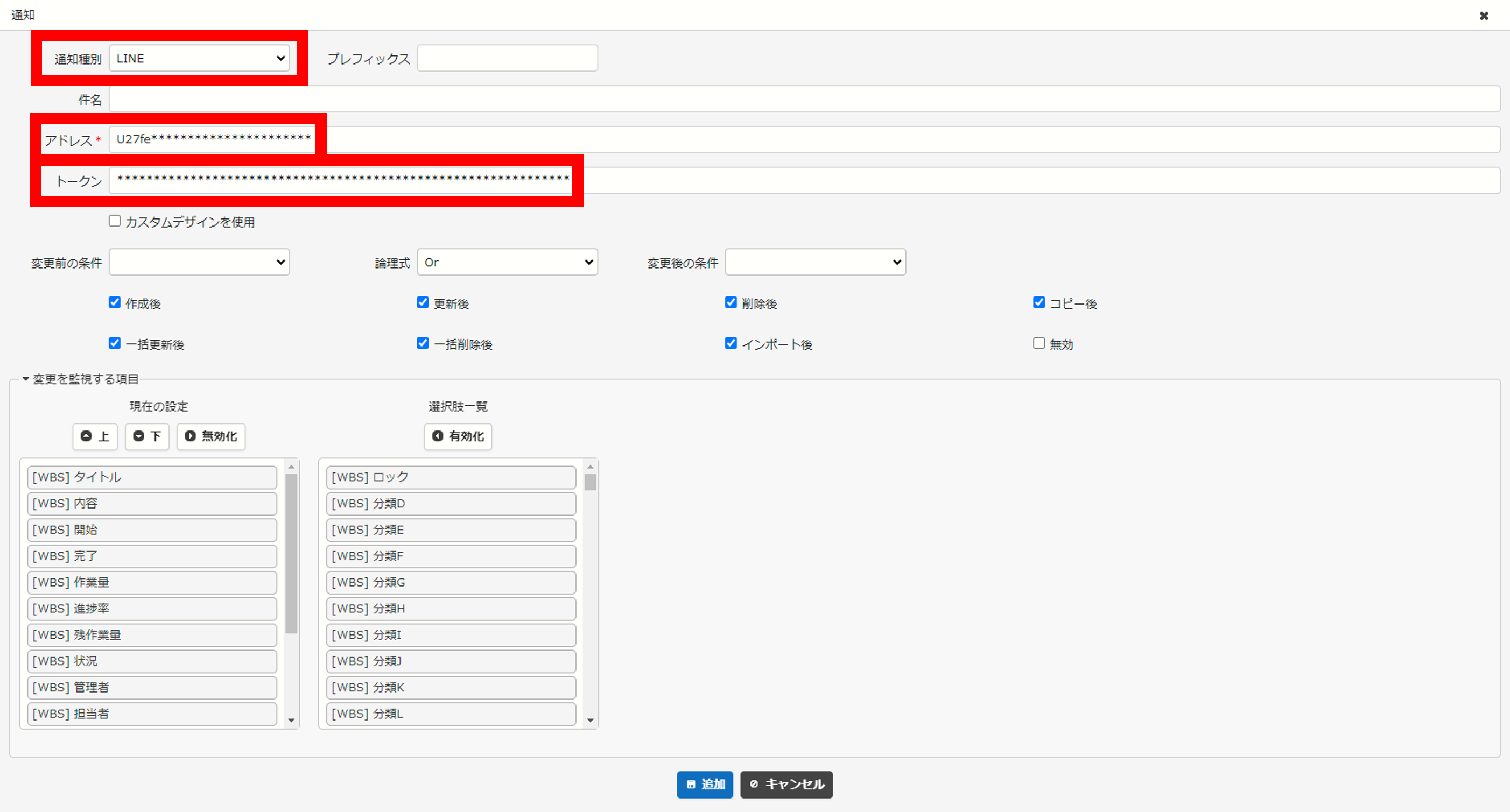
When notifying individual users
- Select the menu [Manage]-[Manage Table] and click the "Create New" button in the "Notification" tab.
- Select "LINE" in "Notification Category".
- Enter the confirmed user ID in the "Address" field. You can enter multiple user IDs separated by commas.
- Enter the BOT account access token in the "Token" field.
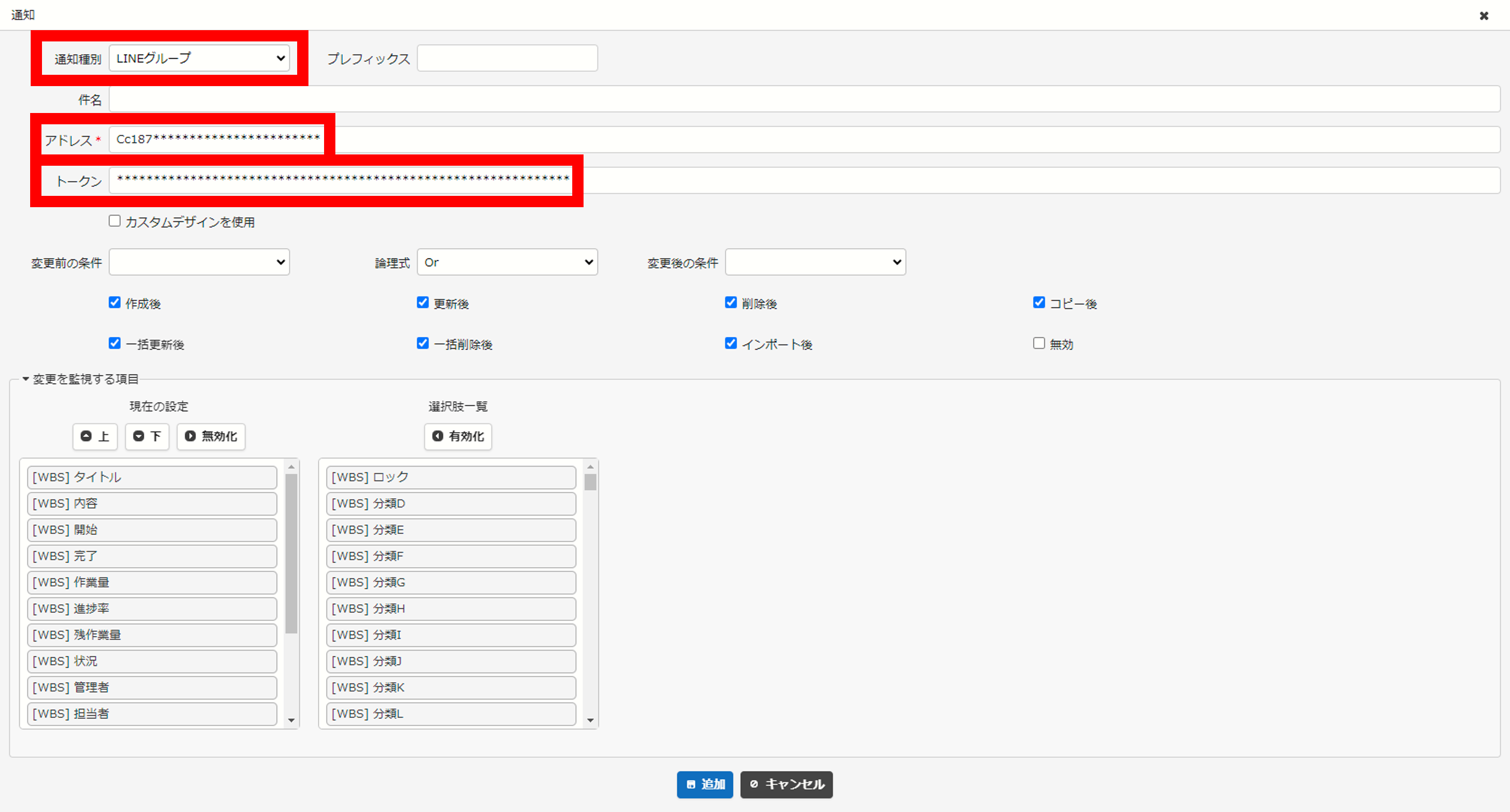
When sending a notification to a LINE group
- Select the menu [Manage]-[Manage Table] and click the "Create New" button in the "Notification" tab.
- Select "LINE Group" in "Notification Category".
- Enter the confirmed group ID in the "Address" field. Only one group ID can be set. You cannot set more than one group ID separated by commas.
- Enter the BOT account access token in the "Token" field.
Step for users to receive notifications
The following describes the steps that users who receive notifications must take on the LINE app.
1. Add a BOT account to the friend list
- Scan the QR code for BOT account friend registration with the LINE app to add friends.
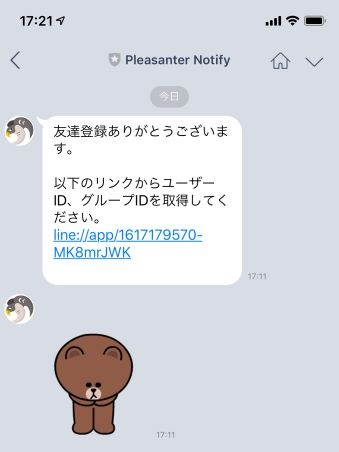
- When you add friends, you will receive the following greeting message.
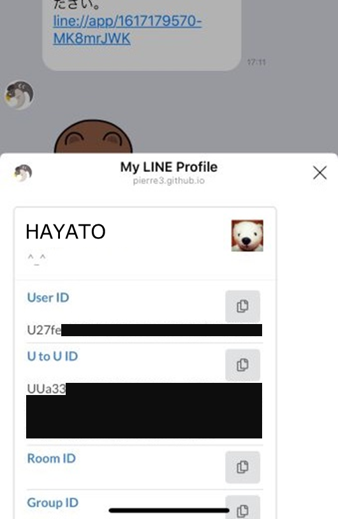
2. Verify user ID
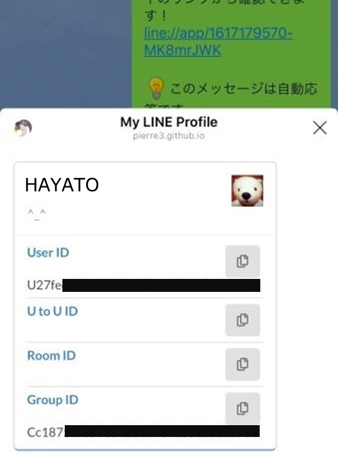
Tap the link in the greeting message and check your user ID on the screen that appears.
(LINE's Authentication screen will only be displayed for the first time. If you have read all the precautions and are satisfied, tap "Agree" to proceed).
Step for LINE group to receive notifications
This setting is performed only by the representative who creates the LINE group.
1. Create a group in the LINE app.
2. Add BOT accounts for Pleasanter notifications to the members of the group you created.
3. Enter any message on the chat screen of the created group and send it.
4. Click the link in the auto-response message returned by the BOT account.
5. Check the group ID on the screen that appears.