Common Function: Rich text editor
Overview
In Body Item and Description Item, you can use the Rich text editor. The Rich text editor allows you to handle text, images, and tables more flexibly than Markdown. You can also copy and paste from word processors while maintaining certain formatting.
Advantages and Disadvantages
Before starting to use the Rich text editor, let's understand its advantages and disadvantages compared to Markdown.
| Style | Advantages | Disadvantages |
|---|---|---|
| Markdown | Filter and sort functions work without issues | Need to learn special notation |
| Rich text editor | Can be used without learning special notation | Filter and sort functions may not work as intended |
The main differences from Markdown are summarized in the figure below.

Limitations
-
When "Rich text editor" is selected as the Style for "Body Item" or "Description Item", the following settings that can be configured in the "Advanced settings" of each item's "Editor" will be disabled (ignored):
- "Maximum number of characters"
- "Viewer switching"
-
The rich text editor includes font switching capabilities, however, only fonts installed on the user's operating system can be used with this feature. Please also see the detail page. Note that font customization is available exclusively in on-premises environments. Customize them with FontList and FontSize in "TextEditorUI.json".
Prerequisites
Site management permissions are required to enable the Rich text editor.
When to Determine the Style of "Body Item" and "Description Item"
The "Style" property ("Normal", "Wide", "Markdown", "Rich text editor") for Body Item and Description Item are intended to be used in the following workflow.
If you change the style after creating a record, the configured formatting will be lost.
- Create a table.
- Determine the style for the "Body Item".
- Decide whether to use the "Description Item".
- Determine the style for the "Description Item".
- Create a new record.
How to Determine the Style of "Body Item" and "Description Item"
The Rich text editor is implemented by introducing locally-scoped HTML into Body Item and Description Item.
If you cannot accept the following limitations, please use other styles such as "Markdown".
- "Filter" may not work as intended.
- "Sort" may not work as intended.
- CSV export and site package export are also performed as HTML documents.
Enabling the Rich text editor
There are two ways to enable the Rich text editor:
- Using Smart Design
- Using the "Editor" tab in the "Manage table" screen
1. Using Smart Design
Please refer to Smart Design: Editor: Column: Body and Smart Design: Editor: Column: Description.
2. Using the "Editor" tab in the "Manage table" Screen
The following describes the steps to enable the Rich text editor for Body Item. You can enable the Rich text editor for Description Item using similar steps.
If Description Item is not in the "Current settings" list, please refer to Editor Column Settings to enable Description Item.
- Open the target table.
- Click "Manage table" from the "Manage" menu.
- Click the "Editor" tab.
- Select the target "Body Item" from the "Current settings" list and click the "Advanced settings" button.
- The "Advanced settings" screen for "Body Item" opens.
- Select "Rich text editor" from the "Style" pull-down.
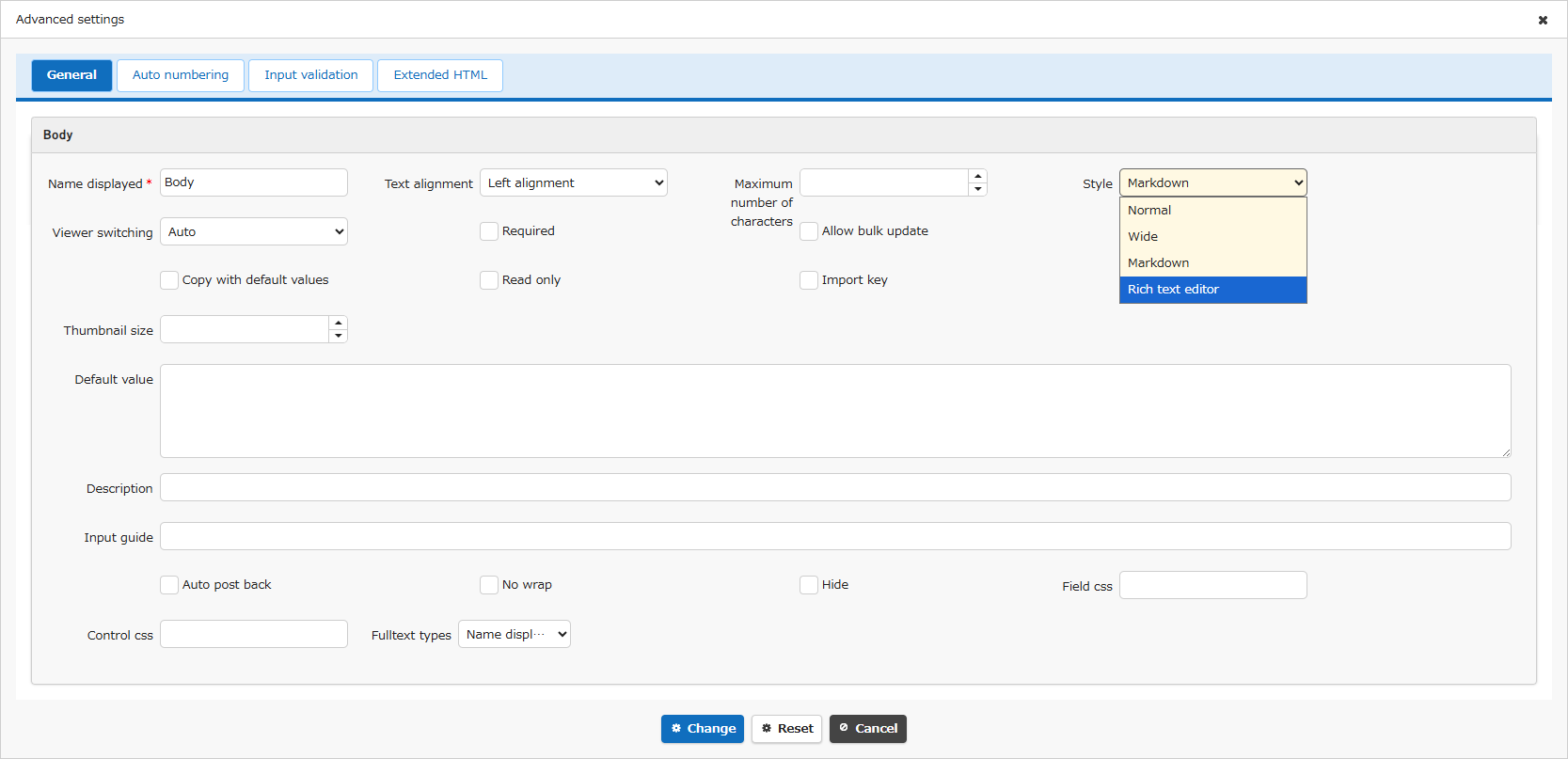
- Click the "Change" button to close the "Advanced Settings" screen.
- Click the "Update" button.
- When you create a new record, the Rich text editor toolbar will be displayed for "Body Item".
Toolbar
The toolbar displayed at the top of Body Item or Description Item contains the following buttons.

The overview and corresponding shortcuts for each button are as follows. If you are using macOS, replace CTRL with Command.
| Name | Overview | Shortcut |
|---|---|---|
| Undo | Returns to the state before the operation. | CTRL+Z |
| Redo | Advances to the state after the operation. | CTRL+Y / CTRL+SHIFT+Z |
| Font | Changes the font of the selected text. | - |
| Size | Changes the font size of the selected text. | - |
| Formats | Sets 9 types of paragraph formats for the paragraph where the cursor is placed. | - |
| Bold | Makes the selected text bold. | CTRL+B |
| Underline | Adds an underline to the selected text. | CTRL+U |
| Italic | Italicizes the selected text. | CTRL+I |
| Strike | Adds a strikethrough to the selected text. | CTRL+SHIFT+S |
| Subscript | Makes the selected text subscript. | - |
| Superscript | Makes the selected text superscript. | - |
| Font Color | Applies any font color to the selected text. Clicking the button displays a color palette. | - |
| Hilight Color | Applies any background color to the selected text. Clicking the button displays a color palette. | - |
| Text style | Sets 3 types of styles (formatting) to the selected text. | - |
| Remove Format | Removes formatting except for "Formats". | - |
| Show blocks | Toggles block visibility. Useful when you have trouble editing with the Rich text editor. | - |
| Outdent | Outdents the paragraph where the cursor is placed. Each button press makes the indent shallower. | CTRL+[ |
| Indent | Indents the paragraph where the cursor is placed. Each button press makes the indent deeper. | CTRL+] |
| Align | Changes the alignment of the paragraph where the cursor is placed. | - |
| Horizontal line | Inserts a full-width horizontal line at the cursor position. | - |
| List | Selects the list format (unordered, ordered). | - |
| Line height | Selects the line spacing for the selected lines. | - |
| Table | Inserts a table of up to 10 rows × 10 columns at the cursor position. | - |
| Link | Opens the Insert Link dialog and allows you to insert a link at the current cursor position. | - |
| Image | Opens the Insert Image dialog and allows you to insert an image (PNG, JPEG, GIF) at the current cursor position. | - |
| Edit mode toggle | Toggles between ON (edit mode) and OFF (view mode). You can edit items when ON (edit mode). | - |
For details about each button, refer to Rich text editor: Details.
Supported Versions
| Supported versions | Body |
|---|---|
| 1.4.20.0 | New feature implementation |
Related Information
- Manage Table: Items: Body
- Manage Table: Items: Description
- Common Function: Markdown
- Manage Table: Editor
- Manage Table: Editor: Column Advanced Settings: Alignment
- Manage Table: Editor: Column Advanced Settings: Maximum Number of Characters
- Manage Table: Editor: Column Advanced Settings: Viewer Switching Test
- Manage Table: Editor: Column Advanced Settings: Thumbnail Size
- Common Function: Rich text editor: Details
- Overview Of Access Control