Table Function: Import Records and Link Master Data
Overview
This page is written on the assumption that you understand the basic import method "Table Function: Importing Records". Please refer to the following first to understand the basic usage of "Import". This page explains how to import when linking parent and child tables. As an example, we will use a common customer CD for customer management (parent table) and sales management (child table), and link them together. The general flow is as follows.
- Open the Excel data for "Customer Management" and "Sales Opportunity Management", select "Save As", and save it by selecting "CSV (Comma Separated) (.csv)" or "CSV UTF-8 (Comma Separated) (.csv)" as the file format.
- Create "Customer Management" and "Negotiation Management" recorded tables and create data columns
- Set the title of the "Customer Management" table
- Set the link with the "Customer Management" table as the parent and the "Negotiation Management" table as the child
- Import the CSV data for "Customer Management"
- Import the CSV data to "Negotiation Management"
Prerequisites
- Set the "Link" for tables before importing
- The column names of the parent table linked to the child table are imported as the column names set in the child table.
Customer Management (Parent Table)

| Column name | Data type | Pleasanter column | Setting column |
|---|---|---|---|
| Customer CD | String | DescriptionA | Style: Normal |
| Customer name | String | Title | |
| Postal code | String | DescriptionB | Style: Normal |
| Address 1 | String | DescriptionC | Style: Normal |
| Address 2 | String | DescriptionD | Style: Normal |
Negotiation Management (child table)

In this case, the customer CD in Project Management is linked to the customer CD in Customer Management, so there is no customer name column in Project Management. To maintain uniqueness, the parent table manages the customer CD and customer name as a set, and the child table records only the customer CD and refers to the parent table for the customer name in many cases.
1. Notes On Linking Parent And Child Tables That Serve As Master Data
The link function of Pleasanter links the title column of the parent table with the class column of the child table. In this example, the customer name is generally the title, but if the customer name is the title, it becomes difficult to determine which is which if there are companies with the same name.

If the customer CD is made the title column to maintain uniqueness, it becomes difficult to determine which code is which customer.

For this reason, Pleasanter has a function called "Title Merge" that combines multiple columns, such as customer CD and customer name, and treats them as a title.

For "Title Merge", go to "Manage Table" → "Editor" and enable "Customer CD" in the "Option List" as shown in the screen below, and with the current settings, arrange "Customer CD" and "Customer Name" from the top. In this example, we have changed the name displayed of "Title" to "Customer Name."

2. Create A Table To Import Excel Data And Set The Link
First, create a customer management table and a sales management table by combining the Excel data and column names (column names in "Manage Table" -> "Editor").
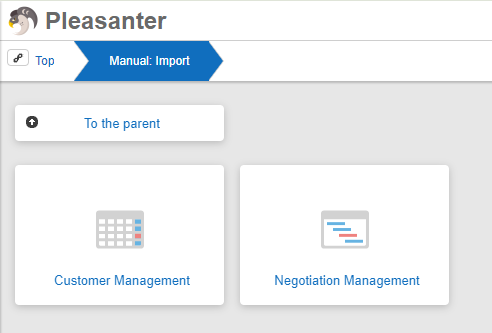

3. Import Excel Data For Parent Data
First, import data from the parent table.
Open the customer management table and click the import button from the list screen.
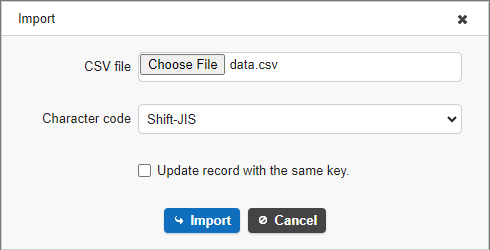
Make sure to select the correct character code.
Importing Excel data into Pleasanter

As per the "Title Merge" settings, the data is merged in the format "Customer CD) Customer Name".
4. Import Excel Data For Child Data
In the diagram below, the customer in the parent data refers to the title, and the customer in the child data refers to ClassA.
The title of the parent data to be linked from the child data is combined in the format "Customer CD) Customer Name", so the link will not be set correctly if the original data is used as is.
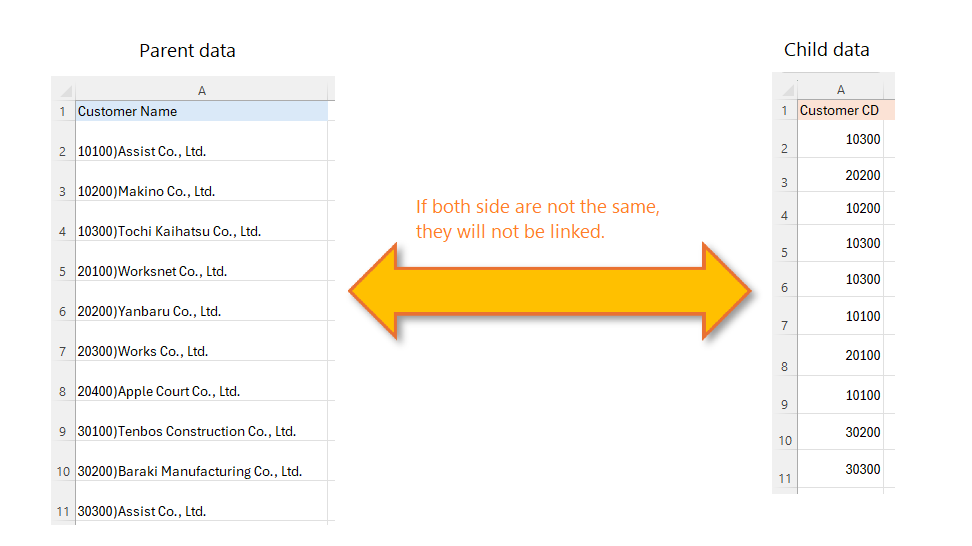
Therefore, you need to make the child data have the same format as the parent data title before importing. If you import data in its original state, the link will not be set correctly and the beginning of "Customer" will be displayed as "?".

If the original data is in Excel, create combined data such as "Customer CD) Customer Name" using a function such as VLOOKUP and then import it.

| Column name | Data type | Pleasanter column | Setting column |
|---|---|---|---|
| Customer | String | Category A | Style: Normal. Combine customer CD and customer name. |
| Project name | String | Title | |
| Status | Numerical value | Status | |
| Negotiation probability | String | DescriptionB | Style: Normal |
| Negotiation start date | Date | DateA | |
| Quote submission date | Date | DateB | |
| Deadline | Date | Completion | |
| Quote amount | Numerical value | NumA | |
| Owner | Category | Category B |
When you import data with combined titles, the link settings will be automatically enabled like this.

Specify Parent Table (Master) By Record ID

As shown above, you can link to the master table column with the record ID "27287" instead of the "customer" name "10100) Assist Co., Ltd.".
Move To Linked Table
Records with links will be displayed on the editing screen, so you will be able to move between them.


Things To Check If The Imported Data Is Not Linked Properly
- Import the master table before importing the child table. If you have imported the child table first, export the child table data after importing the data into the master table, and import the file with the "Update records with matching IDs" checkbox checked.
- Import the child table link column name with the child table column name, not the parent table column name.