Table Function: Updating Existing Records By Importing Records
In version 1.3.11.2 and later, you can use "Specify Key Column When Importing".
Overview
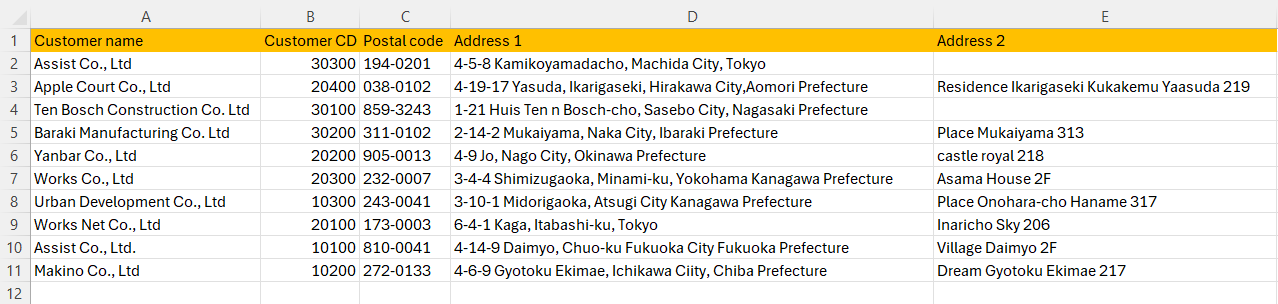
This section explains how to "Import" CSV data to update existing data and some points to note. Import the following CSV data.

A unique ID is assigned to each record registered in Pleasanter.
The data that was exported from the data that was imported earlier is the CSV file below.

Add and update data as follows. The three cells highlighted in green will be treated as updated rows, and the two rows highlighted in pink below will be newly added.

Check "Update records with matching IDs" and import the updated CSV data.

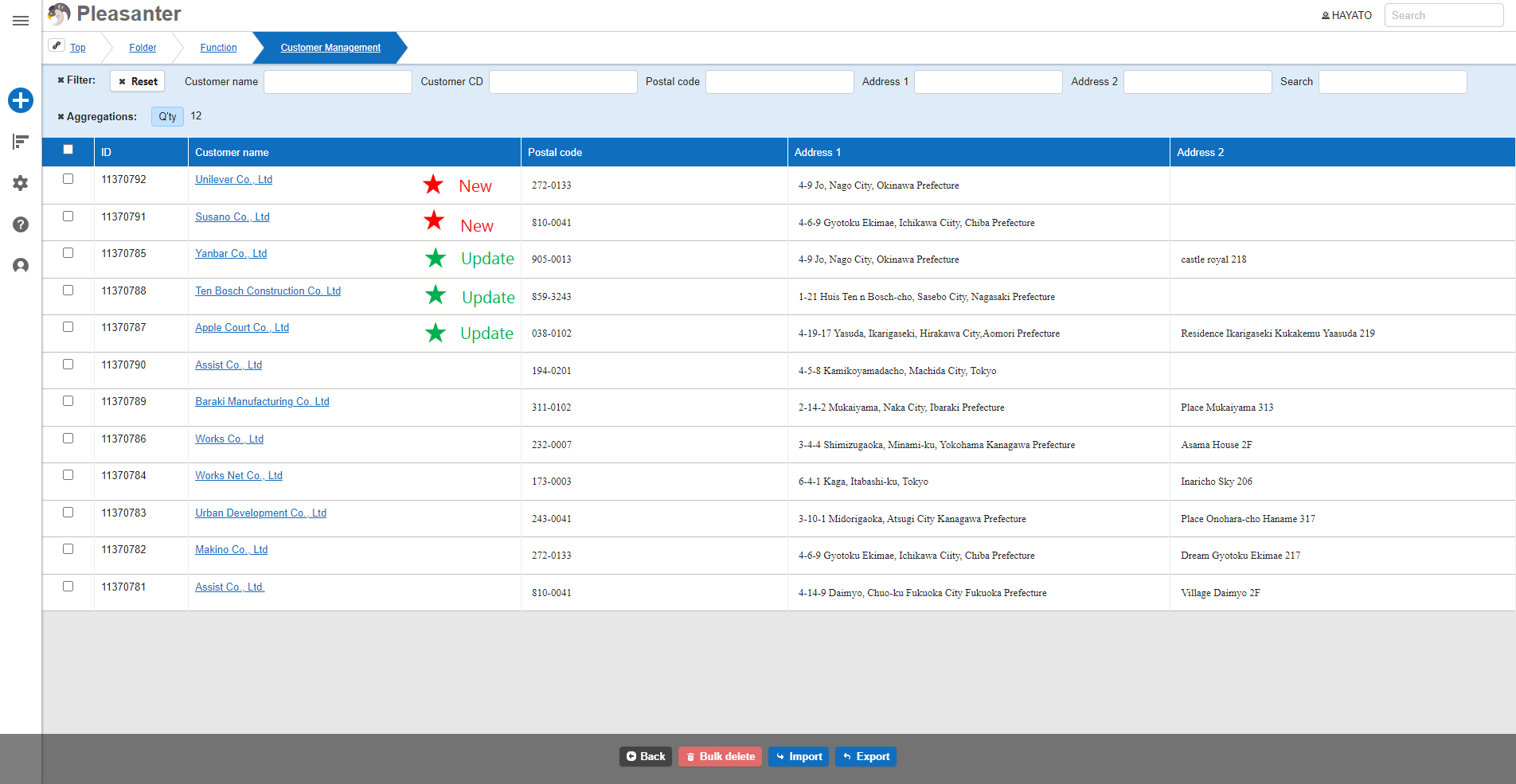
If you then want to add one more column, adding a new row to the data imported earlier and checking "Update records with matching ID" before importing will result in duplication as shown below.


Records with blank "ID Column" will always be treated as new data, so if you are updating existing data and adding new data at the same time, you should either add the Pleasanter record ID to the existing data, or edit and add data based on the data exported from Pleasanter.