Table Function: Display Burndown Chart Of Records
Overview
Displays the "Records" stored in the "Table" in the "Burndown Chart" format.
Prerequisites
- Read permission is required.
- Can be selected in the time limited table. "Burndown Chart" is not displayed in the "Display" menu in the recorded table.
Operation Procedure
- Open the table list screen.
- Open the "Display" menu and click "Burndown Chart".
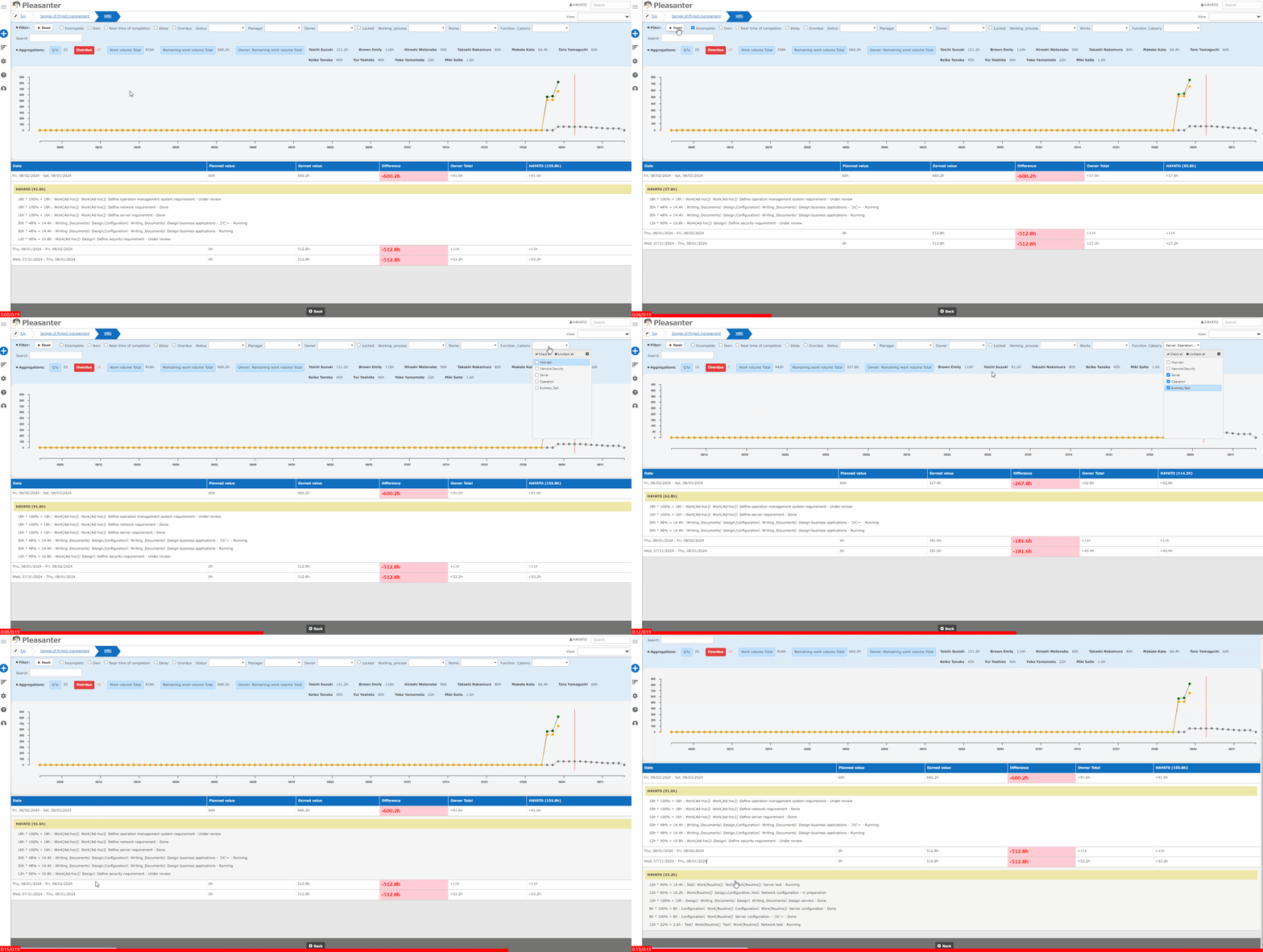
About the chart display
| Line colour | Description |
|---|---|
| Grey | Planned line |
| Orange | Actual line |
| Green | Changes in total amount of work |
Record Operations
A detailed table is displayed at the bottom of the chart. The detail table displays the progress per day and per owner, allowing you to check the breakdown of the numbers. The owner displayed in the details is not the owner of the record but the person who updated the record. Clicking on a detail line will display the title and progress of the record that progress has progressed. Clicking on each record will transition to the editor screen.
Burndown Chart Settings
You can change the settings of the burndown chart. This operation requires site administration privileges.
- Open the target table.
- Click "Manage Table" from the "Manage" menu.
- Open the "Burndown Chart" tab.
-
Set up according to the table below.
Column name Description Setting method Enable Enable/Disable the burndown chart Check to enable the burndown chart -
Click the "Update" button at the bottom of the screen.