Table Function: Display Gantt Chart of Records
Overview
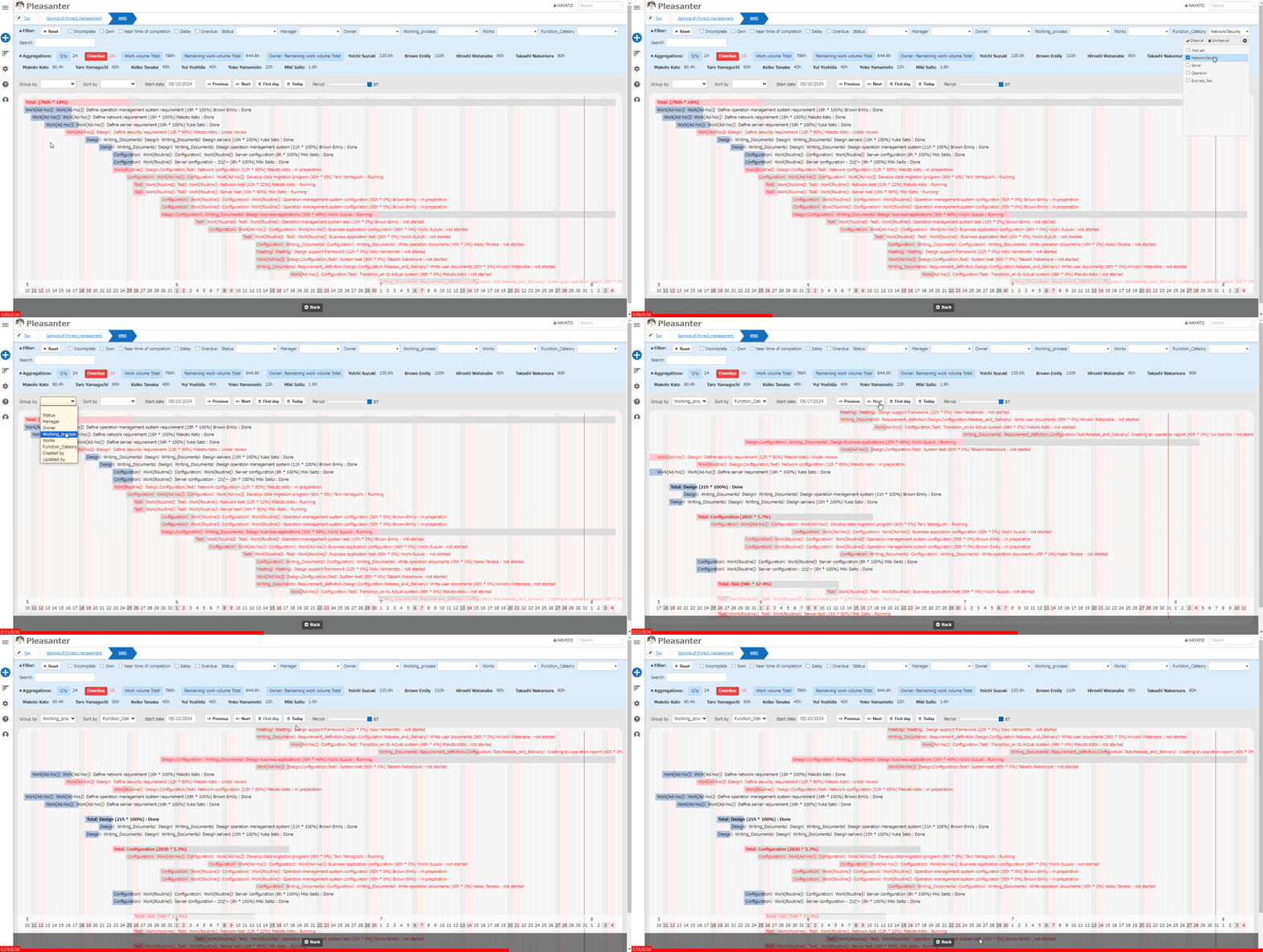
Displays the "Records" stored in the "Table" in the "Gantt Chart" format.
Prerequisites
- Read permission is required.
- Can be selected for time limited tables. "Gantt Chart" is not displayed in the "Display" menu in the recorded table.
Operation Procedure
- Open the table list screen.
- Open the "Display" menu and click "Gantt Chart".
Display Switching Columns
Specify "Classification" to display by status or owner. Specify "Sort" to sort in ascending order by the specified column. Specify "Start date" to change the start position of the chart. Click the "Previous" or "Next" button to move forward or backward by 7 days. Click the "First day" button to display the record with the earliest "Start" setting on the site. Click the "Today" button to display the start date as today. Adjust the "Period" slider to change the number of days displayed on the chart from 7 days to the earliest completion date of the registered record.
About Chart Display
- Blue: Completed
- Green: Ahead of schedule
- Pink: Behind schedule
Record Operations
- Click a record to move to the editor screen.
Gantt Chart Settings
You can change the Gantt Chart Settings. This operation requires site administrator permission.
- Open the target table.
- Click "Manage Table" from the "Manage" menu.
- Open the "Gantt Chart" tab.
-
Configure the settings according to the table below.
Column name Description Setting method Enabled Enable/Disable Gantt chart Check to enable the Gantt chart Display progression rate Enable/Disable progression rate display for each record Check to enable progression rate display -
Click the "Update" button at the bottom of the screen.