Table Function: View Record Attachments
Overview
This function allows you to preview the "Attachment" in the "Record" of the "Table" in your browser. If the file can be displayed by your browser, it will be shown in a new tab. If the file cannot be displayed, it will be downloaded.
Limitations
- Not all types of attached files can be previewed. Also, files that can be previewed may vary depending on the browser.
- If the file cannot be previewed, you can "Download" it. In that case, the file name will be "show".
Prerequisites
- "Read permission" access to the site or record is required.
- "Read permission" access to the "Attachment" column is required.
- The preview will be shown in a new tab (from ver1.4.8 onwards). Versions prior to ver1.4.7 will be displayed in the same tab.
Operation Procedure
- Navigate to the target table.
- Search for the target record from the "Screen Index".
- Click the target record.
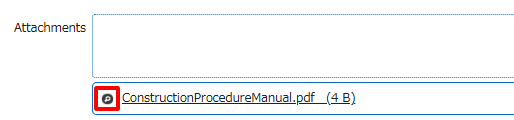
- Click the magnifying glass icon on the left side of the attachment field to preview the file.
*Click on the file name to "Download" it. - The file will be shown in a new tab.
Previewable file types
File types that can be displayed in preview can be configured by specifying MIME types in BrowserAllowMimeTypes in "BinaryStorage.json". By default, the following files are configured to be displayed in preview.
1. PDF files
1. Image files (.png, .jpg, .gif)
1. Text files (.txt)
*Text files may display incorrectly if the character encoding is not compatible.
Supported Versions
| Supported Versions | Body |
|---|---|
| 1.4.21.0 and later | Changed to control displayable file types with BrowserAllowMimeTypes in BinaryStorage.json |
| 1.4.8.0 onward | Changed to display the preview in a new tab |