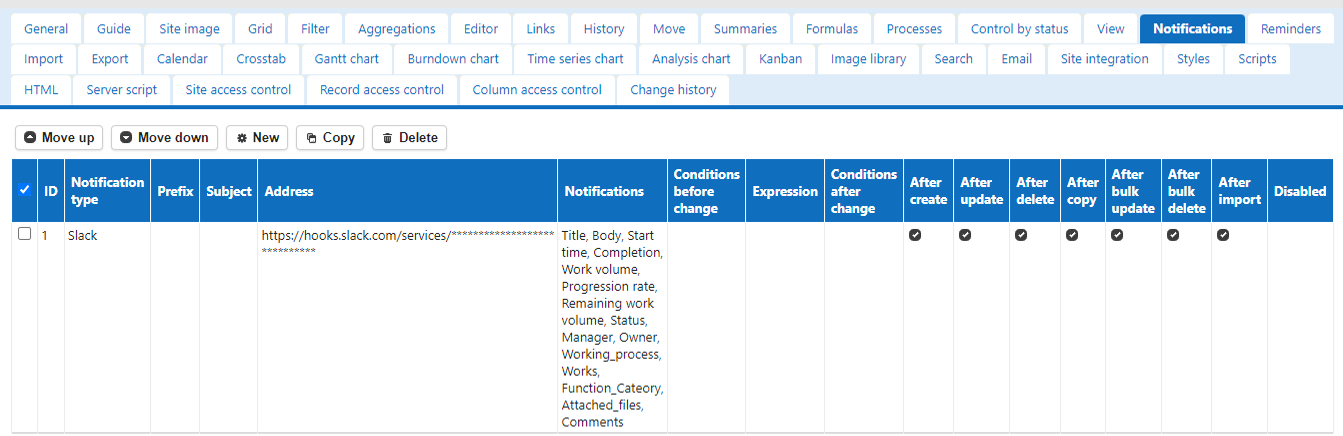
Set Up to Send Notifications to Slack
## Prerequisites
Register as a user of Slack and create a team.
https://slack.com/
## Get Webhook URL
1. Open the following URL
https://slack.com/services/new/incoming-webhook
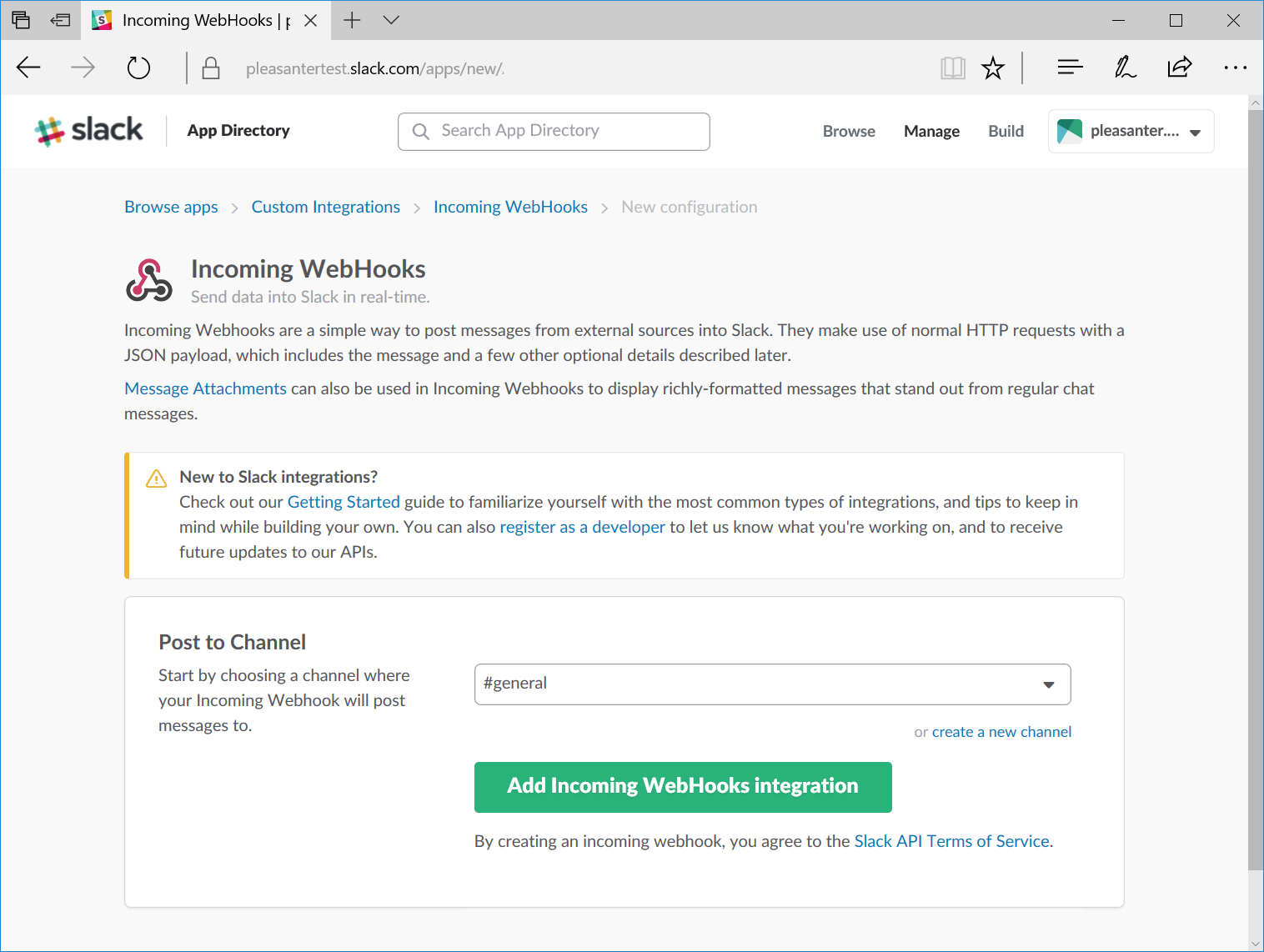
2. Select the channel you want to set as the notification destination and click the "Add Incoming WebHooks integration" button.
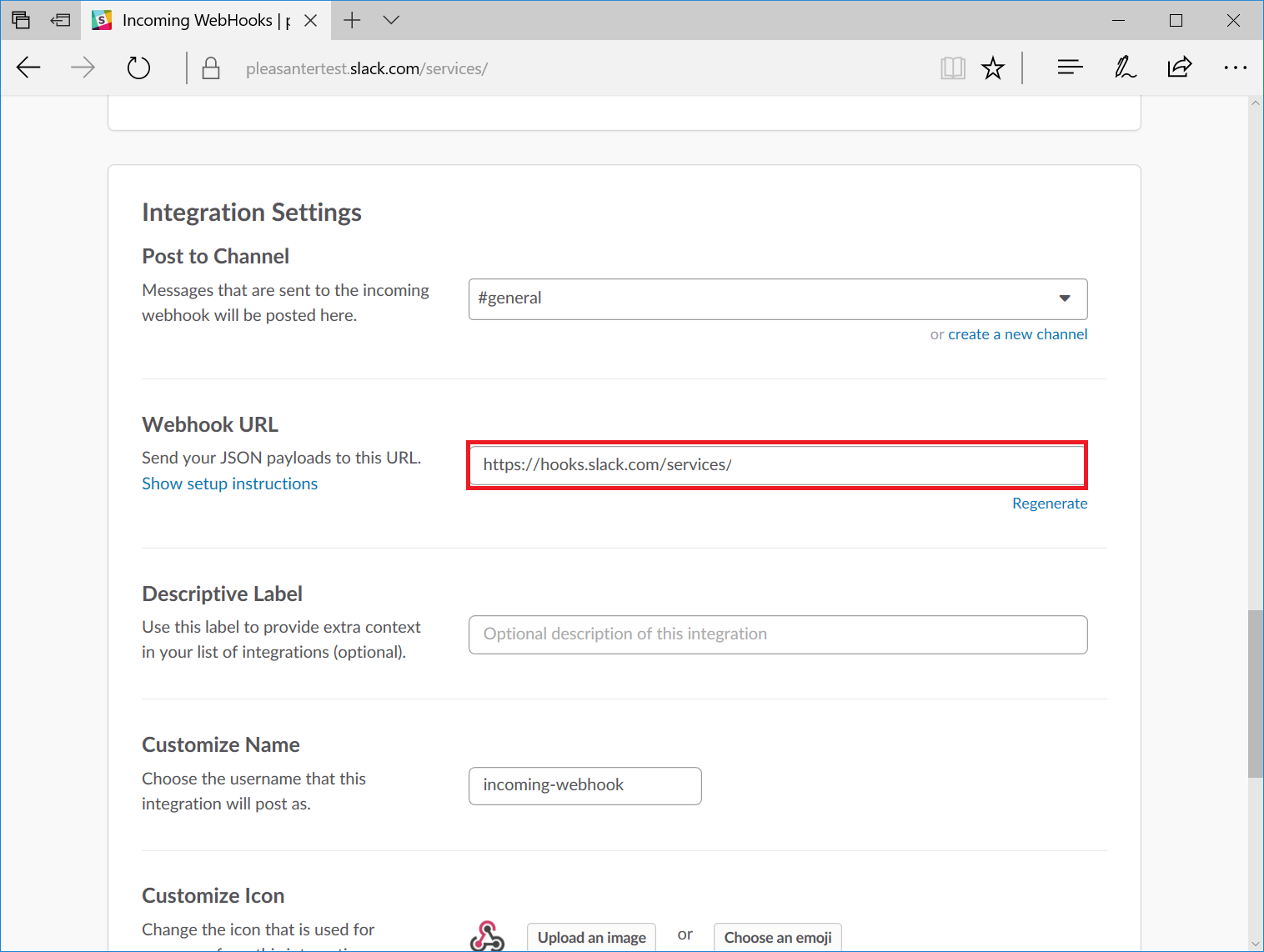
3. Copy the URL shown in the Webhook URL. Set this Webhook URL to Pleasanter.
## Pleasanter Settings
1. Select the table to set up notifications and open the "[Manage Table](/en/manual/table-management)" - "「Notification」" tab. Click on the "Create New" button.

2. Enter "Slack" as the notification type and "Webhook URL" as the address. Then click the "Add" button.
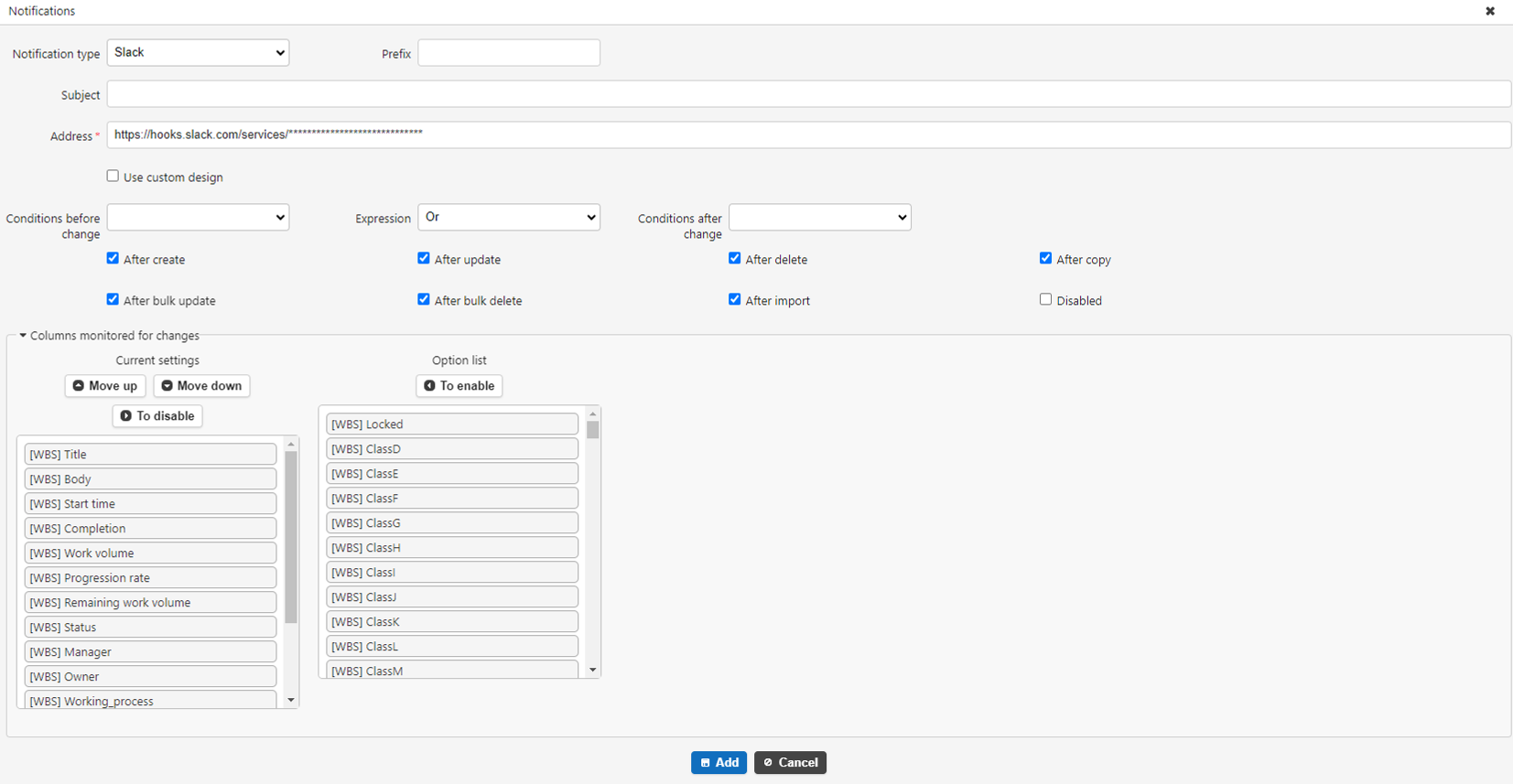
3. Click the "Update" button. This completes the procedure.